 Afrikaans
 Azərbaycan
 Bosanski
 Čeština
 Dansk
Dansk Deutsch
 English
 Español
 Filipino
 Français
 Hrvatski
 Indonesia
 Italiano
 Magyar
 Melayu
 Nederlands
 Norsk
Norsk Oʻzbek
 Polski
 Português
 Română
 Slovenčina
 Slovenščina
 Suomi
Suomi Svenska
 Tiếng Việt
 Türkçe
 Ελληνικά
 Беларуская
 Български
 Русский
 Српски
 Українська
 עברית
עברית اردو
اردو العربية
 پښتو
پښتو فارسی
فارسی አማርኛ
አማርኛ मराठी
मराठी বাংলা
বাংলা தமிழ்
தமிழ் ไทย
ไทย မြန်မာ
 한국어
한국어 中文
中文 日本語
日本語

Windows లో అడ్వాన్స్డ్ ట్రబుల్షూటింగ్ అనేది, సిస్టమ్ పనితీరును మెరుగుపరచడం, సమస్యలకు మూలకారణాలను గుర్తించడం కోసం అత్యంత కీలకంగా ఉంటుంది. ఈ బ్లాగ్లో, Event Viewer మరియు Performance Monitor వంటి టూల్స్ ద్వారా Windows సిస్టమ్లోని క్లిష్టమైన సమస్యలను ఎలా గుర్తించాలి, వారు పంపించే లాగ్స్ను ఎలా అనలైజ్ చేయాలి, పనితీరు గురించి బాధ్యతగా ఎలా మానిటర్ చేయాలి అనే విషయాలను పూర్తిగా తెలుగులో విశ్లేషిస్తాం. అలాగే, వేగంగా డయాగ్నోస్ చేయడం, పనితీరు సమస్యలకు పరిష్కార మార్గాలు, Performance Monitor వాడటానికి ముఖ్యమైన కారణాల గురించి కూడా తెలుసుకుంటారు. ఈ గైడ్తో మీరు Windows వ్యవస్థలోని అత్యంత క్లిష్ట సమస్యలను సులభంగా పరిష్కరించగలరు, అలాగే మీ కంప్యూటర్ పనితీరును పెంచుకోవచ్చు.
Windows లో అడ్వాన్స్డ్ ట్రబుల్షూటింగ్ అంటే ఏమిటి?
Windows అడ్వాన్స్ ట్రబుల్షూటింగ్ అనేది, సిస్టమ్లో తీవ్ర స్థాయిలో వచ్చే సమస్యలను, performance bottlenecks ను, error root causes ను శాస్త్రీయంగా గుర్తించి, పరిష్కరించడానికి ఉపయోగించే advanced tools మరియు డయాగ్నోస్టిక్ మెకానిజాల సముదాయం. ఇవి ముఖ్యంగా సర్వర్ల నిర్వహణతో నడిపే IT admins, power users, technical support engineers వాడతారు. లోతైన లాగ్స్, registry, hardware, software integration బిగినింగ్లను గుర్తించడం ప్రక్రియలో భాగం.
ఇక్కడగా, ఫండమెంటల్ స్టెప్స్ ఇలా ఉంటాయి:
- సమస్యను గుర్తించడం: ఎప్పుడు, ఎలా, ఏ పరిస్థితుల్లో error వస్తుంది అనేది ఫైల్ చేయాలి.
- Event Viewer లాగ్స్ ని చదవడం: Event Viewer tool ద్వారా error, warning, information messages ను దగ్గరగా పరిశీలించాలి.
- Performance Monitor డేటా చూడటం: సిస్టమ్ resource (CPU, RAM, Disk, Network) వినియోగాన్ని live గా మానిటర్ చేయాలి.
- Registry Editor ద్వారా settingని చెక్చేయడం: ఆరోపణలకు కారణమైన పొరపాట్లను registry లో rectify చేయాలి.
- Advanced Diagnostic Tools (memory tests, disk scans, network analyzer): hardware/software పాట్ అయిన root causes ను గుర్తించాలి.
- రిచాయితీబేస్ డీవైస్ డ్రైవర్లు & సాఫ్ట్వేర్ update చేయడం: outdated drivers/software వల్ల వచ్చే పాటు సమస్యలు తక్షణమే అధిగమించాలి.
అడ్వాన్స్డ్ ట్రబుల్షూట్ టెక్నిక్స్, immediate issues సులువుగా పరిష్కరించడమే కాకుండా, future problems వచ్చే అవకాశం తగ్గిస్తుంది. సిస్టమ్ performance ను ఎప్పటికప్పుడు మానిటర్ చేస్తే, పెద్ద పెద్ద failures కి ముందే స్టాంబలనే నడిపించవచ్చు. ఇది reliability, efficiency పెంచే సరళ మార్గం.
Event Viewer వాడకానికి ప్రాధాన్యం
Windows అడ్వాన్స్డ్ ట్రబుల్షూట్ లో, Event Viewer అనేది మమ్మల్ని error, warning, information logs కేంద్రంగా మారుతుంది. సిస్టమ్లో జరిగిన ప్రతి activity, దాని మూల ధర్మాన్ని, time stamp, severity level నూ వివరంగా పటముగా చాటుతుంది. Event Viewer ద్వారా మీరు unexpected issues, security breaches, hardware failures, software exceptions, application crashes, ఇవన్నింటిని తొందరగా spot చేయవచ్చు.
ప్రతి జరిపిన event ని, దాని మూలతత్వాన్ని, దాని level ను, తాలూకు explanations ను ఇదివరకు save చేస్తుంది. మరొక ఉదాహరణ — ఒక application crash అయితే, Event Viewer లో తాలూకు error event-ID ద్వారా, నే సక్కలి module, fault address, affected user లేదా process ను తెలుసుకోవటానికి ప్రవేశం కలుగుతుంది. అవి root cause కి దగ్గరగా తీసుకువెళ్తారు.
Event Viewer లోని ప్రధాన ఫైడాలు
- Centralized error & warning log viewing.
- Error root cause కి step-wise access.
- Hardware, software issues త్వరగా గుర్తించడం.
- Security (failed/successful login attempts) monitoring.
- Application crash reasons తెలుసుకోవడం.
- Total system health influencing factors గురించి చక్కగా తెలుసుకోవడం.
Event Viewer లో ఉన్న వివిధ event types ని మరియు వాటి ప్రాముఖ్యతను క్రింది టేబుల్లో వివరించాం:
| Event Type | Meaning | Importance |
|---|---|---|
| Error | Critical issue, system functioning కు direct impact ఉంటుంది. | High |
| Warning | Potential trouble looming, future issues కి సూచన. | మధ్యస్థం |
| Information | Regular operation logs; diagnostic value తక్కువగా ఉంటుంది. | Low |
| Audit Success | Successful security audit log. | Low-Medium |
| Audit Failure | Failed security audit; security breach attempts కు సూచన. | High |
Event Viewer ని నాకు use చేయడం ద్వారా Windows లో అడ్వాన్స్డ్ ట్రబుల్షూటింగ్ skills తక్కువ కాలంలో పెరుగుతాయి. Regularగా log review చేస్తూ, system health పట్ల proactive ఉంటే, ఎక్కువగా issues escalation కి ముందే తిడిమడతారు. విరుచి, system stabilization, security లో వివరంగా మార్పులు చేస్తారు.
Performance Monitor వాడకం: ఎలా పని చేస్తుంది?
Windows లో అడ్వాన్స్ ట్రబుల్షూటింగ్ లో, system resource utilization ని live గా మానిటర్ చేయడం ప్రాధాన్యతగా ఉంటుంది. Performance Monitor tools ద్వారా CPU, RAM, Disk, Network usage ని క్లీన్ భావంగా తెలుసుకోవచ్చు. Bottleneck లను గమనించి, abnormal states ని, unusually high resource consumption ని మరింత త్వరగా అర్థం చేసుకోవచ్చు.
ఇందులో, metrics నిబంధించడమే చాల ముఖ్యమైనది. For example, unusually high CPU utilization, insufficient RAM, low disk R/W speed, inconsistent network throughput వంటి సందేహాలే సిస్టమ్ పని తీరు పెనుదుణ్నులు. ఈ metrics ని ఒక కొంత వ్యవధిలో నిరంతరంగా కాంపేర్ చేయడం చక్కని అభిప్రాయాలికొస్తుంది.
| Metrik | Description | Priority |
|---|---|---|
| CPU Usage | Processor utilization level. | High |
| RAM Usage | Consumed memory out of available RAM. | High |
| Disk I/O | Read/Write speed and queue. | మధ్యస్థం |
| Network Usage | Data communication (transmit/receive rate). | మధ్యస్థం |
Performance Monitor గణాంకం, real time status అత్యంత రియలేపాబుల్ గా చూపిస్తుంది. తన archive logs ద్వారా future పనితీరు ధోరణులను బెదులు చేసేందుకు సహకరిస్తుంది. అలాగే, new software installs, hardware additions వల్ల దైన రసాయనాల performance comparison కి ఉపయోగిస్తుంది.
Performance Monitor tools: Windows లో ప్రత్యేకత
Windows లో Performance Monitor, Resource Monitor అనేవి built-in advanced tools. Performance Monitor ద్వారా customizable counters తో graphs లో విషయాల్ని క్లీన్గా చూపిస్తుంది. Resource Monitor లోగా, CPU/RAM/ Disk/Network ని process-wise చూడవచ్చు. ఇవన్నీ Windows లో అడ్వాన్స్డ్ ట్రబుల్షూటింగ్ కోసం సమర్థవంతంగా ఉపయోగించాలి.
Historical Performance Comparison
Performance Monitor ప్రత్యేకత ఏమంటే, ఇంటెన్సివ్ డేటా retention ని ఇస్తుంది. విషయాన్ని క్రొత్తగా చూడడం వల్ల time-series based diagnosis కి chief method అవుతుంది. కొత్త software లేదా configuration install చేసిన తరువాత, ప్రస్తుత పనితీరం LS లేదా past logs తో compare చేసుకోవచ్చు.
- Performance Monitor లో historic data collection enable చేయండి.
- Regular interval-based snapshot తీసుకోవాలి.
- Performance degradation ఉన్న బయటా logs కి పరిశీలన చేయాలి.
- System events కి logs నిబంధించి causeకి associativity తయారు చేయాలి.
ఈ సూచనలు పాటిస్తే, Windows లో అడ్వాన్స్డ్ performance troubleshooting ఇదనుకున్నంత వేగంగా సాధ్యమవుతుంది.
అత్యంత ఉపయోగకరమైన ట్రబుల్షూటింగ్ ట్రిక్కులు
Windows లో అడ్వాన్స్ ట్రబుల్షూటింగ్ లో, సమస్యలను ఉత్కృష్టంగా పరిష్కరించేందుకు కీలక గమనికలు: పొరపోళ్ళుగా trial-error చేస్తూ కాకుండా, system logs, performance data నే ఆకస్మాత్తుగా interpret చేయాలి. Event Viewer & Performance Monitor తో root cause ని catch చేయడం మొదటి అడుగు. పదార్థంగా, పైగా systematic approach to problem solving must!
అత్యుత్తమ ట్రబుల్షూటింగ్ పద్ధతులు
- System restore points/create చేసింది తప్పనిసరిగా పనిచేయాలి.
- Latest drivers/OS patches install చేయాలి.
- Problems isolation & step-wise testing చేయాలి.
- Safe Mode boot చేసి basic functions validate చేయాలి.
- Third-party apps clash చేసేవని స్థానంలో rectify చేయాలి.
- Event Viewer logs ని period-wise examine చేయాలి.
- Performance Monitor లో resource usage bottlenecks ని find చేయాలి.
క్రింది టేబుల్లో కొన్ని వాడుకలో ఉన్న Windows సమస్యలు, probable reasons, immediate solutions ఇవ్వబడ్డాయి — quick reference కోసం:
| Issue | Likely Reason | Solution |
|---|---|---|
| High CPU Usage | Unwanted background processes, malware activity | Task Manager processes end చేయండి; antivirus scan చేయండి. |
| Poor Disk Performance | Disk fragmentation, low space, driver glitch | Disk defrag, clear unwanted files, update drivers |
| Network Issues | Improper IP config, outdated NIC drivers, firewall misrules | IP configuration rectify; reinstall network drivers; review firewall settings. |
| App Crashes | Incompatible software, corrupt system files, insufficient resources | Reinstall app, repair system files, upgrade hardware/resources. |
చిన్న చిన్న troubleshooting steps ని శాంతిగా, పట్టుదలగా చేయాలి. అవసరం అయితే, పలుమార్లు check చేయాలి. సరైన tools ఉపయోగించి, sequential steps కొనసాగిస్తే, Windows లో అడ్వాన్స్ వంటి complex issues లో అన్నింటిని పరిష్కరించవచ్చు. ప్రతి సపరిష్కార మార్గం కాలక్రమంలో మీ skill level పెంచుతుంది, తద్వారా coming problems కి తక్కువ టైంలో solution వస్తుంది.
Windows లో Performance Issues కి పరిష్కార మార్గాలు
Windows లోని performance issues, user అనుభవ స్థాయిని తగ్గిస్తాయి. ఇవి సాధారణంగా outdated drivers, software bugs, hardware resource shortages వల్ల వస్తాయి. Windows లో అడ్వాన్స్ ట్రబుల్షూటింగ్ methods అలా సమస్యను root-levelలో గుర్తించి, step-wise solution అందిస్తాయి.
పొరపాట్లు పరిష్కారానికి ముందు, system updates పరిశీలన చేయండి: Windows Updates పూర్తి గా apply చేయండి; గురించిన drivers ఇన్స్టాల్ చెయ్యాలి. Settings > Update & Security > Windows Update మార్గంలో updates check చేయండి.
| Issue | Probable Causes | Solutions |
|---|---|---|
| Slow Startup | Numerous startup apps, HDD usage | Startup apps disable, SSD install |
| Freezes/Hangs | Driver issues, insufficient RAM | Update drivers, upgrade RAM |
| High CPU Utilization | Malware, unnecessary background apps | Antivirus scan, close unnecessary apps |
| Disk I/O Bottles | Fragmented disks, low storage | Defrag disk, clear storage |
Solution కి ముందు, Task Manager ద్వారా CPU, RAM, Disk, Network ఎన్తా వాడుతున్న apps/processes చూడు. Resource Monitor ద్వారా granular resource usage కు check చేయండి.
Performance Issues & Resolving Methods
Performance problem పరిష్కారానికి క్రింది మార్గాలు:
- Startup Apps Optimization: Task Manager → Startup tab ద్వారా unwanted startup programs ని disable చేయండి.
- Disk Cleanup & Defrag: Junk files remove చెయ్యి, Disk Defragment utility ఉపయోగించండి.
- Malware Scanning: Good antivirus software తో regular scan చేయండి.
- Driver Updates: Device Manager ద్వారా outdated drivers update చేయండి.
ఈ steps తీసుకోగా, noticeable system speed up చూడొచ్చు. కాకపోతే, కొంత advanced troubleshooting స్టెప్స్ కు ప్రవేశించాలి. ప్రతి system unique అనే realizationలో, patience & methodical approach తప్పదు.
Event Viewer ద్వారా స్నేహితమైన సమస్యలు గుర్తించడం
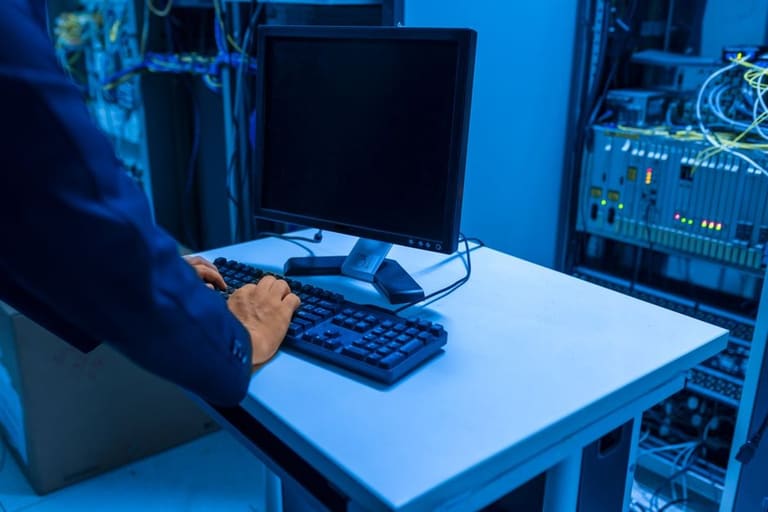
Event Viewer అనేది Windows లో అడ్వాన్స్ ట్రబుల్షూటింగ్ పూటగా వ్యవస్థ వ్యవహారం logs ను దాచిపెట్టడం, అదే సందేహాలను త్వరగా గుర్తించేందుకు ఉపయోగపడుతుంది. Application crashes, system errors, unexpected performance drops వంటి వ్యవధిలో root cause గంటాల వేగంగా తెలుస్తుంది.
ఇందులో, application, security, install మరియు system logs చూడవచ్చు — ప్రతి log type unique insights. For example, application error log లో event time, affected module/process, cause ని specification లో చూపించబడుతుంది.
Problem identification techniques
- Event ఖచ్చితమైన ID మరియు Description ని వరుసగా చెక్ చేయాలి.
- Source & Severity level interpret చేయాలి (service, driver, application).
- Timestamp ద్వారా correlating చేసుకోండి.
- Filter & Search ద్వారా unique issues కు ధాటుగా ఎంటర్ చేయండి.
- Custom View ద్వారా repeat issues ని tracking చేయండి.
క్రింది టేబుల్ — Event Viewer లో జరిగే కొన్ని కనుగొన్న హెచ్చరికలు, వాటి implications:
| Event Type | Event ID | Description | Significance |
|---|---|---|---|
| Error | 1000 | Application fault | Sudden app termination/crash |
| Warning | 200 | Low disk space | Potential performance drop |
| Information | 6005 | Event log service started | Log service active |
| Error | 7036 | Service failure | Service not started or stopped abruptly |
Event Viewer లో info interpret చేయడం కొంత practice కావాలి. For example, ఒక error ఆ సమయంలో CPU, RAM పనితీరు కూడా చూడండి. అలా cross-referencing చేయడం ద్వారా full picture — root cause realization లో ఉందిపోతుంది.
Performance Monitor ద్వారా సిస్టమ్ హెల్త్ అనలిసిస్
Windows లో అడ్వాన్స్ ట్రబుల్షూట్ లో, system health check అనేది ప్రత్యేక అడుగు. Performance Monitor ద్వారా continual metrics (CPU, RAM, Disk I/O, Network) monitoring ద్వారా early diagnosis ఉంటుంది. Registry value changes, system load alterations, resource saturation వంటి phenomena త్వరగా తెలుసుకోవచ్చు.
Thresholds fixer చేయడం ముఖ్యంగా ఉంటుంది. For example, CPU usage లాంటివి >90% అంటే resource starvation. RAM continuously >85% అంటే paging issues, app crashes. Disk I/O >80%, Network utilization unusual స్పైక్స్ అయితే security/red flag. Early alert వల్ల quick దిద్దుబాటు చర్యలు తీసుకోవచ్చు, సిస్టమ్ stability మెరుగుతుంది.
| Metrik | Description | Suggested Threshold |
|---|---|---|
| CPU Usage | Percentage utilization | Above 80% (sustained) |
| RAM Usage | RAM consumption level | Above 85% (sustained) |
| Disk I/O | Read/write load | High sustained I/O is a concern |
| Network Usage | Data transfer rates | Unexpected high traffic is a security or overload risk |
Performance Monitor లో data real-time గా graphs, tables ద్వారా visualization అవుతుంది. System admins, troubleshooters కు అభిప్రాయ చిత్రపటం ఇస్తుంది. Time-series dataల ని, app install లో performance changeలు, hardware upgradeపై trends inspect చేయదగినది.
Performance Monitor Windows అలో అడ్వాన్స్ ట్రబుల్షూట్ లో inseparable part. Continuous health monitoring, early problem detection, proactive stabilization ను తక్కువ ఖర్చుతో achieve చేయవచ్చు.
Quick Diagnostic Steps
Windows లో అడ్వాన్స్ ట్రబుల్షూట్ లో, fast & actionable diagnosis చేయడానికి ముఖ్యమైన స్టెప్స్ ఉండాలి. System symptoms ని ప్రమేయంగా inspect చేయడం, relevant logs, performance data పట్టుకోడం, diagnosis time shorten చేస్తుంది. System stability, performance తక్కువలో మెరుగవుతుంది.
Symptoms శాస్ర్రీయంగా note చేయండి: error pop-ups, unusual slowness, unexpected shutdowns లాంటివి. Event Viewer, Performance Monitor logs ని తక్షణంగా చదవండి.
Quick diagnostic tools పదార్థంగా టేబుల్ లో:
| Tool | Description | Diagnostic Usage |
|---|---|---|
| Event Viewer | System, apps logs visualization | Error/warning identification, crash analysis |
| Performance Monitor | System resource utilization monitoring | Bottleneck detection, resource saturation analysis |
| Task Manager | Active processes list | High resource process kill, operation monitoring |
| Resource Monitor | Advanced resource details | Deep dive into RAM/Disk/Network consumption |
Quick diagnosis కోసం స్టెప్స్:
- Symptoms కచ్చితంగా identify చేయండి.
- Event Viewer logs ని పిజ్చేడుగా analyze చేయండి.
- Performance Monitor చూచి CPU, RAM, Disk, Network bottlenecks check చేయండి.
- Latest software/drivers install చేసినవా చూడండి.
- Hardware health check అవసరమైతే పని చేయండి.
Effective diagnosis = rapid & precise problem identification; Long-term issues prevent చేయడంలో కీలు.
Performance Monitor వాడకం ఎందుకు అవసరం?
Windows లో అడ్వాన్స్ ట్రబుల్షూట్ ఎలా advanced level కి వెళ్లాలి అంటే, Performance Monitor కి సర్వాధిక సామర్థ్యముంది. Real-time CPU, RAM, Disk, Network metrics టార్గెట్ చేయడం, bottleneck identification, resource wastage finding, Health Trend tracking, system optimization — ఇవన్నీ నడుస్తాయి.
- Performance Monitor వాడకానికి ప్రధాన లాభాలు
- Every resource utilization live గా track అవుతుంది.
- System bottleneck/source సులభంగా మందే తెలుసుకోవచ్చు.
- Processes/ apps performance assessment లో accuracy.
- Long-term health trends, alerts, thresholds క్లీన్ మానిటరింగ్.
- Resource optimization ద్వారా performance improvise చేయడం.
Performance Monitor ద్వారా, snapshot logs ద్వారా error occurrence, unusual consumption time మానిటర్ చేయొచ్చు. Time-based spikeలు, resource misuse కు warning అడిగిపడుతుంది. For example — CPU >90% అయితే alertన్ వస్తుంది; immediate corrective action-కి psychologisch benefit తక్కువ time loss తో కలుసుతుంది.
| Monitored Metric | Description | Significance |
|---|---|---|
| CPU Usage | Processor load. | High load → freezing/sluggishness |
| RAM Usage | Available vs consumed memory. | Low memory → app crashes/performance dips |
| Disk I/O | Disk R/W speed, queue length | Slow disk → long load times |
| Network Usage | Packet send/receive rates | Network bottlenecks → lag, upload/download issues. |
Alert threshold customizing కూడా ఇక్కడ unique feature. Specific performance metrics cross అయితే, alert తో immediate intervention చేయొచ్చు. Resource hogging processes వల్ల, proactive optimization key benefits వస్తాయి. Windows లో అడ్వాన్స్డ్ ట్రబుల్షూట్ & system stabilization కి Performance Monitor అవసరం!
Windows లో అడ్వాన్స్డ్ ట్రబుల్షూటింగ్ను మనుగడ పట్ల వివరాల సమాహారం
Windows అడ్వాన్స్డ్ ట్రబుల్షూటింగ్ అనేది, system optimization, reliability enhancement, prevent major glitches — ఇవన్నీ achieve చేసే పద్ధతి. Event Viewer, Performance Monitor రావడం వల్ల system error, resource bottlenecks, app crashes, security threats అన్ని ముందుగా address చేయొచ్చు. Root cause determination, long-term prevention, user experience improvize అయ్యె benefit key.
Event Viewer ద్వారా, system-level, application-level issues, security logs, crash logs, bottleneck logs అన్నింటిని interpret చేయడం ముఖ్యంగా ఉంది. Performance Monitor ద్వారా, real-time resource utilization, error spikes, overconsumption అవి నిబంధన చేయొచ్చు.
| Tool | Description | Purpose |
|---|---|---|
| Event Viewer | Centralized event log viewing | Error diagnosis/root cause identification |
| Performance Monitor | System resource monitoring | Bottleneck detection/optimization |
| Resource Monitor | Detailed hardware/software consumption analysis | Process-level resource breakdown |
| Task Manager | Active process management | Resource hog termination, performance assessment |
ఇవన్నీ పనికి వేయడం కోసం, system behavior interpret చేయాలి, obtained dataన్ని intelligent way లో analyse చేయాలి. Application నిరంతరం error logs generate చేస్తే, same process కి immediate troubleshooting. High CPU utilization ఉంటే, process/kernel/system-level correction చేయాలి. Data sourcesని హోలోistically interpret చేస్తే, meaningful solution లేగ్గే పనితీరు improvise అవుతాయి.
Target actions
- Logs period-wise review చేయండి.
- Performance Monitor use చేసి resources track చేయండి.
- Root cause analyses error logs & bottleneck logs తో చేయండి.
- Unwanted apps/services deactivate చేయండి.
- Drivers/system software regularly update చేయండి.
- Hardware health consistent గా check చేయండి.
Windows లో అభివృద్ధిలో ట్రబుల్షూట్ పద్ధతులు, performance stabilization కి పూనికినవి. Event Viewer, Performance Monitor వాడటం ద్వారా advance level troubleshooting feasible అవుతుంది. Early issue identification, performance improvement, best user experience సాధించండి.
తరచుగా అడిగే ప్రశ్నలు
Windows లో అడ్వాన్స్ ట్రబుల్షూటింగ్ ఉపయోగం ఏమిటి?
Windows లో అడ్వాన్స్ ట్రబుల్షూట్ అనేది లోపాలను ఖచ్చితంగా గుర్తించడానికి, major bottlenecks తనికి, blue screen errors, app crashes, sluggish system problems and hardware incompatibility వంటి మిగిలిన complex issues ను సత్వరంగా పరిష్కరించడానికి ఉపయోగపడుతుంది.
Event Viewer ఏమి నిబంధించుతుంది, ఆ logs ఎలా ఉపయోగపడతాయి?
Event Viewer — application errors, security events, system warnings మరియు informational logs ను నిబంధించుతుంది. వీటిలోనే event ID, timestamp, severity మరియు source ద్వారా root cause ని అర్థం చేసుకోవటం సమర్థవంతంగా ఉంటుంది.
Performance Monitor లో ఏ వ్యవస్థ సంబంధిత metrics track చేయొచ్చు, data interpret ఎంతగా చేయాలి?
CPU, RAM, Disk, Network consumption వంటి metrics live tracking చేయొచ్చు. High CPU utilization అంటే particular process hogging, low RAM అంటే paging/app crash issue, high Disk I/O అంటే storage issues అనే అర్థం. Data interpretation లో sudden spikes, low trends కి alert గా ఉండాలి.
Performance Monitor ముఖ్యంగా ఏ counters ట్రాక్ చేయాలి?
CPU Utilization, Memory Available MBytes, Disk Queue Length, Network Interface Bytes Sent/Received counters track చేయాలి. ఇవి system bottlenecks, resource hogs ని ముందుగానే detect చేయగలవు.
Event Viewer లో specific error (eg. application crash) detect చేయడానికి ఎన్ని filtering methods ఉన్నాయ్?
Filter ద్వారా — 'Source', 'Event ID', 'User', 'Computer', 'Severity' అలాగే 'Error/Warning' only filter చేయొచ్చు. Crash కోసం Source ద్వారా app పేరును మాత్రమే select చేయండి, severity కు 'Error'/'Warning' తీసుకోండి.
Application excessive resource utilization detect అయితే immediate solution ఏమిటి?
First, app update చేయండి. Second, unnecessary settings/activity disable చేయండి. Third, reinstall/reconfigure. Fourth, alternative app trial చేయండి.
Performance Monitor ద్వారా long-term health analysis కనీసం ఏ data save చేయాలి?
CPU, RAM, Disk, Network counters logs retention చేయాలి. Time-series data analyze చేసి, hardware/software upgrade planning లో మేలు చేస్తుంది.
Windows లో అడ్వాన్స్ ట్రబుల్షూట్ ఏ extra tools ఉండొచ్చు, ఎక్కడ దొరుకుతాయి?
Process Monitor, Resource Monitor, Windows Performance Analyzer (WPA), Reliability Monitor tools ఉన్నాయి. Process Monitor — file, registry, process activity; Resource Monitor — granular resource details; WPA — deep diagnostic; Reliability Monitor — health tracking. ఇవన్నీ Windows లో built-in; లేకపోతే Microsoft site download చేయొచ్చు.