 Afrikaans
 Azərbaycan
 Bosanski
 Čeština
 Dansk
Dansk Deutsch
 English
 Español
 Filipino
 Français
 Hrvatski
 Indonesia
 Italiano
 Magyar
 Melayu
 Nederlands
 Norsk
Norsk Oʻzbek
 Polski
 Português
 Română
 Slovenčina
 Slovenščina
 Suomi
Suomi Svenska
 Tiếng Việt
 Türkçe
 Ελληνικά
 Беларуская
 Български
 Русский
 Српски
 Українська
 עברית
עברית اردو
اردو العربية
 پښتو
پښتو فارسی
فارسی አማርኛ
አማርኛ मराठी
मराठी বাংলা
বাংলা தமிழ்
தமிழ் ไทย
ไทย မြန်မာ
 한국어
한국어 中文
中文 日本語
日本語

Hello! In this guide, we will thoroughly cover pfSense installation, pfSense settings, and pfSense firewall topics. pfSense stands out as a popular choice for many organizations and individual users looking for network security due to its free and open-source nature, offering a robust firewall, flexible configuration options, high scalability, and much more. By reading this article, you will learn what pfSense is, how to set it up, and understand available alternatives, enabling you to take the right configuration steps.
What is pfSense?
pfSense is a pfSense firewall and routing solution based on FreeBSD. It can run on most modern hardware and can also be utilized as a virtual appliance. Its installation and management are straightforward, and it is designed to be user-friendly. It stands out for providing a flexible approach to network security and management.
Current information: As of the 2026 release (pfSense CE 2.7.3 and pfSense Plus 24.05), Netgate continues to provide security patches and performance improvements. Additionally, features such as Zero Trust support and new API integrations have been added. The official documentation offers significant updates for both home and enterprise use of pfSense (source).
Preparing for pfSense Installation
Before diving into the pfSense installation steps, it's vital to prepare correctly and select the appropriate hardware or virtual environment that suits your needs. I would recommend paying attention to the following points:
- Hardware Selection: If you are installing pfSense on a physical device, ensure you have at least two network interfaces (WAN/LAN) and sufficient disk space. Depending on the workload, RAM and CPU capacity may be increased.
- 2026 update: For optimal performance, at least 2 GB of RAM and an SSD are recommended; Intel I210-based network cards are common for Gigabit connections.
- Virtual Machine: pfSense can also be installed as a virtual machine on platforms like VMware, VirtualBox, or Proxmox. This method is ideal for testing environments or situations that require cost savings.
- Practical tip: In 2026, many users prefer to run pfSense Plus as an LXC container on Proxmox VE 8.x. Additionally, Hyper-V support has been officially strengthened.
- Installation Media: You should prepare a USB stick or ISO file. Don't forget to download the latest image file from the official pfSense site.
- As of 2026, download page now allows you to select UEFI-compatible images directly. It is advisable to use Rufus v4.0 for fast USB preparation.
pfSense Installation Steps
In this section, I will outline the pfSense installation process step by step:
- Prepare the Startup Environment:
Download the ISO file from the official pfSense site (e.g., Netgate) and write it to a USB stick.- In 2026, "memstick-serial" and "memstick-UEFI" images have been added for pfSense Plus. You can also perform SHA256 checks with the automatic image validator.
- BIOS/UEFI Settings:
Make sure your computer or server is set to boot from USB.- Update: Most devices now have firmware support for UEFI Secure Boot. pfSense recognizes both UEFI and Legacy boot options.
- Installation Menu:
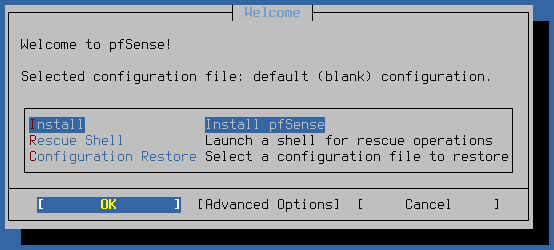
Choose the "Install pfSense" option on the boot screen and press Enter. Then continue with the default settings or partition the disk according to your needs.- In 2026, you can easily initiate ZFS Pool setup and AES-NI supported encryption from the disk partitioning screen.
- Loading Configuration Files:
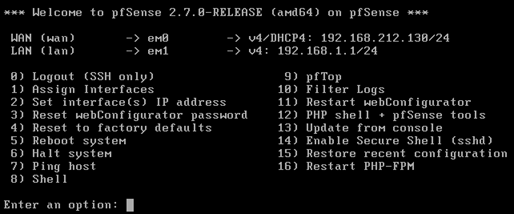
Upon completion of the installation, the system will restart and redirect you to pfSense's initial configuration wizard.- Additional Note: The initial setup wizard has been equipped with automatic detection for mapping WAN/LAN interfaces.
- Basic Network Settings:
Determine the IP address and subnet mask for the WAN and LAN interfaces. You can use DHCP or static IP for the WAN connection.- In 2026, new interface types like "PPPoE," "DHCP," "Static," and "LTE USB modem" options are available for WAN.
- Practical tip: To avoid IP conflicts, it is advisable to use 10.0.0.1 or 192.168.100.1 on the LAN interface instead of 192.168.1.1, facilitating future network expansion.
After completing these steps, you can move on to more detailed pfSense settings sections via the pfSense web interface. The following steps allow for further customization of the configuration.
New development (2026): pfSense offers Zero Trust edge recommendations via the configuration wizard after initial installation. Additionally, there is Netgate Cloud connectivity available for cloud backups.
pfSense Settings: Key Points
pfSense supports advanced features such as NAT, VLAN, VPN, and traffic shaping. Key topics to pay attention to regarding pfSense settings include:
1. Firewall Rules
pfSense firewall rules allow you to control the traffic coming to and from your network. You can create specific rules for LAN, WAN, or other interfaces, restricting certain protocols, IP addresses, or ports. It is crucial to pay attention to the order of rules: pfSense searches for a match from top to bottom on the list.
- 2026 update: With the new "Rule Scheduler" feature, you can define scheduled rules to manage traffic differently on weekdays and weekends.
- Practical tip: By using the "Quick" option, you can quickly create a priority rule in the network and test it swiftly.
- Concrete example: You can set up a scheduled rule to block incoming traffic at night, automating security.
2. NAT (Network Address Translation)
pfSense uses NAT rules for incoming and outgoing traffic. For instance, you may want to forward requests to a specific internal IP address (port forwarding). Keeping NAT setup organized and consistent minimizes security vulnerabilities.
- Current tip: In the 2026 version, an "Easy NAT" wizard has been added for NAT and port forwarding, allowing for quick port opening and closing tasks.
- New development: UPnP support has been enhanced, requiring less manual intervention for port opening for games and VoIP applications.
3. DHCP and DNS Settings
pfSense can act as a DHCP server, allowing automatic IP allocation to devices on your network from the pfSense settings section. You can also configure DNS forwarding and caching settings, enabling clients to perform faster and more secure DNS queries.
- 2026 update: The number of Dynamic DNS (DDNS) providers has increased, with popular services like Cloudflare, DuckDNS, and DynDNS supported by default.
- The DNS Resolver now fully secures with DNSSEC, and new “Encrypted DNS” (DoH/DoT) modules are included by default.
- Practical tip: By creating automatic DHCP reservations, you can prevent servers' IP addresses from changing.
4. VPN (Virtual Private Network)
By enabling different VPN solutions like OpenVPN and IPsec on pfSense, you can provide secure remote connections. This can be extremely beneficial for connecting remote offices or creating a secure link between home and office.
- New development: As of 2026, the WireGuard protocol is now natively supported in pfSense, offering enhanced automatic CA/certificate management for OpenVPN.
- Practical tip: You can establish site-to-site or access-based VPNs with just a few clicks using the “VPN Wizard” tool.
- Concrete example: Remote workers can connect to the corporate network securely using the pfSense VPN through a mobile application.
5. VLAN Support
For large organizations or networks needing segmentation, VLAN (Virtual LAN) is an indispensable feature. By configuring VLANs through pfSense, you can separate devices into different virtual networks, enhancing security and management.
- Updated feature: As of 2026, the "VLAN Wizard" simplifies VLAN definitions; interface assignment and tagging processes have been streamlined to a single step.
- Practical tip: By defining separate VLANs for IoT devices, guest Wi-Fi, and IP phones, you can restrict these devices' access to the main network.
- Concrete example: In a hotel network, you can separate Guest Wi-Fi and Staff LAN to provide internet access to guests while protecting the main system.
Advantages of pfSense
- Free and Open Source: Significantly more economical compared to commercial firewall solutions.
- 2026 current statistic: pfSense-based systems reached a 28% prevalence among SMBs in the global network security market (source).
- Extensive Plugin Support: You can easily integrate additional security modules or packages like SNORT and Suricata.
- New package examples: SSL certificates from “Let’s Encrypt” can be automatically loaded with ACME Client. Advanced ad and malicious IP blocking is possible with pfBlockerNG v4.2.
- Practical tip: The Tailscale integration module adds next-generation VPN connection management.
- High Performance and Scalability: It can withstand high traffic volumes once appropriately set up in suitable hardware or virtual environments.
- Concrete example: In 2026, pfSense Plus showed stable performance of up to 7.9 Gbps during stress tests on Netgate 8200 hardware with a 10Gbps fiber infrastructure.
- User-Friendly Interface: The web-based management panel makes configuration processes straightforward.
- New: In 2026, the interface added features like "Dark Mode," desktop notifications, and multi-dashboard support.
Disadvantages of pfSense
- Learning Curve: Configuration steps may seem complex for beginners.
- New tip: In the 2026 version, context-sensitive help and video guides have been integrated into the interface.
- Support: While the community support is strong, obtaining commercial support may require additional licensing or services.
- Concrete example: You can open specific SLA and 24/7 support requests via the Netgate Support Portal, but this service is paid for pfSense Plus.
- Update Risks: An incorrect or unchecked update can cause interruptions in your network.
- Current tip: The automated “Safe Update Rollback” feature allows you to quickly revert to the previous version in case of issues.
Alternative Solutions
While pfSense is a strong option, other solutions should be considered for different scenarios:
- OPNsense: A fork of pfSense. It has a similar interface and features.
- 2026 update: OPNsense, with v24.1, offers WireGuard VPN, Next Generation Firewall, and HAProxy integration.
- IPFire: A popular alternative as a firewall and routing solution.
- In 2026, IPFire received attention with its new IDS/IPS engine and enhanced QoS support.
- ClearOS: A server operating system designed more for small and medium-sized enterprises.
- ClearOS has cloud-based management and IoT network segmentation features in 2026.
Concrete Examples and Scenarios
Below are practical examples on how you can apply pfSense firewall configuration:
- Use in Corporate Environments:
Establishing VPN connections between the head office and remote branches, centralizing IP management with DHCP, and separating departments through VLAN structure.- As of 2026, most companies are activating Zero Trust network segmentation with pfSense Plus. Active/active internet failover provides 99.98% uptime.
- Home Use:
Ensuring the security of fiber internet connections, installing content filtering plugins for parental controls, and managing the Wi-Fi network.- New development: pfBlockerNG and DNS Resolver can filter phishing sites and malicious content. The mobile app allows you to monitor your home network in real-time.
- Hosting Environments:
Running virtual pfSense in a data center to isolate customer servers and secure network security under heavy traffic.- Concrete example: In 2026, pfSense segments over 100 customer virtual machines on Proxmox; NAT performance improved by 30%.
- IoT / Smart Home Scenario:
Defining separate VLAN and firewall rules for smart devices (home automation, cameras, alarms) to isolate them from the main network and protect against external attacks.- Practical tip: Grant each IoT device permission to only access the cloud server while blocking LAN access.
Important Steps Post pfSense Configuration
After the installation and initial pfSense settings process, I recommend checking the following points:
- Backup: Regularly back up your settings. You can easily export with pfSense Configuration Backup feature.
- In 2026, automatic backup integration with Nextcloud and Google Drive is provided.
- Log Review: Regularly monitor firewall and system logs. Suspicious traffic or errors can be detected in a timely manner.
- New: Log Analyzer includes live visualization and Slack notification support.
- Certificates: Ensure you have correctly loaded SSL/TLS certificates for the web interface or VPN settings.
- Concrete example: You can automate the renewal of Let’s Encrypt certificates with ACME Client. The new “Certificate Renewal Alert” feature notifies you for expiring certificates.
- Updates: Stay informed about new security patches and version updates to keep your system up to date.
- Practical tip: Set an automated update plan and test in a “Test Release” environment first.
- Current development: As of 2026, pfSense offers a plugin that quickly addresses risky packages with CVE security vulnerability notifications.
If you want to explore other security guides related to this topic,
check out our content.
For more information,
you can also look at the official Netgate documentation.
Frequently Asked Questions
What are the Minimum System Requirements for pfSense Installation?
The minimum requirements for pfSense installation are typically stated as 512 MB of RAM and a 1 GHz processor. However, if you will be using extensive rules in pfSense settings and pfSense firewall, stronger hardware is recommended.
- In 2026, a minimum of 2 GB RAM, x86_64 architecture, and a UEFI-compatible disk are recommended. For OpenVPN, IDS/IPS, or intensive NAT rules, the requirement increases to 4 GB+ RAM and multi-core CPUs.
Is It Difficult to Set Up VPN on pfSense?
No, you can easily set up OpenVPN or IPsec on pfSense by following the guides. Especially with interface routing, the configuration steps progress step by step, enhancing your network security.
- 2026 update: With WireGuard support, mobile device VPN setup can be completed with just a QR code. The “VPN Wizard” automatically configures site-to-site and remote access settings.
How Secure is pfSense?
pfSense is a firewall and routing solution that is continuously updated and tested by the open-source community. With regular updates and proper configuration, it provides a highly secure environment.
- As of 2026, automated alerts and IDS/IPS integration with the CVE security database are provided. High standards are ensured with secure encryption algorithms and firmware verification support.
- Practical tip: It is recommended to back up before every update and to use a test environment in critical situations.
Conclusion and Summary
In this guide, we comprehensively covered the pfSense installation steps and key points regarding pfSense settings. Selecting hardware or a virtual environment, basic network settings, firewall rules, NAT, VLAN, and VPN are the crucial parts that make pfSense a strong pfSense firewall solution. Considering its advantages and disadvantages, evaluating alternative solutions will provide you a healthier decision-making process. Especially in corporate networks or environments with heavy traffic, a properly configured pfSense system offers a reliable and efficient network management experience.
In 2026, an additional suggestion: Actively utilizing pfSense’s new features like Zero Trust Network, encrypted DNS, WireGuard, multi-VLAN, and cloud backups maximizes both security levels and ease of management. Remember, leveraging up-to-date scenarios and guides from community forums will be very helpful in practical problem-solving.