 Afrikaans
 Azərbaycan
 Bosanski
 Čeština
 Dansk
Dansk Deutsch
 English
 Español
 Filipino
 Français
 Hrvatski
 Indonesia
 Italiano
 Magyar
 Melayu
 Nederlands
 Norsk
Norsk Oʻzbek
 Polski
 Português
 Română
 Slovenčina
 Slovenščina
 Suomi
Suomi Svenska
 Tiếng Việt
 Türkçe
 Ελληνικά
 Беларуская
 Български
 Русский
 Српски
 Українська
 עברית
עברית اردو
اردو العربية
 پښتو
پښتو فارسی
فارسی አማርኛ
አማርኛ मराठी
मराठी বাংলা
বাংলা தமிழ்
தமிழ் ไทย
ไทย မြန်မာ
 한국어
한국어 中文
中文 日本語
日本語

ဒီဘလော့ဂ်ရပ်အဆိုမှာ WordPress ကို command line မှစီမံအုပ်ချုပ်တဲ့အတွက် WP-CLI tool ကိုနားလည်စေဖို့ တစ်စိတ်တစ်ပိုင်းအသေးစိတ်ရှင်းပြထားပါတယ်။ WP-CLI နဲ့ WordPress ကို command line မှအုပ်ချုပ်ခန်းမကြီးအခြေခံများ၊ သုံးစွဲဖို့လိုအပ်ချက်၊ သတိထားစရာ နဲ့ အဓိက command တွေကို ဖြေရှင်းထားပါတယ်။ WP-CLI ထောက်ခံပေးတဲ့ site management, eklenti management, security tips တွေကို အသေးစိတ်ကြားခြင်းပါဝင်သလို၊ သုံးစွဲလိုရန်အကောင်းဆုံးနည်းလမ်းများ၊ အမြဲတမ်းပြုသောအမှားများ၊ဖြေရှင်းနည်းတွေကိုလည်းဖော်ပြထားပါတယ်။ WP-CLI ကိုတက်ကြွစွာအသုံးပြုပြီး WordPress site များကို မြန်မြန်၊ လုံခြုံမြန်ဆန်စွာ စီမံချုပ်ကိုင်ပိုင်နိုင်ချင်သူတွေ ရော ဒီလမ်းညွှန်သည် comprehensive resource တစ်ခုပါပဲ။
WP-CLI နဲ့ WordPress Command Line အခြေခံ
WordPress သည် website တွေဖန်တီးရန်နဲ့ စီမံရန် လူကြိုက်များသောပလက်ဖောင်းတစ်ခုဖြစ်သည်။ ဒါပေမယ့် web interface မှ လုပ်ဆောင်တာများဟာ တစ်ခါတစ်လေအချိန်ယူပြီး ရှုပ်တည်နိုင်ပါတယ်။ ဒီအချိန်မှာ WP-CLI က ဝင်ပြေးလာပါတယ်။ WP-CLI က WordPress ကို command line မှစီမံခန့်ခွဲနိုင်တဲ့ အင်အားအပြည့် tool တစ်ခု။ ဒီ tool အသုံးပြုပြီး WordPress site ကို မြန်မြန်၊တဖြည်းဖြည်းပို၍ auto လုပ်နိုင်ပါတယ်။
WP-CLI သည် WordPress ရဲ့ အခြေခံ features တွေကို command line မှတစ်ဆင့် ထိန်းချုပ်နိုင်အောင်လုပ်ပေးပါတယ်။ ဥပမာ eklenti နဲ့ theme တွေကို install, update, delete, activate လုပ်နိုင်သလို၊ user management, database optimization, WordPress core update လုပ်နိုင်ပါတယ်။ ဒီအရာတွေကို web interface တက်မလိုဘဲ command တစ်ခုနှစ်ခုနဲ့သာ လုပ်နိုင်ပါတယ်။
- WP-CLI ကို အသုံးပြုခြင်းရဲ့ အကျိုး
- မြန်မြန်ပြီးသုံးစွဲလွယ် (web UI နဲ့ နှိုင်းယှဉ်ပြောလို့မြန်)
- Auto လုပ်ထောက်ပံ့ - repetitive task တွေ script ချနိုင်
- Bulk management - multisite management လုပ်နိုင်
- Developer-friendly - programmer တွေအတွက် flexible tool
- Script နှင့် Custom command စီးမောင်းဝင်
- Less resource usage - Server resource ဝင်ကုန်သက်သာ
WP-CLI စတင်အသုံးပြုလိုသူတွေအနေနဲ့ system prerequisites တွေပြည့်မပြည့်ကို တပ်မိစစ်ပြီး install step တွေကို တိတိကျကျလုပ်ဖို့လိုအပ်ပါတယ်။ Once installed, command တွေသင်ယူပြီး site ကို command line မှအုပ်ချုပ်နိုင်ပါတယ်။ Multisite management လုပ်တာ၊ repetitive task auto လုပ်စဖို့တော့ WP-CLI မှာ အလွန်အကျိုးရှိပါတယ်။
| Command | ဖော်ပြချက် | ဥပမာသုံးစွဲ |
|---|---|---|
| wp plugin install | Eklenti အသစ်တစ်ခု install | wp plugin install akismet |
| wp plugin activate | Eklenti activate | wp plugin activate akismet |
| wp core update | WordPress core ကို update | wp core update |
| wp user create | User အသစ်တစ်ယောက် create | wp user create --user_login=newuser --user_pass=password --user_email=email@example.com |
WP-CLI မှာ WordPress management က အခြေခံ command တွေမှာတင်ရပ်မနေဘူး။ Custom command script တွေတည်ဆောက်နိုင်သည်၊ existing command တွေကိုသီးသန့် tune ပြင်နိုင်သည်။ အထူးလူတန်းစားလိုအပ်ချက်လေးတွေအတွက် solution တွေဖန်တီးနိုင်သည်။ WP-CLI ကိုသုံးစွဲနေစဉ်၊ command syntax ကို ဘာ့မှာမှန်အောင် နှိပ်ဖို့လို၊ မမှန်ရင် site မှာ unforeseen error ဖြစ်နိုင်သတိထားပါ။
WP-CLI စတင်အသုံးပြုရန်လိုအပ်ချက်
WordPress ကို command line မှစီမံရန် WP-CLI ကိုအသုံးပြုမယ်ဆိုရင် system သတ်မှတ်လိုအပ်ချက်နဲ့ environment compatibility တွေကိုအရင်စစ်ဖို့အရေးကြီးပါတယ်။ အသုံးပြုပြီးတော့ WP-CLI error တွေလာဒဏ်မှာ မဖြစ်စေရန် installation မလုပ်ခင် checklist တစ်ခုထားလို့မယ်။
စတင်တွေးမယ်ဆိုရင် server မှာ PHP 5.6 နောက်ကနေ ကျော် version တစ်ခုရှိရပါမယ်။ WordPress ကို PHP နဲ့ရေးထားပြီး WP-CLI ဟာ PHP ကိုသုံးပါတယ်။ PHP version နောက်ကျရင် WP-CLI function error ဖြစ်နိုင်တယ်။ Install မလုပ်မီ php -v ဖြင့် version check လုပ်နိုင်သည်။ မဖြစ်သေးပါက hosting admin ကို PHP upgrade တောင်းနိုင်ပါတယ်။
နောက်တစ်ခုက SSH access လုပ်နိုင်ရပါမယ်။ WP-CLI သည် command line tool ဖြစ်သဖြင့် SSH ကနေ server ကို login ပြီး Command run ရမယ်။ SSH access မရှိဘူးဆိုရင် hosting provider ကိုဆက်သွယ်ဖို့လိုပါတယ်။ SSH access ရောက်မှပြီးမှ WP-CLI full function ကိုအသုံးပြုနိုင်ပါတယ်။
WordPress သက်သက် installပဲမဟုတ်ပါ၊ site fully functional ဖြစ်ကြောင်းစစ်ပါ။ WP-CLI က site install location နှင့် database correct ထပ်မတူရင် မ run ပါဘူး။
နောက်ခံ defect လေးတွေရှိထားရင် WP-CLI သုံးစဉ်မှာ error တွေလာတက်စေမယ်။ နောက်ဆုံး admin panel, front-end တစ်ခြား error မရှိကြောင်းဖျက်စစ်ပြီး install ဆောက်ပါ။
WP-CLI require checklist ဖော်ပြပါ:
| လိုအပ်ချက် | ဖော်ပြချက် | အရေးအကြီး |
|---|---|---|
| PHP Version | PHP 5.6 နောက်ကနေ | မြင့် |
| SSH Access | Server မှာ SSH login ဖြစ် | မြင့် |
| WordPress Installed | Site fully installed and functional | မြင့် |
| Command Line Knowledge | Basic terminal command usage | အလယ်အလတ် |
ဒီ requirement တွေ ပြည့်မှ WP-CLI install စတင်နိုင်ပါတယ်။ Installation steps:
- WP-CLI Download: Official website မှ နောက်ဆုံးပေါ် version download
- Install WP-CLI: Download file ကို server တွင် drop တင်
- Executable permission: File ကို execute permission ပေး
- Add to PATH: PATH variable ထဲ link တင်ထား
- Installation check:
wp --infoဖြင့် confirm installation
ဒီ step အကုန်ပြီးသွားလျှင် WP-CLI ကို command line မှာ အသုံးပြုနိုင်ပါပြီ။ အစအဆုံးအကောင်းစတင်မှ error မဖြစ်စေရန် အရေးကြီးပါ။
WP-CLI သုံးစွဲလည်ပတ်အတွက် သတိထားရန်များ
WP-CLI သုံးစွဲလောင်တွေကြီးသည် တကယ်လွယ်ကူပေမယ့် သတိထားစရာများလည်းမေ့မထားနိုင်ပါ။ Command line မှ syntax error တစ်ခုတစ်ယောက် site မှာ လုပ်မလိုတဲ့ရလဒ်တွေ ဖြစ်နိုင်ပါတယ်။
ကောင်းဆုံး သတိထားစရာ ဒီမှာ backup လုပ်ခြင်းပါ။ Major change မလုပ်ခင် backup တစ်ခုယူပါ — database backup နဲ့ file backup အမြဲယူထားသင့်ပါတယ်။
- အရေးကြီးသတိပြုချက်
- Command run မလုပ်မီ correct directory ဖြစ်ကြောင်းစစ်
- Major operation မလုပ်မီ backup ရ
- Syntax error မဖြစ်စေရန် command ကောင်းကောင်းစစ်ပါ
- ရွှဥ်ဖျက်/ပြုပြင်ဖြစ်မပြုလုပ်မိအတွက် သတိထားပါ
- Live site မှ Test မလုပ်ပါ - staging နှင့် sandbox သုံးရန်
- Security vulnerability မှ WordPress၊ WP-CLI update ဖြစ်ပြီးသေချာ
Command မ run မလုပ်မီ documentation ဖြင့် syntax စစ်ပြီး sample ကိုပဲ follow လုပ်ပါ။ Syntax error ချက်ချင်းမလုပ်ပါ။
| အချက် | ဖော်ပြချက် | အရေးကြီးမှု |
|---|---|---|
| Backup | Major change မှာ backup လုပ်ပြီး | မြင့် |
| Syntax | Command syntax စစ် | မြင့် |
| Correct Directory | Correct WP install directory မှ run | အလယ်အလတ် |
| Testing Environment | Live site မ run, test env မှ run | မြင့် |
Security precaution တွေကိုလည်းမမေ့ပါနဲ့။ Especially shared hosting မှ unauthorized access လုံခြုံရေးအားနည်းချက်များကိုပိတ်ထားပြီး WordPress update, WP-CLI update အမြဲလုပ်ပါ။
WP-CLI နဲ့ WordPress Management အခြေခံ Command တွေ
WP-CLI အသုံးပြုလို့ WordPress site ကို command line မှတော့ handy control လုပ်နိုင်ပါတယ်။ လတ်တလော operation တွေကို command line မှ run လုပ်တာအတွက် အချိန်ချေပြီး workflow efficiency တိုးလာပါတယ်။ Database management, theme အလုပ်လုပ်ခြင်း, user create, eklenti activate လုပ်တာအများဆုံးလက်ထဲမှာ run နိုင်ပါတယ်။
WP-CLI ကို multisite management — developer နှင့် server admin တို့အတွက်ပြည့်စုံသော tool တစ်ခုပါ။ Command တစ်ခုနဲ့ multisite မှတစ်ပြိုင်နယ်လုပ်သွားနိုင်ပြီး repetitive task တွေ run script ချယ်နိုင်ပါတယ်။ Command line တစ်ခုချင်းစီ error diagnostics၊ troubleshooting ကလည်း Fast ဖြစ်ပါတယ်။
အောက်ပါ table တွေမှာ WP-CLI မှာ မရှိမဖြစ်အသုံးပြု command များ ဖြေရှင်းထားပါတယ်။
| Task | WP-CLI Command | ဖော်ပြချက် |
|---|---|---|
| WordPress Version Checking | wp core version |
WordPress core Version ပြကြည် |
| Database Info Display | wp db info |
Database DB Name/User etc ပြကြည် |
| Theme List Display | wp theme list |
Theme တွေ List ပြ |
| Eklenti List Display | wp plugin list |
Eklenti တွေ List ပြ |
wp core update: WordPress core updatewp plugin install: Install eklenti အသစ်wp theme activate: Activate theme အသစ်wp user create --user_login= --user_pass= --user_email=: Create user အသစ်wp db export .sql: Export databasewp search-replace 'old-text' 'new-text': Database search and replace
WP-CLI ကို advanced features run လုပ်နိုင်ပါတယ်။ Performance optimization, security & troubleshooting, script automation တို့ကလည်း WP-CLI real power မဟုတ်လား။ Custom script run လုပ်လို့လည်း workflow efficiency တိုးနိုင်ပါတယ်။
User Management
WP-CLI နဲ့ user management လုပ်ခြင်း — user create, role edit/assign, permission set စတာတွေ command line မှ run code နဲ့ bulk user management တစ်ခါတည်းလုပ်နိုင်ပါတယ်။ User role switch, author/editor role change တစ်ခါ click code တစ်ခုနဲ့လုပ်နိုင်ပါတယ်။
Eklenti Management
Eklenti management က WP website တစ်ခုမှာ main pillar တစ်ခုပါ။ WP-CLI မှာ eklenti install, activate, deactivate, update တွေ run လို့လေ့ဖြစ်ပါတယ်။ Multiple site တွေမှာ bulk install, bulk deactivate လုပ်တာအရမ်းအချိန်ချေပါ။ Security vulnerability detect ကြရင် bulk deactivate လုပ်လို့အရေးကြီးပါတယ်။
“WP-CLI နဲ့ WordPress Management သည် site admin, developer အတွက် indispensable tool တစ်ခုဖြစ်ပါတယ်။ Command line UI က complex task တွေ shortcut run လို့ workflow တိုးချ်သလို logic error ပြဿနာချက်ချင်း fix လုပ်စေပါတယ်။”
WP-CLI Command နဲ့ Site Management လွယ်ကူမှု
WP-CLI ကို site management လုပျတင်လိုရင် process automation, multisite handling, developer workflow ကိုကြီးမားစွာ optimize လုပ်နိုင်ပါတယ်။ Command line UI နဲ့ bulk operation, repetitive task တွေ auto script ချနိုင်ပါတယ်။
Database management ကလည်း command line မှ backup, restore, optimize တစ်ခါတည်းသုံးထားနိုင်ပါတယ်။ especially large database တွေမှာ efficiency အမြှင့်ဆုံး။ Data query run, troubleshooting စတာတွေ command line မှ run လုပ်နဲ့ error finding လုပ်လွယ်ပါတယ်။
- Theme/Eklenti update ကို bulk run
- User management ကို command script run
- Database backup, restore ကို single command run
- Core update, version upgrade ကို command run
- Custom script run, workflow auto ချ
WP-CLI နဲ့ site management automation script သုံးနိုင်သည်။ database backup, eklenti update, performance tuning စတဲ့ regularly run task တွေ auto schedule ချနိုင်ပါတယ်။ Efficiency တိုးစေသလို human error ပြဿနာလည်းလျော့ပါ။
| Operation | WP-CLI Command | ဖော်ပြချက် |
|---|---|---|
| WordPress Update | wp core update | Core Latest Version Upgrade |
| Eklenti Activate | wp plugin activate <plugin-name> | Specified plugin activate |
| Theme Install | wp theme install <theme-name> | Theme install |
| Database Backup | wp db export <filename>.sql | Backup database to SQL file |
WP-CLI ချလို့ automation workflow တစ်ခုချနိုင်ပါတယ်။ Regularly run required task တွေကို cron job သုံး run လုပ်နိုင်ပါတယ်။ Modern web admin/developer အတွက် WP-CLI က must-have ဖြစ်ပါတယ်။
WordPress Eklenti Management WP-CLI နဲ့
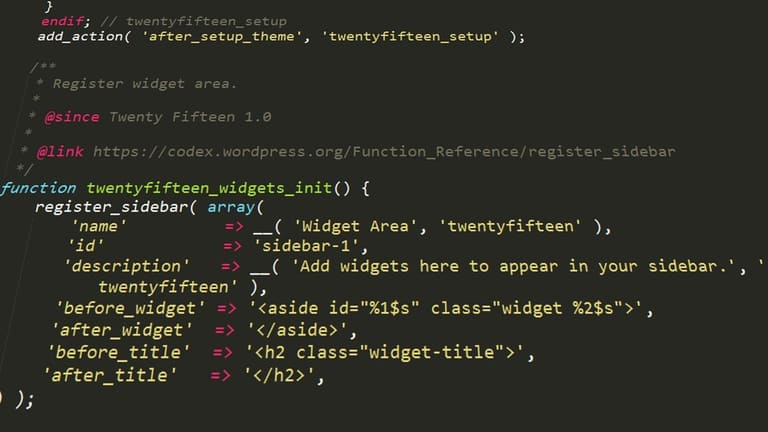
WP-CLI ကို eklenti management တော်တော်လူကြိုက်များပါတယ်။ Especially multisite admin/developer တွေအတွက် eklenti install, activate, deactivate, delete/reinstall, update etc တွေကို command line တစ်ခုနဲ့ bulk action လုပ်နိုင်ပါတယ်။
WP-CLI က eklenti search, install, update, activate, info fetch etc feature တွေကို မြန်မြန်လုပ်သွားနိုင်ပါတယ်။
plugin keyword search, version control, plugin info fetch, compatibility test စတာတွေကို command line မှ run နိုင်ပါတယ်။
| Command | ဖော်ပြချက် | ဥပမာ |
|---|---|---|
| wp plugin install | Install eklenti အသစ် | wp plugin install akismet |
| wp plugin activate | Activate plugin | wp plugin activate akismet |
| wp plugin deactivate | Deactivate plugin | wp plugin deactivate akismet |
| wp plugin delete | Delete plugin | wp plugin delete akismet |
- Eklenti list fetch (wp plugin list)
- Needed eklenti install (wp plugin install)
- Eklenti activate (wp plugin activate)
- Eklenti update (wp plugin update)
- Unused eklenti deactivate (wp plugin deactivate)
- Unused/problem plugin delete (wp plugin uninstall)
WP-CLI eklenti management ကို especially large scale site, bulk action site အတွက် indispensable tool ဖြစ်ပါတယ်။ Command line မှ eklenti management က manual method နှင့်နှိုင်းယှဉ်ချိန်ချေ, accuracy, security, performance အမြင့်ဆုံးပါ။
WP-CLI နဲ့ Security Management အကြံပြုချက်
WP-CLI ကို security management လုပ်ချင်တယ်ဆိုရင် efficiency တိုးပြီး automation ချနိုင်ပါတယ်။ Security က web site owner တွေအတွက် priority ဖြစ်ပြီး WP-CLI မှာ security upgrade/scope ကိုနားလည်စေပါတယ်။ User permission management, eklenti/theme bulk update, security scan run ကို command line မှ run နိုင်ပါတယ်။
| Operation | WP-CLI Command | ဖော်ပြချက် |
|---|---|---|
| User Permission management | wp user update | Role assign/change, password reset etc |
| Eklenti update | wp plugin update --all | All plugin bulk update/security bug fix |
| Theme update | wp theme update --all | All theme bulk update/security bug fix |
| Security scan | Integration with security plugins/tools e.g. WPScan | Security threat detect |
- Strong password policy & regular update
- Enable 2FA login (two factor authentication)
- Plugin/theme auto update routine
- Unused plugins, themes delete
- Firewall enable
- Regular backup
- User role/permission audit နှင့် tune
WP-CLI မှာ security run မလုပ်မီ backup ကို must! Command တွေ run မလုပ်မီ action ဟာ ဘာဖော်ပြတာနားမလည်တာ error ဖြစ်နိုင်သည်။ Plan နဲ့ကြိုးစားပါ။
WordPress community resource နှင့် security plugin တွေကို combine လုဖို့ security upgrade အတွက်အဆင်ပြေလောင်ပါတယ်။
WP-CLI အသုံးပြုမှုအကောင်းဆုံးနည်းလမ်းများ
WP-CLI ကို efficiency အမြှင့်ဆုံးဖြစ်အောင် strategy, technique နဲ့လုပ်တာဆုံးဖြစ်သည်။ Best practice တွေသည် process efficiency တိုးပြီး error prevention အရေးကြီးဆုံးပါ။
| Best Practice | ဖော်ပြချက် | အကျိုး |
|---|---|---|
| Automate commands | cron job routine script run | Time save, consistency |
| Alias usage | Frequent command shortcut | Fast access, syntax error prevention |
| Database backup | Routine backup | Data loss prevent, security boost |
| Readable code/script | Clear script writing | Debug/review friendly |
- Know your command: ကို frequent command တွေ param/option syntax ပြည့်စုံသိ
- Alias create: Long/complex command shortcut define
- Automate: Cron job routine run
- Backup always: Database/files backup routine
- Security check: Command/permission audit
- Stay updated: Latest WP-CLI version run, new command trick သေး
Security ကလည်း critical ဖြစ်ပါတယ်။ Sensitive command, script တွေ run မလုပ်မီ permission audit, unauthorized access prevention, script sharing ကို အလွှာစိတ်ပြင်မေ့မထားပါနဲ့။
WP-CLI skill ကို community, blog, forum, project လုပ်ပြီး continuous improvement လုပ်ပါ။ Practice လုပ်မှ လေ့လာမှုအောင်မြင်မယ်။
အမြဲပြုသောအမှားနှင့် ဖြေရှင်းနည်း
WP-CLI သုံးစွဲစဥ် common error တွေတွေ့နိုင်ပါတယ်။ Syntax error, missing parameter, permission issue, directory mistake စတာတွေဖွင့်ပါတယ်။ Command syntax, correct param, correct directory run — all checked. Permission အလုံအလောက် run ပြဇွန်စစ်ပါ။
Database connection issue မွာ site migration, server change စတာမျိုးမှာ WP-CLI run မလုပ်နိုင်တဲ့ error တွေပါ။ wp-config.php database credential check, user/password/database name/server address correct update လုပ်ပါ။
- Syntax Error: Capital letter/lower case correct, correct syntax run
- Missing parameter: All required parameter run (
wp help command_nameနဲ့ syntax/parameter info fetch လုပ်နိုင်) - Database Connection: wp-config.php credential correct check/update
- Permission Issue: File/folder permission audit, update
- Missing File: WordPress core file က ပြည့်စုံတင်ထား
- Plugin/theme conflict: Suspect plugin/theme deactivate run, conflict fix
| Error | Possible Reason | Solution |
|---|---|---|
| wp: command not found | WP-CLI not installed, PATH not set | Install WP-CLI, PATH variable set |
| Database Connection error | DB credential error (username/password/server/database name) | Check wp-config.php, update correct DB info |
| Error: Not WP install | Wrong directory (not WP install location) | Correct directory run, WP root path run |
| Could not open input file: wp-cli.phar | Missing/corrupted wp-cli.phar file | Re-download/install WP-CLI |
WP-CLI troubleshooting လုပ်မှာ help resource, official documentation, WordPress forum/blog တွေကို leverage လုပ်ပါ။ ထပ်မမှန် backup always run ပြီး error troubleshooting run ပါ။
နိဂုံးနဲ့ WP-CLI နဲ့ အဆင့်မြင့် Management
WP-CLI သည် site owner, web admin/developer အတွက် essential tool ဖြစ်ပါတယ်။ Command line UI ယူပြီး site management efficiency, security, automation, speed တိုးလာပါတယ်။ ဒီ article မှ WP-CLI basic, requirement, operation, troubleshooting အခေါ်လိမ်းချက်များပြထားပါတယ် — ကိုယ်တိုင် site ကို effectively management ကိုစတင်လို့ရပါပြီ။
WP-CLI သည် basic function management မှလွဲပြီး developer workflow, testing, deployment, bulk operation, data migration, database routine, multisite management စတာတွေလမ်းကြောင်းမြန်မြန်သုံးလို့ရပါတယ်။ especially multisite/bulk management လုပ်သူတွေ efficiency/expertise တိုးအောင် run ပါ။
- Backup routine
- Plugin/theme auto update routine
- Database optimization routine
- User bulk management
- Custom command/scripts integration
| Task | WP-CLI Command | ဖော်ပြချက် |
|---|---|---|
| Backup run | wp db export | Database SQL export |
| Plugin Update | wp plugin update --all | Plugin all update |
| Theme Activate | wp theme activate [theme-name] | Theme activate |
| User Create | wp user create [user-name] [email] | New user create |
Modern web admin/developer တွေအတွက် WP-CLI သည် indispensable tool ဖြစ်သည်။ Command line UI သုံးပြီး efficiency/security/flexible management run ပြတ်စောက်နိုင်သည်။ ဒီလမ်းညွှန်ထဲမှ skill တွေသုံးပြီး WP-CLI ကို workflow ထဲ integrate လုပ်ရန်ဖြစ်သည်။
မေးခွန်းများ
WP-CLI ဆိုတာဘာလဲ၊ ဘာကြောင့် WordPress management အတွက်အရေးကြီးလဲ?
WP-CLI (WordPress Command Line Interface) ဆိုသည်မှာ WordPress site management ကို command line မှ run လုပ်နိုင်တဲ့ tool ဖြစ်ပါတယ်။ Database routine, eklenti/theme management, user create/update, automation များ run လုပ်နိုင်သဖြင့် efficiency တိုးလာသည်။ Especially multisite/web admin/developer တွေ အတွက် must-have tool တစ်ခုပါ။
WP-CLI သုံးဖို့ server မှာ ဘာတွေလိုအပ်သလဲ?
WP-CLI ကို run လုပ်ဖို့ server မှာ PHP 5.6 နောက် version တစ်ခုရှိပါရန်၊ WordPress သော့ install directory access ရပြီးမှသာပေါ့။ SSH access လည်းရှိရပါမယ်။ Command မ run မလုပ်မဖြစ် PHP extension/permission အရင် confirm လုပ်ပါ။
WP-CLI သုံးစဥ် security ကို ဘယ်လိုသတိထားရမလဲ?
WP-CLI run မလုပ်မလာမှာ SSH access ကျုံ့နိုင်ဖို့ secure key သုံးပါ။ Command run ရတဲ့ directory မှာတွေ့ပေါ့။ Command run မလုပ်မလဲ correct syntax မွန်စစ်ပါ။ Syntax mistake error ဖြစ်နိုင်သည်။ Regular backup ယူပြီး security routine run ပါ။
WP-CLI နဲ့ WordPress management operation မှာ ဘာ run နိုင်သလဲ?
User create/edit/remove, password reset, theme/plugin install/update/delete, WordPress core update, database operation, post/page create/update, custom command script run — WP-CLI မှာ all operation run လုပ်နိုင်သည်။ Custom script run နဲ့ complex operation auto ချလို့လည်း efficiency တိုးနိုင်သည်။
WP-CLI ကို eklenti management နဲ့ efficiency တိုးအောင် ဘယ်လိုသုံးကြတယ်?
Plugin activate/deactivate/install/delete ကို command line မှ run Autoလုပ်နိုင်သည်။ Security bug fund/check ထက် bulk deactivate/update ထောက်ခံသည်။ plugin version check, compatibility audit, plugin info fetch run သုံးလို့ efficiency/map တိုးပါတယ်။
WP-CLI command မှာ အမြဲတမ်း error ဖြစ်တယ်၊ ဘယ်လို prevent လုပ်မလဲ?
Directory mistake/command syntax error/permission issue/parameter mistake တွေဖြစ်နိုင်သည်။ Command run မလုပ်မီ correct directory run, syntax review, permission audit, param review လုပ်ပါ။ Test environment run after live run is recommended။
WP-CLI ကို backup သုံးပြီး site full backup run လုပ်ဖို့ ဘာ command run လဲ?
Command wp db export သုံးပြီး database backup SQL export run လုပ်ပါ။ Files backup run ကို rsync သုံး backup လုပ်တာဖြစ်ပါတယ်။ Database နှင့် files backup နှစ်ခုလေးပေါင်းမှ Full backup ဖြစ်ပါမယ်။
WP-CLI အသုံးလည်စြာအတွက် ဘယ် resource တွေကို recommend လုပ်လဲ?
WP-CLI official documentation, blog, forum, training video, developer community resource တွေကို study လုပ်ပါ။ WordPress developer forum/community မှဒီအကြံပြီးလမ်းညွှန်တွေကို follow လုပ်လာကောင်းပါမယ်။