 Afrikaans
 Azərbaycan
 Bosanski
 Čeština
 Dansk
Dansk Deutsch
 English
 Español
 Filipino
 Français
 Hrvatski
 Indonesia
 Italiano
 Magyar
 Melayu
 Nederlands
 Norsk
Norsk Oʻzbek
 Polski
 Português
 Română
 Slovenčina
 Slovenščina
 Suomi
Suomi Svenska
 Tiếng Việt
 Türkçe
 Ελληνικά
 Беларуская
 Български
 Русский
 Српски
 Українська
 עברית
עברית اردو
اردو العربية
 پښتو
پښتو فارسی
فارسی አማርኛ
አማርኛ मराठी
मराठी বাংলা
বাংলা தமிழ்
தமிழ் ไทย
ไทย မြန်မာ
 한국어
한국어 中文
中文 日本語
日本語

This blog post provides a comprehensive guide on the installation and configuration of DirectAdmin CloudLinux. It explains what DirectAdmin CloudLinux is and why it should be chosen, detailing the step-by-step installation process. Key points are highlighted regarding system requirements and preparations, along with important aspects to consider during the configuration process. Additionally, it includes comparisons of DirectAdmin CloudLinux with other panel options, example configuration settings, performance optimization strategies, debugging and troubleshooting methods, as well as security measures and recommendations. Ultimately, practical suggestions are provided to help readers successfully install and configure DirectAdmin CloudLinux.
What is DirectAdmin CloudLinux and Why Use It?
DirectAdmin CloudLinux is an operating system solution that integrates with the DirectAdmin control panel, developed to enhance resource management and security in hosting environments. Its primary goal is to isolate each hosting account (or site) to prevent excessive resource consumption by one account from affecting others. This leads to a more stable and reliable hosting experience across the server.
CloudLinux utilizes Lightweight Virtual Environment (LVE) technology to impose limits on resources such as CPU, RAM, and disk I/O for each account. These limits prevent accounts from exceeding their allocated resources, preserving the overall performance of the server. Moreover, if an account's security is compromised, an attacker’s access to other accounts is restricted, thereby minimizing security vulnerabilities.
| Feature | CloudLinux | Traditional Hosting Environment |
|---|---|---|
| Resource Isolation | Provided per account with LVE | Resources are shared, one account can affect others |
| Security | Enhanced through inter-account isolation | Vulnerabilities can affect the entire server |
| Performance | Stable and predictable performance | Performance can degrade under heavy load |
| Management | Easy resource management and monitoring | Challenging resource management |
One of the biggest advantages of CloudLinux is CageFS technology. CageFS creates a virtualized file system for each user, preventing users from accessing files belonging to other users on the server. This provides a significant security advantage, especially in shared hosting environments. Furthermore, CloudLinux offers tools like PHP Selector, which allows each site to utilize the PHP version it requires easily.
Benefits of DirectAdmin CloudLinux
- Advanced Security: Prevents the spread of security breaches due to inter-account isolation.
- Stable Performance: Resource limits halt an account from impacting others.
- Flexible Resource Management: Custom resource limits can be set for each account.
- PHP Version Management: Each site can run different PHP versions using PHP Selector.
- Easy Management: Integrates smoothly with the DirectAdmin panel for a user-friendly management experience.
- Reduced Server Load: Efficient use of resources decreases the load on the server.
DirectAdmin CloudLinux is an indispensable solution for hosting providers and server administrators. By providing advantages in both security and performance, it helps create a more stable, reliable, and manageable hosting environment, which, in turn, increases satisfaction for both the hosting provider and the customers.
Step by Step Installation Process
The installation of DirectAdmin CloudLinux is a critical step for more efficient management of server resources and for more stable functioning of websites. This installation isolates the resource consumption of each user account to prevent one account's excessive consumption from affecting others. As a result, it ensures more consistent performance across the server and increases customer satisfaction.
Before starting the installation process, ensure that your server is compatible with CloudLinux and that the necessary licenses have been obtained. Otherwise, the installation may not complete or may not function properly. Additionally, it is highly recommended to back up your server to be prepared for any issues that may arise during the installation process. This is the most effective way to prevent data loss.
| Step | Description | Importance Level |
|---|---|---|
| License Check | Ensure that your CloudLinux license is active and up to date. | High |
| Preparation | Take a backup of the server and ensure necessary software is up to date. | High |
| Installation Commands | Execute the CloudLinux installation commands correctly. | High |
| Verification | Check if the installation was successful. | High |
The installation process generally includes several stages, and it is crucial to complete each step correctly. An incorrect configuration can lead to your server not working properly or security vulnerabilities. Therefore, it is vital to follow the installation guide carefully and to seek professional support if necessary.
- Installation Steps
- Gain root access to the server via SSH.
- Download the CloudLinux installation script.
- Run the installation script and follow the prompts.
- Make DirectAdmin compatible with CloudLinux.
- Verify the installation and reboot the server.
- Enable CloudLinux features from the DirectAdmin panel.
After the installation is completed, additional configurations may be necessary to enhance the performance and security of your server. For example, optimizing the LVE (Lightweight Virtual Environment) settings allows you to define resource limits for each user account, thereby ensuring your server operates more stably. Additionally, revisiting your firewall settings is important to take precautions against potential attacks.
System Requirements and Preparations
Before commencing the installation of DirectAdmin CloudLinux, it is critical to ensure that your server meets the appropriate requirements for this installation. Incorrect or missing system requirements can lead to errors and incompatibilities during the installation process. Therefore, both hardware and software requirements need to be carefully examined. The existing resources and operating system version of your server are essential for the seamless functioning of DirectAdmin CloudLinux.
Before installation, ensure that your server meets the minimum system requirements. Factors like disk space, RAM, and CPU power will directly impact the performance of DirectAdmin CloudLinux. It is also important that the operating system version is one of the supported versions; otherwise, various compatibility issues may arise during or after installation.
- Required System Features
- Minimum 2GB RAM (Recommended 4GB or higher)
- At least 20GB of free disk space
- 64-bit x86 processor
- CentOS 7, AlmaLinux 8/9, or Rocky Linux 8/9 operating system
- Updated kernel version
- Stable internet connection
The table below presents the recommended system requirements for different scenarios. These requirements may vary based on the expected load on your server and its intended use. Higher resources may be required, particularly for servers hosting websites with heavy traffic or multiple user accounts.
| Feature | Low Traffic | Medium Traffic | High Traffic |
|---|---|---|---|
| RAM | 2GB | 4GB | 8GB+ |
| Disk Space | 20GB | 50GB | 100GB+ |
| Processor | Dual Core | Quad Core | Eight Core+ |
| Operating System | CentOS 7 | AlmaLinux 8/9 | Rocky Linux 8/9 |
During the preparation phase, it is advised to back up your server and note your existing configurations. This will make it easier for you to revert to the previous state of your server in case of any issues during installation. Moreover, reviewing your firewall settings and other security measures will also assist in successfully completing the DirectAdmin CloudLinux installation.
Ensure that your DirectAdmin CloudLinux license is active and that you possess all the necessary information for installation. Your license details and installation instructions will guide you through the installation process. After completing these steps, you can confidently start your installation process.
Key Considerations in the Configuration Process
After completing the installation of DirectAdmin CloudLinux, careful attention to the configuration process is vital for the stability and performance of your server and hosting environment. Mistakes made at this stage can lead to inefficient utilization of system resources, security vulnerabilities, and negatively affected user experiences. Therefore, it is important to follow the configuration steps carefully and understand what each setting means.
| Settings | Recommended Value | Description |
|---|---|---|
| CPU Limit | %50 – %80 | Maximum CPU percentage that each user can use. |
| RAM Limit | 512MB – 2GB | Maximum amount of RAM that each user can use. |
| I/O Limit | 10MB/s – 20MB/s | Maximum disk read/write speed that each user can utilize. |
| Concurrent Connections | 50 – 100 | Maximum number of concurrent connections a user can open. |
Another crucial aspect to consider during the configuration process is to align your settings with your server's hardware resources. Setting excessively high limits on a low-spec server may lead to overload and performance issues. Conversely, setting limits too low may negatively affect your users' website performance. Hence, you should determine suitable limits by taking into account your server's hardware specifications and your users' needs.
- Configuration Tips
- Adjust CPU and RAM limits according to your users' plans.
- Determine I/O limits based on your disk performance.
- Set the concurrent connections limit according to the traffic volume of your websites.
- Monitor MySQL resource consumption and optimize as needed.
- Regularly update CloudLinux.
- Regularly check server logs.
Additionally, security should not be overlooked during the configuration process. Activating the security features provided with DirectAdmin CloudLinux and conducting regular security scans will help enhance your server's security. For instance, by utilizing the CageFS feature, you can isolate users' files and minimize potential security vulnerabilities. Furthermore, employing web application firewalls like mod_security can help protect your websites against malicious attacks.
Before making configuration changes, it is crucial to take a backup. This way, if you encounter any issues, you can easily revert to the previous configuration. Implementing configuration changes gradually and monitoring the effects of each modification will also aid in the early detection of potential problems. Remember, the right configuration will enable you to reap the full benefits of DirectAdmin CloudLinux.
DirectAdmin CloudLinux and Alternative Panel Options
The choice of web hosting control panel is critically important for the performance, security, and manageability of a website. The combination of DirectAdmin CloudLinux particularly ensures more efficient resource utilization and improved security in shared hosting environments. However, there are many alternative panel options available in the market that can be used instead of DirectAdmin and CloudLinux. In this section, we will compare the DirectAdmin CloudLinux with other popular control panel options and evaluate in which cases each panel might be more suitable.
| Panel Name | Features | Advantages | Disadvantages |
|---|---|---|---|
| cPanel | User-friendly interface, extensive plugin support, automatic updates | Easy to use, widespread support community, rich feature set | High licensing fee, resource consumption, security vulnerabilities |
| Plesk | Multi-platform support (Linux/Windows), advanced security tools, Docker support | Flexible configuration, ideal for Windows servers, comprehensive tools | Complex interface, high resource consumption, security issues |
| DirectAdmin | Lightweight and fast, simple interface, affordable | Low resource consumption, easy management, economical solution | Limited plugin support, fewer features, restricted community support |
| CyberPanel | Free and open source, LiteSpeed integration, high performance | High speed, free license, modern interface | New panel, less common, limited support |
Each control panel has its unique advantages and disadvantages. cPanel is known for its user-friendly interface and extensive plugin support, while its high licensing fee and resource consumption are drawbacks. Plesk stands out by supporting both Linux and Windows platforms and offering advanced security tools; however, its complex interface and high resource consumption can pose problems. On the other hand, DirectAdmin CloudLinux stands out due to its lightweight structure, simple interface, and affordability, albeit having limited plugin support and fewer features.
Comparison Features
- Ease of Use: The user-friendliness of the panel interface.
- Resource Consumption: How efficiently server resources are utilized.
- Security Features: Firewall, anti-virus, and other security measures.
- Plugin Support: The number of features and applications that can be added to the panel.
- Pricing: Licensing fees and additional costs.
- Community Support: Forums and resources where users can find solutions to problems.
CyberPanel is also a free and open-source alternative, offering high performance thanks to LiteSpeed integration. However, as it is a newer panel, it is less common and offers limited support. When selecting a control panel, it is essential to consider factors like your website's needs, your budget, and your technical knowledge level. If your priority is to efficiently use resources in a shared hosting environment and enhance security, DirectAdmin CloudLinux can be a good choice.
DirectAdmin CloudLinux offers an effective solution, particularly in resource management and security, while other panel options provide advantages suited to different needs. Carefully assessing your web hosting requirements and selecting the most appropriate control panel is critical for your website's success. Since each panel has its unique strengths and weaknesses, conducting thorough research and using trial versions before deciding will be beneficial.
Example Configuration Settings and Explanations
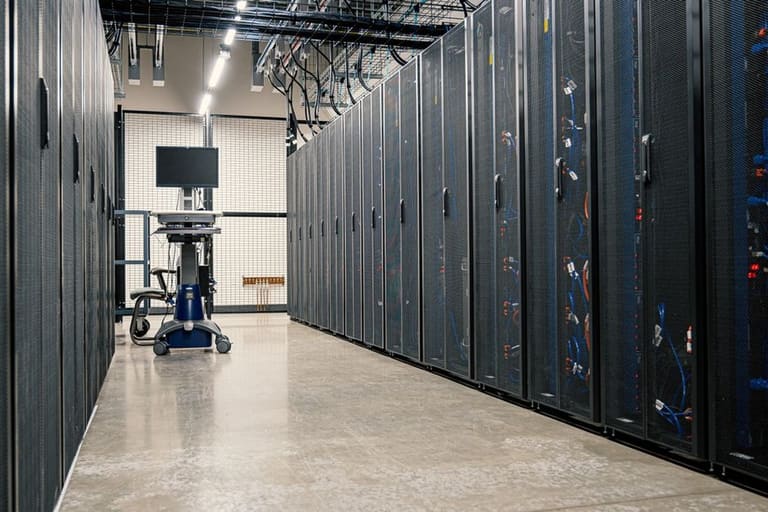
After completing the installation of DirectAdmin CloudLinux, it’s important to make various configuration settings to optimize the performance and security of your server. These settings help balance resource usage, protect against malware, and enhance overall system stability. Below are some examples of these settings and how to configure them.
| Settings | Recommended Values | Description |
|---|---|---|
| CPU Limit (Percentage) | 50% – 100% | Maximum CPU percentage each user can use, preventing excessive use. |
| Memory Limit (MB) | 512MB – 2048MB | Maximum RAM amount each user can utilize, preventing memory leaks. |
| IO Limit (KB/s) | 1024 KB/s – 4096 KB/s | Disk read/write speed limit for each user, ensuring fair disk resource usage. |
| Process Limit (NPROC) | 50 – 200 | Maximum number of processes each user can create to balance server load. |
These configuration settings can significantly affect the overall performance and security of your server. For instance, correctly setting CPU and memory limits prevents users from over-consuming resources, preserving the performance of others' websites. IO limits decrease disk load by ensuring fair sharing of disk resources.
- Customizable Settings
- CPU Limit: Limits processor usage per user.
- Memory Limit: Specifies the maximum RAM each user can access.
- IO Limit: Controls disk read/write speeds.
- Process Limit: Caps the number of processes users can create.
- MySQL User Limit: Sets the maximum number of MySQL connections one user can establish.
- Fault Isolation: Enhances isolation between users.
Moreover, the CageFS feature that comes with CloudLinux isolates each user, preventing the impact of one user’s account security breach on others. This feature is especially crucial in shared hosting environments.
Setting 1
CPU Limit Setting: The CPU limit determines the maximum processing power each user can use. This setting is critical for preventing users running on resource-intensive applications or with high traffic from impacting others. The ideal CPU limit depends on your server's overall load and your users' needs. For instance, if you have a smaller server, you can keep the limits lower to ensure a fairer distribution of resources.
Setting 2
Memory Limit Setting: The memory limit defines the maximum amount of RAM each user can utilize. This setting is essential for preventing memory leaks and efficient resource utilization. High memory usage can adversely affect your server's performance and may even lead to crashes. Therefore, it is important to set memory limits carefully and optimize based on your users' requirements.
Keep in mind that these settings are merely a starting point and can be further customized according to the specific needs of your server. With the tools and features offered by DirectAdmin and CloudLinux, you can continuously monitor your server and optimize performance.
Performance Optimization Strategies
After completing the installation and configuration of DirectAdmin CloudLinux, optimizing system performance becomes critically important. Optimization enables your server to use its resources more efficiently, facilitates faster loading of websites, and enhances the overall user experience. This process increases the server's stability and ensures smooth operation even during peak traffic periods.
Optimization Methods
- Disable unnecessary services
- Perform database optimization (e.g., regular backups and indexing)
- Utilize caching mechanisms (e.g., Varnish, Memcached)
- Carefully set CloudLinux resource limits
- Keep PHP versions updated and perform necessary optimizations
- Ensure server software (DirectAdmin, Apache/Nginx, MySQL/MariaDB) is up to date
The resource-limiting features provided by CloudLinux play a significant role in performance optimization. By setting CPU, RAM, and I/O limits for each user, you ensure that one user does not negatively impact others. This is vital for maintaining performance stability in shared hosting environments. Properly setting these limits ensures fair resource distribution while guaranteeing that each website can perform adequately.
| Parameter | Description | Recommended Value |
|---|---|---|
| CPU Limit | Maximum CPU percentage a user can utilize | %50 – %100 (adjust based on server load) |
| RAM Limit | Maximum RAM a user can access | 512MB – 2GB (depending on website requirements) |
| I/O Limit | Disk I/O speed a user can utilize | 10MB/s – 20MB/s |
| Process Limit | Maximum number of processes a user can create | 20 – 50 |
Additionally, applying caching strategies can be crucial for improving the performance of your websites. Tools like Varnish or Memcached cache frequently accessed data in memory, reducing the load on the database and server. This leads to faster loading of websites and enhances user experience. Moreover, utilizing a CDN (Content Delivery Network) to store your static content (images, CSS, JavaScript) on servers located in different geographical areas allows users to access your sites quicker.
Regularly reviewing server logs and identifying potential issues is also an integral part of the performance optimization process. By identifying slow-running queries, buggy code, or resource-consuming plugins, you can make the necessary corrections and ensure your system consistently operates at peak performance. Furthermore, closing security gaps and taking precautions against malware can positively influence server performance.
Debugging and Troubleshooting Methods
During the installation and configuration of DirectAdmin CloudLinux, it is possible to encounter various issues. Adopting a systematic approach and using the correct debugging techniques are essential for overcoming these problems. Understanding the root causes of encountered errors and developing solutions are necessary to ensure the system operates smoothly and securely. This section will focus on common issues and proposed solutions.
| Error Type | Possible Causes | Proposed Solutions |
|---|---|---|
| CloudLinux License Issues | License not active, incorrect license information | Check the validity of the license, re-enter license information |
| DirectAdmin Integration Problems | Incorrect configuration, incompatible version | Ensure that DirectAdmin and CloudLinux versions are compatible, check configuration settings |
| Resource Limit Exceeded | Excessive resource consumption by users | Review limits, optimize users' resource consumption |
| Server Performance Issues | High CPU or memory usage | Monitor server resources, stop unnecessary processes, optimize |
To successfully debug, it is crucial first to accurately identify the source of the problem. Examining server logs, monitoring system resources, and carefully analyzing error messages play significant roles in determining the cause of issues. Moreover, you can find recommended solutions for similar problems in DirectAdmin CloudLinux forums and documentation.
Step-by-Step Troubleshooting
- Review Log Files: Search for error messages in server and application logs.
- Monitor Resource Usage: Track CPU, memory, and disk usage.
- Verify Configuration Settings: Ensure DirectAdmin and CloudLinux settings are correct.
- Check for Updates: Perform system and panel updates to resolve incompatibilities.
- Reboot as Necessary: Restart the server or related services to resolve temporary issues.
- Seek Help: If you cannot find a solution, ask for assistance from DirectAdmin or CloudLinux support teams.
It's vital to remain patient during the troubleshooting process and advance systematically. Instead of rushing to conclusions, assess each step carefully to arrive at the right solution. Remember that every problem is a learning opportunity, and the experiences gained during this process will help you tackle future issues.
Regular backups and maintaining a copy of your system are critical to preventing potential data losses. If you encounter problems during the troubleshooting process, your backup will allow you to easily restore your system. Thus, review your backup strategies and ensure regular backups are taken. These steps are indispensable for security and continuity.
Security Measures and Recommendations
After completing the installation and configuration of DirectAdmin CloudLinux, securing your system becomes critically important. Security means not only protecting your server but also safeguarding all the websites and user data hosted on it. Therefore, it is essential to take a series of security measures and conduct regular security checks to proactively ward off potential threats.
Security Tips
- Keep Up to Date: Always ensure that DirectAdmin and CloudLinux software are updated to the latest versions.
- Use Strong Passwords: Set complex and hard-to-guess passwords for all user accounts.
- Two-Factor Authentication (2FA): Enable two-factor authentication wherever possible.
- Close Unused Ports: Reduce attack surface by shutting down unused ports.
- Use a Firewall: Configure and maintain a firewall to protect your server.
- Take Regular Backups: Regularly back up your data and store backups safely.
- Monitor Logs: Regularly review server logs to detect suspicious activities.
When implementing security measures, it is also important to consider hardware security in addition to software security. The physical security of the data center where your server is located, the protection of network infrastructure, and power redundancy all contribute to the overall security of your system. In this context, choosing a trustworthy hosting provider is one of the first and most crucial steps toward securing your server.
| Security Layer | Recommendation | Description |
|---|---|---|
| Software | Updates | Keep DirectAdmin, CloudLinux, and other software updated. |
| Authentication | 2FA | Enable two-factor authentication. |
| Network | Firewall | Implement a firewall for server protection. |
| Data | Backup | Regularly backup data and store it securely. |
Regular security scans are also essential for identifying and addressing vulnerabilities. These scans help you detect potential weaknesses in your server and rectify them. Additionally, creating incident response plans will inform you how to act in case of a security breach, minimizing potential damages.
Being open to continuous learning and development in security is important. Cyber threats are ever-evolving, so staying abreast of the latest security trends and implementing new security measures are critical for ensuring your system's security. Securing your DirectAdmin CloudLinux environment is a continuous process that requires regular reviews and updates.
Conclusion and Application Recommendations
In this comprehensive guide, we examined the installation and configuration of DirectAdmin CloudLinux step by step. We covered many important topics, from system requirements to performance optimization, security measures, and troubleshooting methods, in a language that users of all levels, from beginners to advanced, can understand. Our aim is to assist you in integrating your DirectAdmin panel with CloudLinux to enhance the quality and reliability of your hosting services.
| Recommendation | Description | Importance |
|---|---|---|
| Regular Backups | Regularly back up your data and store it in a different location. | High |
| Firewall Configuration | Properly configure and maintain your firewall. | High |
| Resource Monitoring | Regularly monitor server resources (CPU, RAM, disk) and intervene as needed. | Medium |
| Software Updates | Keep DirectAdmin, CloudLinux, and all software updated. | High |
After successfully integrating DirectAdmin CloudLinux, you will observe that your servers operate more stably, securely, and with higher performance. The more efficient use of resources not only enhances customer satisfaction but also fosters a more resilient environment against potential security threats. By keeping the knowledge you acquire during this process up to date, you can manage your hosting infrastructure optimally.
- Key Points
- Regular Updates: Always keep your DirectAdmin and CloudLinux software up to date.
- Security Scans: Conduct regular security scans and detect potential threats early.
- Resource Monitoring: Continuously monitor your server resources and be prepared for sudden spikes.
- Backup Strategy: Establish a comprehensive backup strategy and regularly test your backups.
- Limit Exceedance: Ensure users do not exceed their resource limits and intervene as needed.
Remember that technology is constantly evolving and changing. Therefore, continue to learn and grow regarding DirectAdmin CloudLinux and other related technologies. By continually optimizing your hosting infrastructure, you can gain a competitive advantage and provide the best service to your customers. In the journey to success, continuous learning and adaptation are key factors.
Make active use of the official documentation, forums, and communities of DirectAdmin and CloudLinux to resolve issues you encounter. By benefiting from the shared knowledge and solutions of experienced users, you can find quicker and more effective resolutions to the problems you face. We wish you success!
Frequently Asked Questions
What are the main advantages of using CloudLinux on DirectAdmin?
Using CloudLinux on DirectAdmin prevents accounts on the server from negatively impacting each other through resource limitation. This provides a more stable hosting environment and enhances overall server performance. Additionally, it prevents security vulnerabilities from spreading to other accounts, thus elevating customer satisfaction.
What preparations should I make on my DirectAdmin server before installing CloudLinux?
Before installation, ensure your server is compatible with CloudLinux. Check your license and ensure you are using the latest version of DirectAdmin. Taking backups is also essential, so you can revert in case of any issues. Furthermore, your SSH access credentials and root permissions should be prepared.
What are the most common issues encountered during CloudLinux installation, and how can I find solutions to these problems?
Common issues include license problems, incompatible modules, and configuration errors. For license issues, contact your CloudLinux provider. For incompatible modules, try using CloudLinux-compatible alternatives or disable the module. To fix configuration errors, review the CloudLinux documentation to ensure you have applied the correct settings.