 Afrikaans
 Azərbaycan
 Bosanski
 Čeština
 Dansk
Dansk Deutsch
 English
 Español
 Filipino
 Français
 Hrvatski
 Indonesia
 Italiano
 Magyar
 Melayu
 Nederlands
 Norsk
Norsk Oʻzbek
 Polski
 Português
 Română
 Slovenčina
 Slovenščina
 Suomi
Suomi Svenska
 Tiếng Việt
 Türkçe
 Ελληνικά
 Беларуская
 Български
 Русский
 Српски
 Українська
 עברית
עברית اردو
اردو العربية
 پښتو
پښتو فارسی
فارسی አማርኛ
አማርኛ मराठी
मराठी বাংলা
বাংলা தமிழ்
தமிழ் ไทย
ไทย မြန်မာ
 한국어
한국어 中文
中文 日本語
日本語

The safe and effective way to customize your WordPress site is by using a WordPress Child theme. In this blog post, you'll learn step-by-step what a WordPress Child theme is, why it's important, and how to create one. As you acquire the foundational knowledge necessary for customization, you'll explore various WordPress Child theme customization options. We'll explore the advantages of using child themes, debugging processes, and considerations for SEO optimization. We will provide examples of successful WordPress Child theme usages and take a look at future trends. With this guide, discover ways to confidently develop and customize your site using a WordPress Child theme.
What is WordPress Child Theme and Why is it Important?
WordPress Child themes are child themes that build on top of an existing WordPress theme (parent theme) and allow you to make customizations without changing that theme. This approach ensures that you maintain your own custom design and functionality without being affected by updates to your parent theme. In a way, you work on a copy of your parent theme, but that copy only contains your changes and doesn't touch the parent theme files.
So why? Do we need WordPress Child themes? Making direct changes to the parent theme files may result in the loss of all your customizations if your theme is updated. This can lead to a great waste of time and frustration. WordPress Child themes eliminate this issue, allowing you to securely store your customizations and update your parent theme seamlessly.
Benefits of Child Themes
- Secure Customization: You can make customizations without changing the main theme files.
- Update Security: Your customizations won't be lost when the parent theme is updated.
- Easy Turnaround: If you have a problem with customizations, you can easily revert to the main theme.
- Organized Code: Your code will be more organized because your customizations are kept in a separate file.
- Reusability: You can use the One WordPress Child theme on multiple sites.
The following table summarizes the key differences and benefits between the parent theme and the WordPress Child theme:
| Feature | Main Theme | WordPress Child Theme |
|---|---|---|
| Interchangeability | Direct Changeable | Not Directly Changed |
| Update Impact | Updates may delete customizations | Updates do not affect customizations |
| Risk | High (Risk of Data Loss) | Low (No Risk of Data Loss) |
| Customization Source | Basic Design and Functionality | Additional Design and Functionality |
WordPress Child themes are the best way to customize the look and functionality of your WordPress site in a safe and sustainable way. Whether you have coding knowledge or not, WordPress Child themes are a powerful tool to help you style your website the way you want.
Steps to Create a WordPress Child Theme
Creating a WordPress child theme is the safest way to keep the original structure of your theme while making changes to your existing theme. This method allows you to make customizations without being affected by theme updates. Here is the step-by-step process of creating a WordPress child theme:
Before you start the WordPress child theme creation process, you need to create a basic folder structure and style file. These files will serve as the foundation of your theme and house your customizations. The following steps explain how to create this basic structure.
- Step 1: Creating a Child Theme Folder: Go to the wp-content/themes/ directory of your WordPress installation and create a new folder. You can create the folder name using the name of your parent theme and the -child suffix (for example, main-theme-child).
- Step 2: Style.css File Creation: Create a file named style.css inside the child theme folder you created. This file will contain the basic style definitions of your child theme.
- Step 3: Edit Style.css Content: Open the style.css file with a text editor and add the following information. Don't forget to replace the parent-theme part in the template row with the folder name of the parent theme you are using.
- Step 4: Creating a functions.php File (If Required): If you want to use additional functionality in your child theme or change the functionality of your parent theme, create a functions.php file.
- Step 5: Activating the Child Theme: Log in to your WordPress admin panel, go to Appearance -> Themes, and find the child theme you created. Start using your child theme by clicking the Activate button.
After completing these steps, your WordPress child theme will be successfully created and activated. Now you can confidently customize the look and functionality of your theme. The CSS codes you add to your child theme's style.css file will override the style of your parent theme and allow you to apply your own customizations. functions.php file can be used to add custom functionality to your theme or modify existing functionality.
| File name | Explanation | Sample Content |
|---|---|---|
| style.css | Child theme's style file. |
/* Theme Name: Main Theme Child Template: main-theme */ |
| functions.php | Child theme's function file. |
<?php // Child theme functions will come here ?> |
| screenshot.png | Screenshot of the child theme (optional). | A preview image of your Child theme. |
| Other Template Files | Files to modify from the parent theme (optional). | A copy of the main theme, modified version. |
Regularly check and test your changes to ensure that your child theme is working properly. This will help you identify potential errors early and ensure that your theme runs smoothly. Using a WordPress child theme is a great way to enhance your website's design and functionality and keep it secure.
Basics Required for Customization
Before you start creating and customizing One WordPress child theme, it's important to have some basic information. This information will make the customization process more efficient and hassle-free. First, it's critical to understand how the WordPress theme structure works. Themes are made up of files that control the appearance and functionality of your site. Child themes, on the other hand, allow you to add to the main theme without changing this structure.
It is also crucial to know the basic tools and technologies you will use when customizing. HTML, CSS, and PHP are the cornerstones of WordPress theme development. HTML defines the structure of the content, while CSS determines the visual style of the site. PHP, on the other hand, is used to add dynamic functionality. Mastering these technologies will give you a great advantage in the customization process.
- Information Required for Customization
- HTML: It is used to create the structure of web pages.
- CSS: It is used to determine the style (color, font, layout) of web pages.
- PHP: A programming language used to create dynamic web content that runs on the server side.
- WordPress Theme Structure: Understanding how themes are organized and work.
- WordPress Hooks: Used to modify the functionality of WordPress using actions and filters.
Additionally, understanding the hooks and filters that WordPress offers will give you flexibility in the customization process. Hooks allow your theme or plugins to interfere with certain points of WordPress. This allows you to add or modify the functionality you want without changing the main theme files. Having this information is essential for safe and effective customization.
| Technology | Explanation | Area of Use |
|---|---|---|
| HTML | Defines the structure of web pages. | Content editing, headings, paragraphs. |
| CSS | It determines the style of web pages. | Colors, fonts, layouts, animations. |
| PHP | It creates dynamic web content. | Database operations, user interaction, custom functions. |
| WordPress Hooks | It allows modifying the functionality of WordPress. | Theme and plugin customizations, function additions. |
Learning to use version control systems (e.g., Git) will help you keep track of the changes you make during the customization process and revert them when necessary. This is a great advantage, especially when making complex customizations. It also makes it easier to revert to your original code in case of an error. Armed with all these basics, you can confidently embark on WordPress child theme customizations.
WordPress Child Theme Customization Options
WordPress Child themes are a great way to customize the look and functionality of your website without disrupting the structure of your parent theme. In this section, we'll explore the various options for how you can customize a child theme. From basic changes to more complex adjustments, child themes give you endless possibilities to personalize your website.
Before you begin the customization process of your child theme, it's important to determine which areas you want to change and what goals you want to achieve. This will help you plan your design and implement your customizations more effectively. For example, you may want to use colors that align with your brand, experiment with different fonts to improve readability, or change the layout to improve user experience.
| Customization Area | Explanation | Example Usage |
|---|---|---|
| Appearance (CSS) | Colors, fonts, layouts, etc., can be changed through style files. | Changing the header color to match the color of the brand. |
| Functionality (functions.php) | You can increase the functionality of the site by adding custom functions or modifying existing ones. | Creating a custom widget or modifying an existing widget. |
| Template Files | You can change the page layout by copying the parent theme's template files and editing them in the child theme. | Customize the blog post template to add author information and share buttons. |
| JavaScript | You can add dynamic features to the site by adding custom scripts or modifying existing scripts. | Adding a custom animation or changing the behavior of a form. |
Below, you'll find a list of some of the basic customization options you can perform with your child theme. This list will inspire you in the creative process and help you make your website unique.
- Customization Options
- Change the color scheme
- Edit font and typography settings
- Add custom CSS styles
- Customize template files (for example, header.php, footer.php)
- Create custom widget areas
- Add interactive features with JavaScript
- Change the behavior of existing plugins
The customizations you can make to your child theme are almost limitless. However, it's important to be careful when making your changes and always create a backup. This ensures that if you encounter any issues, you can easily revert to the previous version. Additionally, regularly testing your changes will help you identify and fix bugs early.
Color Changes
Colors have a big impact on the overall look and feel of your website. Through your child theme, you can easily change the color scheme of your parent theme. To do this, you usually style.css use the file. For example, you can change the color of the headings, the background color, or the text color. When changing colors, be careful to choose colors that align with your brand and enhance readability.
Font and Typography Settings
Font selection and typography are critical for the readability and aesthetics of your website. In your child theme, you can customize your typography settings by using different fonts or changing the size, weight, and style of existing fonts. By using web font services like Google Fonts, you can easily add new fonts to your website. Remember, consistent typography makes your website look professional and organized.
Advantages of Using Child Themes
Using WordPress Child themes offers several significant benefits for your website. You can make customizations without disrupting the structure of your main theme, preserve your changes without being affected by updates, and make your development process more efficient. In this way, you can shape the appearance and functionality of your website as you want while minimizing possible risks.
Child themes allow you to manage your customizations more easily, as well as maintain the security and integrity of your parent theme. Updates to the parent theme won't affect changes to your child theme, so your website always stays the way you want it to. Additionally, by creating multiple child themes for different projects, you can use the same parent theme in different ways.
- Advantages
- Security: Since you don't directly edit your parent theme's files, you avoid potential bugs and security vulnerabilities.
- Easy Update: When the parent theme is updated, your customizations in your child theme will not be lost.
- Flexibility: You can create multiple child themes for different projects or purposes.
- Organization: Since your customizations are kept in a separate folder, your code is more organized and manageable.
- Rapid Development: The child theme inherits all the features of the parent theme, which speeds up your development process.
The following table presents some of the key benefits provided by child themes comparatively:
| Feature | Child Theme Usage | Direct Change on the Main Theme |
|---|---|---|
| Update Security | Customizations Are Protected | Customizations Can Be Lost |
| Code Management | More Organized and Manageable | More Complex and Difficult to Manage |
| Debugging | Easier and Faster | More Difficult and Time-Consuming |
| Flexibility | Multiple Themes Can Be Created | Annoyed |
Using child themes makes your development process more sustainable. You can make customizations, easily revert your changes, and manage different versions without disrupting the structure of your parent theme. This provides a significant advantage for the long-term success of your website. WordPress Child themes save you time on your web development projects and help you achieve more professional results.
Debugging: WordPress Child Theme Considerations
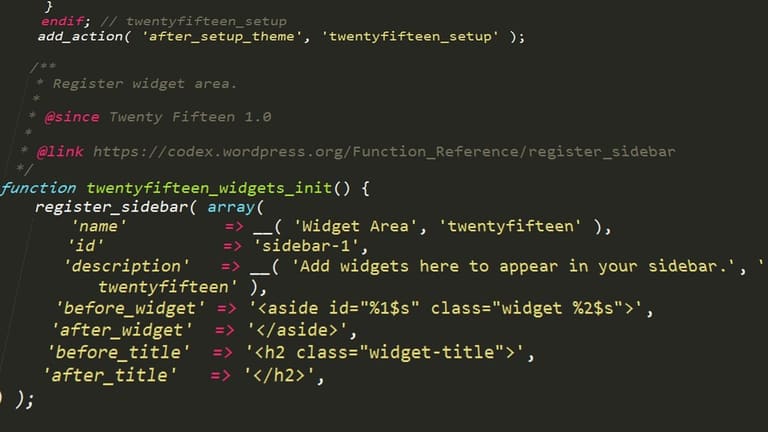
When developing or customizing WordPress child themes, encountering errors is inevitable. However, with the right approaches, it is possible to overcome these errors and provide a seamless user experience. In this section, we will focus on common problems that may be encountered in your child theme and suggested solutions.
| Error Type | Possible Causes | Solution Suggestions |
|---|---|---|
| Style File Not Loading Problem | style.css file in the wrong location or missing parent theme information. |
style.css file is in the correct directory and specify the parent theme name correctly. |
| Functions Not Working | functions.php Syntax errors or invalid function definitions in the file. |
functions.php file carefully, correct any errors, and ensure that functions are correctly defined. |
| Inability to override template files | The child template file doesn't exist in the theme with the same name or is in the wrong directory. | Copy the same template file from the parent theme to the child theme and make the necessary changes. |
| White Screen of Death | PHP errors or exceeding the memory limit. | Find the source of the error by enabling WordPress debug mode and make the necessary corrections. Try increasing the memory limit. |
Following a systematic approach to the debugging process helps you identify the source of the problem faster. Read error messages carefully and search the internet for solutions to similar problems. Additionally, WordPress community forums and developer resources can provide valuable insights.
Debugging Steps
- Enable WordPress debug mode (
WP_DEBUG). This allows errors to be displayed in more detail. - Examine JavaScript and CSS errors using browser developer tools.
- Try to identify the source of the problem by temporarily disabling any code snippets or plugins you have recently added.
- When editing your theme files, check for syntax errors using a text editor or IDE.
- Detect PHP errors and warnings by reviewing WordPress log files.
- Regularly back up your child theme's files and database. This makes it easier to revert if you make a mistake.
Remember, every mistake is a learning opportunity. Solving the problems you encounter will help you improve your WordPress knowledge and skills. Additionally, it's important to keep your child theme updated regularly and protect it against security vulnerabilities.
If you encounter complex issues, then don't hesitate to seek help from an experienced WordPress developer. Professional support can save time and effort and contribute to the smooth progress of your project.
SEO Optimization with WordPress Child Theme
WordPress Child themes offer a great opportunity to improve your website's SEO performance. Instead of making direct changes to the main theme, you can use the child theme to make your customizations safely and easily implement SEO-important optimizations. This prevents the changes you make from being lost, especially during theme updates, and ensures that your site remains consistently SEO-compatible.
Child themes offer great advantages, especially for users with coding knowledge. However, there are easy-to-use plugins and methods for those who do not have coding knowledge. In this way, anyone can improve their website's SEO by using a child theme. Remember, SEO is not just a technical issue, but also about improving the user experience. This is where child themes give you flexibility.
| SEO Optimization Area | How to Improve with Child Theme? | Importance Level |
|---|---|---|
| Speed Optimization | By cleaning and optimizing unnecessary code | High |
| Mobile Compatibility | By making responsive design edits | High |
| Schema Markup | Adding custom schema codes | Middle |
| Meta Tags | Optimizing title and description tags | High |
There are some important points to consider when optimizing SEO with the child theme. First, make sure your parent theme is already doing well in terms of SEO. Next, make sure that every change you make to your child theme doesn't negatively impact your site's speed and user experience. You can also consider using structured data markup (schema markup) to help search engines better understand your site.
Here are some tips to improve your website's SEO using a child theme:
SEO Tips
- Speed Optimization: Remove or merge unnecessary CSS and JavaScript files.
- Mobile Compatibility: Enhance your responsive design through the child theme.
- Meta Tags: Include unique and optimized meta descriptions for each page and post.
- Schema Markup: Use schema.org markups for products, articles, and events.
- Internal Links: Keep users on the site longer by including links to related content on your site.
- Image Optimization: Optimize your images to reduce their size and edit their alt tags.
Regularly monitor the results of any changes you make to your child theme. Tools like Google Analytics and Google Search Console offer valuable insights into your site's performance. By using this data, you can continuously improve your SEO strategy and improve your website's ranking on search engines.
Using a WordPress child theme is a smart approach to improve your website's SEO performance and ensure its long-term success.
Examples: Successful WordPress Child Theme Uses
WordPress child themes are a great way to customize the look and functionality of your website without directly changing the parent theme. This approach provides great flexibility for both designers and developers while offering a personalized experience without being affected by updates to the main theme. Here are some examples of successful WordPress child theme usages and inspirations:
| Project Name | Sector | Child Theme Purpose of Use |
|---|---|---|
| ABC Store | E-commerce | Add custom product filtering and advanced search features |
| XYZ Portfolio | Art and Design | Creating unique gallery layouts and custom animations |
| 123 Blog | blog | Customizing fonts and color schemes for readability |
| LMN Corporation | Institutional | Design custom page templates that align with brand identity |
Below are some key examples of how WordPress child themes have been successfully used in various industries. These examples are just a starting point and show that you can achieve much more by using your creativity:
- Successful Examples
- Creating custom product pages on e-commerce sites
- Designing different author profiles on blog sites
- Developing custom service pages on corporate websites
- Create impressive gallery layouts on portfolio sites
- Provide custom registration forms and calendar integrations on event sites
These examples demonstrate the flexibility and customization potential offered by WordPress child themes. Now, let's take a closer look at successful child theme uses in specific industries:
E-commerce
On e-commerce sites, child themes are specifically used for customizing product pages and checkout processes. For example, different layouts can be created for specific product categories or custom discount banners can be added. This can help increase sales while improving the user experience.
Portfolio Sites
Portfolio sites often require visually stunning and unique designs. Child themes allow designers to create custom gallery layouts, animations, and transition effects to showcase their own creativity. This is critical for attracting potential customers and creating a professional image.
Remember, using WordPress child themes can help you improve not only your design but also your website's performance and SEO compatibility. Without being affected by the updates of the parent theme, you can confidently make the changes you want and continuously improve your site.
Conclusion: What Have You Achieved with WordPress Child Theme?
By using a WordPress child theme, you can confidently customize your website's design and functionality without affecting the parent theme. This approach eliminates the risk of theme updates deleting custom changes to your site and offers a long-term solution. Any customizations you make are retained even if the parent theme is updated, so you have full control over your site's appearance and performance.
| Feature | Explanation | Benefits |
|---|---|---|
| Secure Customization | Adding design and functionality without changing the main theme. | Not being affected by theme updates, preserving customizations. |
| Easy Update | Implement parent theme updates seamlessly. | Keeping the site up-to-date and secure, preventing compatibility issues. |
| Enhanced Organization | Store customizations in a separate folder. | More organized and manageable code, making debugging easier. |
| SEO Compatibility | Possibility to improve the SEO performance of the site. | Better search engine rankings, more organic traffic. |
Also, you can improve your website's SEO optimization thanks to the WordPress child theme. By easily adding custom meta descriptions, title tags, and other SEO elements, you can achieve better rankings in search engines. This helps drive more organic traffic to your site.
Application Suggestions
- Back up your customizations regularly.
- Try out your child theme in a test environment.
- Keep your code organized and straightforward.
- Do not neglect SEO optimization.
- Use caching to improve performance.
- Keep an eye out for updates and apply them regularly.
Using WordPress child theme makes your web development process more efficient and enjoyable. You can easily manage your customizations, identify errors faster, and continuously improve your site's performance. This saves you time and resources, helping you focus on your business.
Remember that, WordPress child theme is just a tool; how you use it matters. With good planning, regular work and continuous learning, you can shape your website as you dream.
Future: Spotlight on WordPress Child Theme Trends
WordPress child themes have become an essential tool for web developers and designers. This approach, which allows customizations without disrupting the structure of the underlying theme, is likely to maintain its popularity in the future. Especially with the rise of no-code and low-code development trends, the flexibility and convenience offered by child themes will become even more valuable. In this section, we will focus on future trends and prospects related to WordPress child themes.
WordPress, being an open-source platform, continues to evolve and innovate continuously. In this development process, the use of child themes is also becoming smarter and more user-friendly. For example, in the future, child theming processes are expected to be supported by more automated and simplified tools. Additionally, artificial intelligence (AI) integrations can develop systems that can automatically suggest customizations that best suit users' needs.
- Future Trends
- Widespread Block-Based Themes: With the influence of the Gutenberg editor, the use of block-based themes will increase, and child themes will adapt to this structure.
- More Advanced Customization Tools: Tools with drag-and-drop interfaces that facilitate child theme customization will be developed.
- Mobile-First Design: Child themes that offer an excellent user experience on mobile devices will come to the fore.
- SEO-Focused Developments: Child theme developments for search engine optimization (SEO) will increase.
- Compliance with Accessibility Standards: Child themes that comply with web accessibility standards will be preferred more.
With the rise of e-commerce, WooCommerce-compatible child themes will also gain great importance. These themes will offer an ideal solution for customizing online stores and making them suitable for brand identity. In addition, the easy application of security updates and the advantage of not being affected by updating the base theme will continue to make child themes attractive in the future. Finally, child themes are expected to evolve towards a more modular and component-based structure. In this way, developers and designers will be able to produce more flexible and scalable solutions in their projects.
Frequently Asked Questions
Will the changes I make to my WordPress parent theme disappear with updates? How does the child theme solve this problem?
Yes, direct changes to your parent theme are usually lost when the theme is updated. By using a child theme, you keep your customizations in a separate file. This way, even if the parent theme is updated, the changes to your child theme are preserved, and your website maintains its customized look.
What files do I need to create a child theme and what should be the content of these files?
You basically need a style.css file and an functions.php file. style.css file contains basic information that defines your parent theme and activates your child theme (Theme Name, Description, Parent Theme, etc.). functions.php file allows you to add to the functions of your main theme without overwhelming it. You can also add different template files if needed.
How do I override a function in my child theme? That is, how can I change the behavior of a function in the main theme?
To override a function from your parent theme in your child theme, simply define a new function in the functions.php file of your child theme with the same function name. WordPress will run the function in the child theme as a priority, even if it has the same name as the one in the parent theme. In this way, you can change the behavior of the function in the main theme.
Will using a child theme affect the speed of my website? What should I pay attention to in terms of performance?
When used correctly, the child theme does not negatively affect the speed of your website. On the contrary, by avoiding unnecessary changes to the main theme file, you can prevent speed issues during theme updates. However, it is important to avoid using too much unnecessary code in the child theme and to use optimized code.
How can I make my WordPress child theme more SEO compatible? What optimizations do I need to make?
To make your child theme SEO-friendly, first make sure your theme is fast and mobile-friendly. Then, use title tags (H1, H2, etc.) correctly, optimize meta descriptions, and tailor your content accordingly by conducting keyword research. Also, optimize your images and add their alt tags.
I'm getting an error in my child theme. What tools can I use for debugging, and what should I pay attention to?
You can make errors more visible by enabling WordPress' debug mode (WP_DEBUG). You can also use browser developer tools (for example, Chrome DevTools) to investigate JavaScript errors and CSS issues. Read the error messages carefully and try to find the source of the problem. Undo your most recent changes to see if the issue is resolved.
I purchased a ready-made WordPress theme. What advantages does customizing this theme with the child theme give me?
Customizing a ready-made theme with a child theme prevents your customizations from being lost after updates to your theme. It also creates a layer of security against bugs in the theme and allows you to customize only the parts you need without directly changing the code of your theme. This makes your theme more flexible and manageable.
What are the risks of making changes directly to theme files without using a child theme?
Making changes directly to the theme files will cause all your customizations to be lost when the theme is updated. Additionally, a faulty change in theme files can lead to your website crashing or not working properly. Using a child theme eliminates these risks and allows you to make your customizations securely.