 Afrikaans
 Azərbaycan
 Bosanski
 Čeština
 Dansk
Dansk Deutsch
 English
 Español
 Filipino
 Français
 Hrvatski
 Indonesia
 Italiano
 Magyar
 Melayu
 Nederlands
 Norsk
Norsk Oʻzbek
 Polski
 Português
 Română
 Slovenčina
 Slovenščina
 Suomi
Suomi Svenska
 Tiếng Việt
 Türkçe
 Ελληνικά
 Беларуская
 Български
 Русский
 Српски
 Українська
 עברית
עברית اردو
اردو العربية
 پښتو
پښتو فارسی
فارسی አማርኛ
አማርኛ मराठी
मराठी বাংলা
বাংলা தமிழ்
தமிழ் ไทย
ไทย မြန်မာ
 한국어
한국어 中文
中文 日本語
日本語


Windows Terminal એ Microsoft દ્વારા બનાવવામાં આવેલ એક આધુનિક કમાન્ડ લાઇન ટૂલ છે, જે ડેવલાપર્સ અને સિસ્ટમ એડમિન્સ માટે મસ્ટ-હેવ છે. આ બ્લોગમાં Windows Terminal શું છે અને શા માટે અનિવાર્ય છે તે સમજાવાયું છે, તેમજ PowerShell 7 સાથે તેનો ઇન્ટિગ્રેશન કેવી રીતે થવામાં આવે છે તેની વિસ્તૃત વિગતો આપવામાં આવી છે. Windows Terminal નું ઇન્સ્ટોલેશન સ્ટેપ-બાય-સ્ટેપ, કામનું માહોલ કસ્ટમાઇઝ કરવું, PowerShell 7 ના કમાન્ડ ઝડપથી ચલાવવાનું અને વિવિધ ફીચર્સનું સરખામણું સરસ રીતે રજૂ કરવામાં આવ્યું છે. પસંદગાર પ્રેક્ટિસ, ડિબગિંગ ટીપ્સ, યુસર્ઇ એક્સપિરિઅન્સ અને ફીડબેક, તથા Windows Terminal માંથી મહત્તમ પરિણામ મેળવવા માટેની રીતો વિશે પણ અવલોકન છે. અંતે, Windows Terminal દ્વારા મળતી સરળતા અને ફાયદા સાથે ભવિષ્યના અપડેટ્સનો પણ ઉલ્લેખ કરાયો છે.
Windows Terminal શું છે અને શા માટે મહત્વપૂર્ણ છે?
Windows Terminal એ બિલકુલ નવી પેઢીનો ટર્મિનલ કાર્યક્રમ છે, જે Microsoft દ્વારા લાવ્યું છે. આ ટૂલમાંથી વિવિધ કમાન્ડ લાઇન પ્રોગ્રામ અને શેલ એક જ સ્થળે સંચાલિત કરી શકાય છે. ટ્રેડિશનલ Command Prompt અથવા PowerShell કરતા, Windows Terminal વધુ એડવાંસ ફીચર્સ આપે છે—જેમાં ટેબ્સ, પેન, સરળ કસ્ટમાઇઝેશન, રંગ-મૂડ, અને કિબોર્ડ શોર્ટકટ્સ જેવી બાબતો સામેલ છે. એના કારણે ડેવલોપર્સ અને IT પ્રોફેશનલ્સનું કાર્યતમ નિયંત્રણ વધારે ઝડપથી અને વધુ પ્રોડક્ટીવ બને છે. તમે આ આધુનિક પ્રોગ્રામમાં વિવિધ શેલ અને ટૂલ વચ્ચે સરળતાથી સ્વિચ કરી શકો છો—Work Flow યુઝર ફેકટને બૂસ્ટ કરે છે.
Windows Terminal ના મુખ્ય ફાયદા
- ટેબ્સ - એક જ વિન્ડોમાં અનેક Command Sessions થકી સંચાલિત કરો
- Screen પેન - અલગ-અલગ આત્મવત Shells સાથે અધિક શક્તિ
- ખૂબ કોમ્પ્લિટ કસ્ટમાઇઝેશન—રંગ થીમ, રંગ પેલેટ, પસંદગીય ટાઈપફેસ, બેકગ્રાઉન્ડ ઈમેજ વગેરે
- કિબોર્ડ શોર્ટકટ્સ—કમાન્ડ્સ કે એક્શન પલટાય તેવી ઝડપથી
- મલ્ટી-શેલ સપોર્ટ (PowerShell, CMD, WSL, Azure Cloud Shell...)
- Unicode અને UTF-8 સ્પેશિયલ કૈરેક્ટર્સ—અન્ય ભાષા કે એન્વાયરમેન્ટ સેમલેસ
ડેવલાધાર માટે Windows Terminal એ ફૂલ-ફીચર વર્કપ્લેસ ઉભુ કરે છે: તમે PowerShell અને WSL (Windows Subsystem for Linux) સાથે ફુલ-સ્ટેક મારી શકો—યે સુયોજિત લાઇફ આપે છે. એક જ વિન્ડો પરથી એડવાંસ એડમિન ટાસ્ક અને ડેવલપમેન્ટ, બધા કામ એક સાથે થાય છે—યે દિવસની વ્યવસ્થાની અસરકારકતા વધે છે.
| ફીચર | Windows Terminal | સામાન્ય Command Prompt | PowerShell (ઓલ્ડ) |
|---|---|---|---|
| ટેબ્સ UI | હા | ના | ના |
| પેન | હા | ના | ના |
| કસ્ટમાઇઝેશન | મહત્તમ | મર્યાદિત | માધ્યમ |
| મલ્ટી-શેલ | હા | મર્યાદિત | હા |
Windows Terminal કે ખુલી-સોર્સ પ્રોજેક્ટ છે—ભારતી વપરાશકર્તાઓના ફીડબેકસાથી ચાલુ રૂપે સુધારાય છે. Microsoft નો ઉપયોગકો આવનારી ટેક્નોલોજી માટે Windows Terminal ને એક સમકાલીન કમાન્ડ લાઇન Tool તરીકે મજબૂત બનાવે છે.
PowerShell 7 સાથે પરિચય
PowerShell 7 એ Microsoft નો પોપ્યુલર Command Line Tool અને Scripting Language નો નવીન ઑપ્શન છે. પહેલા સંસ્કરણો કરતા, PowerShell 7 વધુ ઝડપી, જુદા-જુદા ઓપરેટિંગ સિસ્ટમ માટે સુપોર્ટ (Windows, Linux, MacOS) અને નવી એડવાંસ ફીચર્સ આપે છે. Windows Terminal સાથે તેનો બનેલો ઉપયોગ તમારી Command Line Work Process માટે બૂલેટ ટ્રેન જેવી સ્પીડ લાવે છે.
PowerShell 7 એ .NET Core પર આધારિત છે—તેના કારણે ક્રોસ-પ્લેટફોર્મ એન્વાયરમેન્ટ (Windows, Linux, macOS)ની અંદર જમબડા ચલાવાય છે. એ બધા ટીમ માટે વધુ સરળ બને છે, જેમને અલગ અલગ OS પર એક જ સ્ક્રિપ્ટ અને ટૂલ્સ ચલાવવાની જરૂર છે. PowerShell 7 એ તેટલો જ પાઠ, જુદા જુદા વર્ઝન સાથે કમ્પેટિબલ, પણ નવા ટૂલ્સ અને ફીચર્સ સાથે આગળ વધે છે.
- PowerShell 7 ના મુખ્ય ફીચર્સ
- Platform Independent (Windows, Linux, macOS)
- .NET Core પર ચલાય
- Fast & Efficient Performance
- New Operators (ઉદાહરણ: null-coalescing "??")
- Improved Error Handling
- Background Processing અને Parallel Execution
PowerShell 7 એ સૌથી વિશિષ્ટ બાબત—ઝડપમાં વધારો છે. કમાન્ડ્સની કામગીરી વધુ તીવ્ર બની છે, ખાસ કરીને મોટી સ્ક્રિપ્ટ કે ગુણિલેલી ટાસ્ક. નવી ભાષાની ખાસિયતો અને મોડ્યૂલો, અનુભવી કે નવા યુઝર—બેઉ માટે સ્ક્રિપ્ટિંગ સહેલું બનાવે છે.
| ફીચર | PowerShell 5.1 | PowerShell 7 |
|---|---|---|
| Execution Framework | .NET Framework | .NET Core |
| Platforms | વિન્ડો | Windows, Linux, macOS |
| Performance | સામાન્ય | ઝડપથી |
| Error Management | બીજું | વધુ |
PowerShell 7 એ મોડ્યુલ-બેઝેડ છે—એથી તમે નવું મોડ્યુલ કે ફીચર રજૂ કરી શકો, રોજિંદા જરૂરિયાત માટે. Windows Terminal સાથે ઉપયોગ કરતા PowerShell 7 અવિરત અને User-Friendly Command Line Tool રહી છે.
Windows Terminal નું ઇન્સ્ટોલેશન
Windows Terminal ઇન્સ્ટોલ કરવું બહુ જ સરળ છે. Microsoft Store તરફથી સરળતાથી ડાઉનલોડ અને ઇન્સ્ટોલ કરી શકાય છે અથવા GitHub પરથી નાખી શકાય છે. આ આધુનિક ટર્મિનલ ઇન્સ્ટોલ કરો અને તમારી Command Line journey વધુ પ્રોફેશનલ બનાવો.
અપેક્ષિત ક્રમ પહેલાં, સિસ્ટમ રિક્વાયરમેન્ટ ચકાસવી જરૂરી છે. Windows Terminal માટે Windows 10 (1903+) કે Windows 11 જરૂરી છે—તમારી સિસ્ટમ એ માનદંડ પૂરું પાડતી હશે તો જ કરો. નહીતર, પ્રોગ્રામ રન નહી થાય.
ઇન્સ્ટોલ સ્ટેપ્સ
- Microsoft Store એપ પર જાઓ.
- Search boxમાં Windows Terminal લખો.
- યે પ્રોગ્રામ પસંદ કરો.
- Install બટન પર ક્લિક કરો.
- હવે "Open" થી એપ શરૂ કરો.
- GitHub થી મેન્યુઅલિ ડાઉનલોડ કરીને પણ ઇન્સ્ટોલ કરી શકો.
ઇન્સ્ટોલ થયા પછી Windows Terminal ઓટોમેટિક રીતે default terminal તરીકે સેટ થાય છે—પછીથી settingsમાં એ બદલી શકાય. ઓપન કર્યા પછી command profiles (PowerShell, CMD, WSL..) મેનૂમાંથી પસંદ કરી શકો.
હવે વિવિધ ઇન્સ્ટોલ પદ્ધતિઓનું ઊંડું સરખામણું:
| Install Type | ફાયદા | કેમ ખરાબ? |
|---|---|---|
| Microsoft Store | ઝડપથી, Auto Updates | Microsoft Account જોઈએ, ક્યારેક Compatibility Issue |
| GitHub | નવો વર્ઝન, હસ્તપ્રયોગ નિયંત્રણ | Manual Update, તકનીકી જ્ઞાન જોઈએ |
| Winget | Command Lineથી એડવાંસ ઇન્સ્ટોલ, Auto Update | CLI જ્ઞાન જરૂરી, દરેક OS પર ઉભુ નહિ જો |
| Manual | પૂરો કન્ટ્રોલ, કસ્ટમાઇઝધ હોઈ શકે છે | સમય લે, તકનીકી માગણી વધુ |
જોઈએ કે તમે ઇન્સ્ટોલેશન વખતે કઈ Error આવેઃ Windows Terminalની official documentation કે forumમાં થી તમને સહાય મળી શકે છે. ઘણી Error, restart કે driver update દ્વારા solucion કરી શકાય છે.
Windows Terminal દ્વારા ચિંતામણ કાર્યમાહોલ
Windows Terminal મત્લબ ફક્ત Command Line Tool નથી—એમાં વૈવિધ્યપૂર્ણ કસ્ટમાઇઝેશન વિકલ્પ પણ છે. તમારો માહોલ તમારી પસંદ પ્રમાણે સુયોજિત કરો—સાતત્ય અને પરફորմન્સ બંનેમાં વધાર લાવો. હવે વીસ્તારથી જુદી-જુદી કસ્ટમાઇઝીંગ રીતો જુઓ.
Windows Terminal વિક્રિય કલાપ સાથે—profiles, color schemes, font styles, background images—બધું પોતાની હારમોની પ્રમાણે. દરેક project માટે અલગ profile ટકાવી શકો: udvikમાં એક profile, system adminમાં બીજું.
| ફીચર | સમજાવણી | ઉદાહરણ |
|---|---|---|
| રંગ પેલેટ | ટર્મિનલના રંગને નિર્ધારિત કરે છે | One Half Dark |
| ફોન્ટ | ટાઈપફેસ—લેટર્સનો રૂપ | Cascadia Code |
| બેકગ્રાઉન્ડ ઈમેજ | ટર્મિનલ પાછળ ફોટા ઉમેરો | %USERPROFILE%Picturesbackground.png |
| ઓપેસિટી | ટર્મિનલ શીષ્ત્વનું લેવલ | 75 |
કસ્ટમાઇઝીંગમાં બીજી આશ રાષ્ટ્ર-કિબોર્ડ શોર્ટકટ્સ. નિયમિત કમાન્ડ કે ટાસ્ક માટે Shortcut assign કરો—ટાઇમની બચત કે ડેવ workflow વધુ સરળ. નવા tab ખોલવા, profile બદલી, pane split—all shortcutથી થાય.
- Customized Options
- Profile editing
- Color scheme change
- Font & size set
- Background image/color
- Keyboard shortcuts setup
- Tab title customisation
ટેમા અને રંગ સુયોજિત કરવી
Windows Terminal સારા વર્ઝનનાં દૃશ્યવાત માટે Theme & Color Settings આપે છે. predefined themes અને તમારા પસંદના જરૂરી રંગ સેવાનો સમર્થન છે—એથી ચોક્કસ આંખ બેસાડેલી માહોલ લાવી શકો. લાંબી મિનિટો કમાન્ડ લાઇન પર કામ કરતાં, એ યોગ્ય રંગ પેલેટ કે જેથી work stress ઘટે.
કિબોર્ડ શોર્ટકટ્સ
Keyboard Shortcuts—Windows Terminal માં work flow ઝડપ આપતી સૌથી બહુફાયદાવાર બાબત. default shortcut ઉપલબ્ધ છે, નવું જોડસ—તમારી ડિજિટલ આંગળીોથી command run કરો. regular command માટે shortcut set જાણે "ટૂંકો રસ્તો"—ગણિલેલ સહિત કમાન્ડ માટે બધી નજી કળ.
કસ્ટમાઇઝીંગ Windows Terminal—તમારા ભૂતકાળની જરૂરિયાત પ્રમાણે Maximise કરો. નાના ફેરફારો પણ મોટી સમૃદ્ધિ લાવે છે.
PowerShell 7 માં કમાન્ડઝ ઝડપથી ચલાવવી
PowerShell 7, command-running process ને ઝડપથી અને અભિનંદન સભાસે આપી છે. ખુલ્લા-દરવાજા shortcut, modules, command suggestions—new user કે veteran, બંને માટે workflow દ્યાત છે. Windows Terminal સાથે એનો ઉપયોગ—પોતાની ક્ષમતા એક પગલું આગળ વધે છે.
PowerShell 7ની વધેલી command completion facility—Tab keyથી command auto-full. ખાસ કરીને લાંબું path તપસા, Tab press—auto-suggestion, auto-complete. કમાન્ડ આધારે real-time option જુઓ.
| Command | અર્થ | લાઈવ ઉદાહરણ |
|---|---|---|
| Get-Process | Current processes જુઓ | Get-Process | Where-Object {$_.CPU -gt 1 |
| Get-ChildItem | Files, Directories List | Get-ChildItem -Path C:Windows -Filter *.log |
| Test-Path | Path exists or not | Test-Path -Path C:UsersPublicDocuments |
| Invoke-WebRequest | web requests મોકલો | Invoke-WebRequest -Uri https://www.example.com |
PowerShell 7 ના regular command માટે shortcut assign કરો—મોટા commands, routines—માત્ર ટીપ ઉચ્ચાવો અને run. Alias કે custom functions પણ ટૂંકા વગેરે ટિપ્સ.
- Useful Commands
- Get-Help: વિઘટન/મદદ મેળવવા માટે
- Set-Alias: Command shortcut assign
- Clear-Host: Screen clear કરવું
- Get-History: History commands લાવવું
- Out-GridView: Data interactivity view
- Measure-Object: Count, Average, Sum—metrics
Modules PowerShell 7 ના પાંખ છે—PowerShell Galleryમાં જેટલું module, એનાથી Cloud, DevOps, Security, વગેરે બધા કામ થઈ શકે. સતત module install & use—workplace તમારી જરૂર પ્રમાણે.
Windows Terminal ના ફિચર્સનું સરખામણું
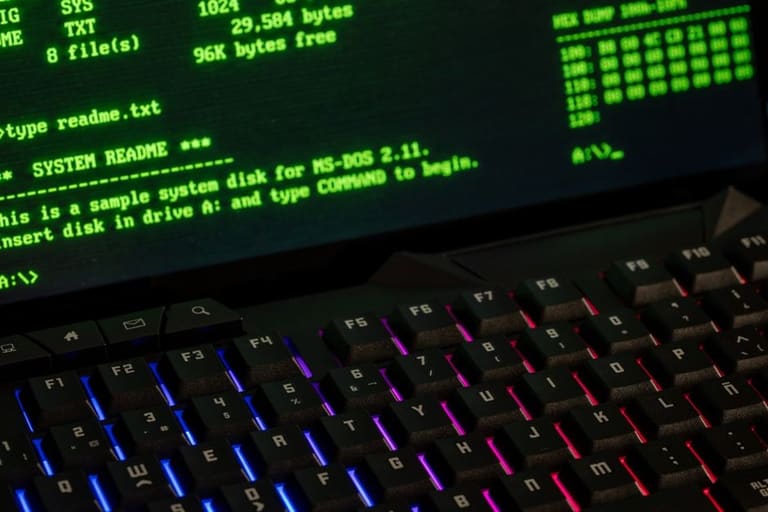
Windows Terminal એ ડેવલાપર્સ અને એડમિન એકાદ જમતી tool છે—કહેવ traditional Command Prompt કે PowerShell કરતા ઘણી નવી Registered Features આપે છે. અહીં Windows Terminal ને detail માં બાકીના Console tools સાથે વર્તમાન વર્ચુએલ ડુલાયેલા ફિચર્સથી સરખામણું થાય છે.
મુખ્ય સંખ્યાબંધ ફીચર્સ
- Multi-tab: બે કરતાં વધારે sessions એક જ વિન્ડામાં
- Custom Interface: Color, font, visual personalise
- Tab/Pan Management: Rename, move, split, new window
- Keyboard Shortcut: workflow control, custom action fast
- Unicode UTF-8 Support: આપણા script/commands કોઈપણ ભાષામાં
- GPU Rendering: Graphics card faster text rendering, better performance
હવે, Windows Terminal ને cmd.exe અને powershell.exe સાથે સરખામણું સુયોજિત રીતે:
| ફીચર | Windows Terminal | cmd.exe | powershell.exe |
|---|---|---|---|
| Multi-tab | હા | ના | ના |
| Custom Interface | હા | મર્યાદિત | મર્યાદિત |
| Unicode Support | હા | મર્યાદિત | હા |
| GPU Support | હા | ના | ના |
Windows Terminal એ બે ટક ઇન્નોવેટિવ Command Line experience કરે છે. તમને એક વિન્ડામાં અનેક sessions, personalised UI, આપણું ગમતું workflow—all in one. આવો બદલાવ કમાન્ડ લાઇન enthusiast માટે gamechanger છે.
શ્રેષ્ઠ પદ્ધતિઓ અને ટીપ્સ
Windows Terminal અને PowerShell 7 ને maximum productivity માટે જયારે તમે અજમાવો, ક્યાંક આપના દરેક આજમવાનો outcome માટે ટૂંકા મહત્વના tips મદદ કરશે. અહીં યૂઝફુલ ટેબલ તથા સૂવળી સલાહ આપવામાં આવી છે.
| મુશ્કેલી | કારણ | સલાહ |
|---|---|---|
| Terminal Open નથી થતું | Required OS version નથી, installation corrupt | OS version ચેક કરો, re-install કરો |
| Profile Save નથી થતું | config file miss, permission issue | config file ચેક કરો, run as administrator |
| PowerShell command problem | Syntax mistake, missing modules | Syntax ચેક, modules install કરો |
| Performance issue | many open tabs, outdated drivers | Close extra tabs, update drivers |
Success Tips
- Shortcuts શીખો: Windows Terminal ના shortcut દર્દથી નવો tab, split pane, switch profile.
- Profile કસ્ટમાઇઝ કરો: દરેક profile માટે અલગ color, font, background.
- PowerShell Module Try કરો: Modules install & use—workplace enhance.
- નિયમથી અપડેટ કરો: Latest version and security fixes for Terminal and PowerShell
- Documentation વાંચો: Microsoft ની docs થી live issues માટે answer મેળવો.
- Community જોડાવા: Github, forum, StackOverflowથી query કરી શકો.
ખબર છે, Windows Terminal અને PowerShell 7 સતત સુધારાય છે—પૂર્ણ લઈ શીખો અને નવી ફીચર્સ શોધતા રહો.
નિત્યો અભ્યાસ અને કોશિશ—પ્રવિવદ્યાને પકડવાની ચાવી છે.
Windows Terminal પર ડિબગિંગ
Windows Terminal છે તો Command Line Debugging પણ એડવાંસ છે—કોઈ માહિતી PowerShell 7 થી તો દ્યાત Debugging, development, test...વધારે સરળ. અહીં error categories અને solutionની ટેબલ જુઓ.
| error type | કારણ | solution |
|---|---|---|
| Syntax Error | કર્મઓ, parameter miss | કમાન્ડ ધ્યાનથી તપાસો, help docs જુઓ |
| File Not Found | path ગુમ, dir miss | Path અને dir check કરો |
| Permission Error | User rights miss | Run as administrator, permission set કરો |
| Module Load Issue | modules miss, version mismatch | Install/Gvern modules, compatibility set |
Debuggingમાં color output અને error messages અત્યંત અમારા, ખોટ આરંભથી સમર્થ solution મેળવવામાં મદદ કરે છે. PowerShell 7 નો enhanced error management આમ, વધુ સાયોઈક તરફ સુયોજિત.
અપેક્ષિત હેતુઓની સમજ
Error messagesની સમજ—Critical Step. Windows Terminal અને PowerShell 7 error message details આપે છે, type, location, cause—all debug માટે. સજ્જ error messages—drilldown debugging.
- Debugging Tips
- Message ધ્યાનથી વાંચો
- -ErrorAction Stop parameter—script run stop
- try-catch blocks—code manage
- Write-Host/Write-Output—debug log print
- PowerShell debugging tools—step-by-step testing
- Log files check—root cause
Windows Terminal customize કરીને—error output અને debugging Enhance થશે. પીંક for error, custom notification—all for swift diagnosis.
Microsoft, Windows Terminal અને PowerShell 7 માં Regular મુલ્યો ઉમેરે છે. Regular updates શીખો—debugging સહેલું બને.
યૂઝર એક્સપિરિઅન્સ અને ફિડબેક
Windows Terminal અને PowerShell 7, Microsoft દ્વારા સતત સાયોઈક ફીચર્સથી તેને આપણું—યૂઝર ફિડબેકનું મહત્ત્વ ટોચનું. User suggestions—development priorities, updates, features—all shaped by feedback. User-centric experience, Windows Terminal ને advance console tool બનાવવા Critical Role છે.
| Feedback Source | Frequency | Evaluation Process |
|---|---|---|
| GitHub Issues | Daily | Dev team review, prioritize |
| Microsoft feedback center | Weekly | Analyse, trends identify |
| Social Media | Daily | Monitor, note valuable issues |
| User Survey | Monthly | Feedback collect & report prepare |
User feedback, Windows Terminal અને PowerShell 7 ના updates માટે used—GitHub, surveys, forum, all analysed. Most reported issues and feature requests, developજંબડા અને updates—priority set માટે. Feature requests—pane/section management, customization—feedbackથી જ build છે. User-centric development, better bonding between product and user.
- Feedback Importance
- Customer satisfaction
- Product usability growth
- New feature inspiration
- Bug detection
- Development direction
Feedbackથી કે માત્ર bug fix નહીતર, mega feature development પણ. બધું user demand પરથી. User feedback processમાં ભાગ લેવાથી, produce ખુદ user-centric થઈ જાય છે.
Windows Terminal અને PowerShell 7 નો success USER EXPERIENCE અને Feedback-based developmentથી સંબંધિત છે. Microsoft, User-centric approach—continual upgrades to meet future demand. User engagement અને feedback—further development માટે guiding star છે.
નિષ્કર્ષ અને આગલા પગલાં
આ લેખમાં Windows Terminal અને PowerShell 7 ના આધુનિક કમાન્ડ લાઇન અનુભવના બધા પાસાંઓ મુશ્કૂરાવ્યા. Windows Terminal ની versatility, customisation, PowerShell 7 ની advancement—બધા સાથે combo જમામાં command-line dull task નહિ, ભવ્ય power tool બની જાય છે.
Summary—Windows Terminal અને PowerShell 7નાં યુનિક લાભ:
- Tab & Pane: Multi-session management in one window
- Customization: Theme, color, font, personalized workspace
- Multi-shell: CMD, PowerShell, Bash—all easily used
- Command Completion: PowerShell 7 auto-suggestion facility
- Cross-platform: Universal CLI for Windows, macOS, Linux
હવે સારો ટેબલ:
| ફીચર | Windows Terminal | PowerShell 7 |
|---|---|---|
| મુલ યૌત્સે | Multi-shell supported modern terminal app | Advanced automation & config-based CLI tool |
| પ્રમુખ ફીચર | Tabs, panes, advanced custom options | Cross-platform & auto-complete, module extensions |
| ઉપયોગ ક્ષેત્ર | Development, system admin | Automation, scripts, management |
| ઇન્ટિગ્રેશન | CMD, PowerShell, Bash—integration | Top syncing with Windows Terminal |
Future Vision: Windows Terminal અને PowerShell 7, regular updates, AI-based completion, advanced customization, cloud integration—આ બધું અંતેાષ્ટ Command Line બુદ્ધિ વધાડશે. આ tools સાથે workflow enhance કરવાનો right time—અત્યારે છે!
Action Tips:
- Windows Terminal ડાઉનલોડ કરો: Microsoft Store/GitHub—latest version
- PowerShell 7 install કરો: Microsoft site—latest version
- Command basics શીખો: PowerShell 7 command essentials
- Customize Discover કરો: Windows Terminal profile/theme options
- Module ઉપયોગ કરો: PowerShell 7 modules—work extension
- Online Resources Use કરો: Official docs/community forums for help
Remember—practice and experiment; Windows Terminal & PowerShell 7—potential full maximise, step-by-step learning.
ઘણે પૂછાતા પ્રશ્નો
Windows Terminal ને પરંપરાગત કમાન્ડ લાઇન કરતાં શું વિશેષ છે?
Windows Terminal એ Multi-tab, customizable themes/options, PowerShell/CMD/WSL–એક જ રિલકમાં, Unicode support–more modern, efficient workflow. Performance પણ legacy CLI કરતાં સરસ છે.
PowerShell 7 માં કઈ નવી ફીચર્સ છે?
PowerShell 7 એ .NET Core પર ચાલે છે, cross-platform support, boosted performance, error handling improvement, new operators/modules, better VS Code integration–આધુનિક CLI blending છે.
Windows Terminal install કરવા શુ અભ્યાસ છે?
Windows Terminal–Microsoft Store/GitHub download કરો. Windows 10 (1903+)/Windows 11 OS જરૂરી છે. Setup super-simple છે, Store-based version auto-update vast.
Windows Terminalમાં tab/pane efficiently કેમ ચલાવવું?
Tabs rename, color, assign profiles; panes split horizontally/vertically–one window, many CLI at once. Shortcutse tab/pane switch–workflow enhance.
PowerShell 7માં favourite commands વધારે ઝડપથી કેવી રીતે ચલાવવું?
Alias, shortcut assign, custom functions–routine commands one click. Command completion/history–time-saving features.
Windows Terminal એ શું કસ્ટમાઇઝેશન વિકલ્પો આપે છે?
Color schemes, font selection, background image, keyboard shortcuts. settings.json edit/GUInterface–workspace personalise કરો.
Windows Terminal/PowerShell 7માં આવતી error કેવી રીતે વધુ સયોઈક રીતે પાર કરો?
PowerShell 7-enhanced error messages/tools, font/color settings–easy debug. try-catch structure and -ErrorAction Stop કમાન્ડ–better diagnosis.
Windows Terminal/PowerShell 7થી commuity/feedback કેમ મેળવવું?
GitHub, Stack Overflow, forums–online support/questions/feedback. GitHub issues–bug report/feature request, experience share.