 Afrikaans
 Azərbaycan
 Bosanski
 Čeština
 Dansk
Dansk Deutsch
 English
 Español
 Filipino
 Français
 Hrvatski
 Indonesia
 Italiano
 Magyar
 Melayu
 Nederlands
 Norsk
Norsk Oʻzbek
 Polski
 Português
 Română
 Slovenčina
 Slovenščina
 Suomi
Suomi Svenska
 Tiếng Việt
 Türkçe
 Ελληνικά
 Беларуская
 Български
 Русский
 Српски
 Українська
 עברית
עברית اردو
اردو العربية
 پښتو
پښتو فارسی
فارسی አማርኛ
አማርኛ मराठी
मराठी বাংলা
বাংলা தமிழ்
தமிழ் ไทย
ไทย မြန်မာ
 한국어
한국어 中文
中文 日本語
日本語

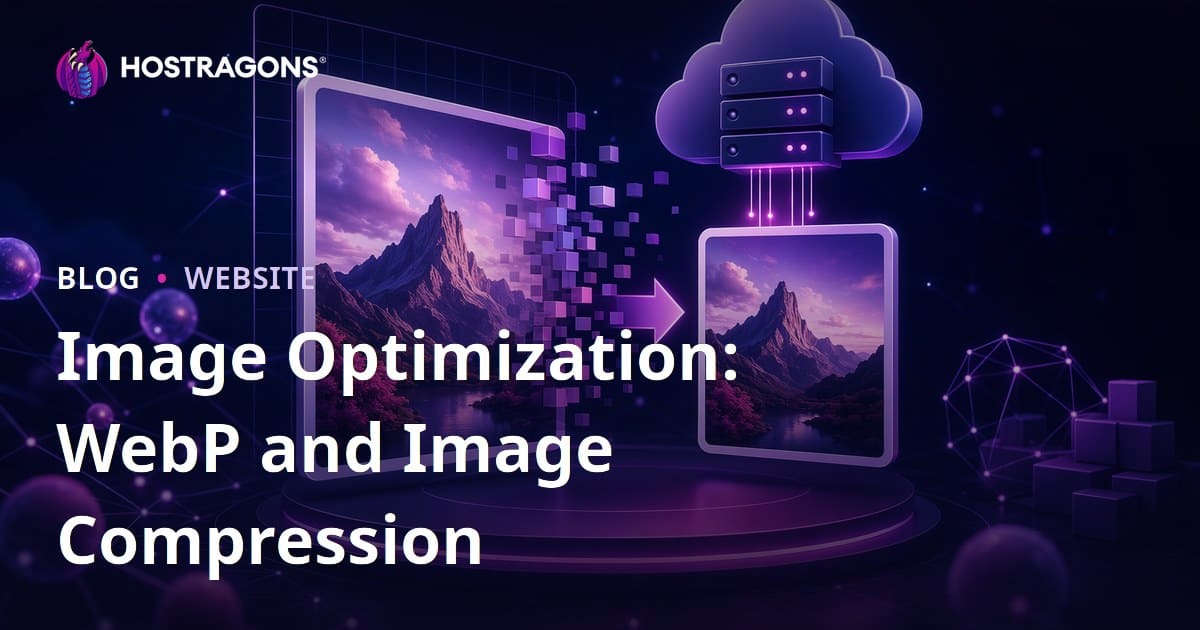
Image optimization means delivering the images on your website in the right format, at the right dimensions, with smaller file sizes, while preserving as much visual quality as possible. In 2026 SEO standards, image optimization is no longer just about compressing a few files. It requires a combined approach that includes using the WebP format, reducing image file size, responsive images, lazy loading, CDN delivery, and Core Web Vitals. In simple terms, the goal is to show visitors the image they need quickly, clearly, and without making them download unnecessary data.
One of the most common reasons a website loads slowly today is oversized, uncompressed images. When a product image that should be around 400 KB is uploaded as a 4 MB file, mobile users wait longer, bounce rates rise, and LCP, or Largest Contentful Paint, is negatively affected. That can lead to losses in SEO visibility, user engagement, and conversion rates. For a business website, e-commerce store, or blog running on Hostragons infrastructure, optimizing images is often one of the fastest ways to gain measurable performance improvements. For a stronger infrastructure, Hostragons Web Hosting Packages and for secure publishing, Hostragons SSL Certificates can also be part of your performance strategy.
Why Is Image Optimization Critical for SEO in 2026?
Google no longer evaluates user experience only through content quality. It also looks closely at how fast and stable a page feels when it loads. In the 2026 SEO landscape, image optimization sits at the intersection of technical SEO and content experience. If a large hero image, product photo, or blog cover image near the top of a page loads late, the user is forced to wait before accessing the main content. This delay increases LCP. If images create layout shifts as they load, CLS, or Cumulative Layout Shift, gets worse. If a page becomes responsive to user actions too late, INP, or Interaction to Next Paint, may also suffer.
Consider a practical example: a blog post contains 12 images, and each image is 1.5 MB on average. The total image weight becomes 18 MB. When those same images are converted to WebP and resized to appropriate dimensions, each file may drop to around 150-250 KB. The total weight can fall into the 2-3 MB range. On a 4G mobile connection, this can make the page load several seconds faster. From an SEO perspective, this is not just a technical improvement; it can mean more readers, lower abandonment, and a higher chance of conversion.
What Is the WebP Format?
WebP is a modern image format developed by Google. Compared with JPEG and PNG, it can deliver smaller file sizes while maintaining a similar perceived level of quality. It supports both lossy and lossless compression, can include transparency through an alpha channel, and can also be used for animated images. That makes it useful across many website scenarios, from blog images and product photos to banners, icons, and interface elements.
Using the WebP format is especially valuable for mobile SEO. Mobile users often deal with more variable connection speeds, device performance, and data limits than desktop users. Serving the same image as WebP instead of JPEG can often reduce file size by 25% to 80%. The exact savings depend on the content of the image, compression quality, color complexity, and the tool used for conversion.
When Should You Use WebP?
- For blog cover images and images inside articles.
- For e-commerce product photos and category banners.
- For hero images on corporate and business websites.
- For portfolio, gallery, and news websites that publish many images.
- For icons and UI elements that need transparency but should be smaller than PNG alternatives.
What Should You Consider When Using WebP?
Although WebP is supported by almost all modern browsers, having a fallback strategy for older browsers is still a good practice. On the HTML side, the picture element can be used to serve WebP along with a fallback JPEG or PNG. Image quality should also not be reduced too aggressively. With product images, over-compression may prevent customers from clearly examining the product. For that reason, the best approach is to define different quality settings for different image types.
WebP vs JPEG vs PNG vs AVIF
Not every image format is ideal for the same purpose. When optimizing images for SEO, format selection should depend on the type of image and how it will be used on the page. The table below offers a practical summary.
| Format | Best Use Case | Advantage | What to Watch For |
|---|---|---|---|
| JPEG | Photos, news images | Broad support, good quality | Can be larger than PNG or WebP in some cases |
| PNG | Logos, icons, transparent images | Lossless quality and transparency | File size can become very large for photos |
| WebP | Blogs, products, banners, transparent images | Small files, good quality, broad support | A fallback plan is useful for older browsers |
| AVIF | Next-generation images that need high compression | Excellent compression potential | Conversion time and compatibility should be checked |
In practice, WebP offers a strong balance between speed and compatibility for most websites. AVIF can produce smaller files in certain scenes, but the production workflow, browser support, and image processing cost should be considered. WebP, on the other hand, is widely used and reliable because it is easy to implement with WordPress, CDNs, image optimization plugins, and modern hosting environments.
What Does Reducing Image Size Mean?
Reducing image size involves two related but different tasks: reducing pixel dimensions and reducing file weight. Pixel dimensions refer to the image’s width and height. File weight refers to the storage and transfer size measured in KB or MB. For example, resizing a 4000x3000 pixel photo down to 1200x900 pixels is dimension reduction. Making the same image 220 KB instead of 2.8 MB while preserving acceptable quality is file size reduction.
The most common mistake is compressing an image without changing its dimensions. If an image is displayed at a maximum width of 800 pixels inside a blog post, uploading it at 3000 pixels wide is unnecessary. Even if the browser displays it smaller on the screen, it often still has to download the large file. That is why the right method is to first determine the pixel dimensions based on the image’s placement, then apply the appropriate format and compression level.
How to Optimize Images Step by Step
1. Define the Purpose of the Image
Not every image needs the same level of quality or the same dimensions. An explanatory screenshot inside a blog post should not be optimized the same way as a main brand image on the homepage. A product photo should show detail, while a decorative background image can usually be compressed more aggressively. The first step is to ask: What information does this image provide to the user, and what is the largest width at which it will appear on the screen?
2. Choose the Right Pixel Dimensions
As a general starting point, 800-1200 pixels wide may be enough for blog content, 1600-1920 pixels wide for full-width hero images, and 600-900 pixels wide for product listing images. Some images may require 2x resolution for retina screens, but that does not mean every image should be uploaded at a massive size. Responsive images should be used to deliver different dimensions based on the user’s device and screen.
3. Convert Images to WebP
You can convert JPEG or PNG images to WebP using online tools, desktop software, CDN features, or WordPress plugins. On WordPress websites, plugin-based automatic WebP generation is a common choice. In more technical projects, image conversion can be added to the build process. For example, a development team may create 480, 768, 1200, and 1600 pixel variants for each uploaded image and serve them as WebP.
4. Test the Quality Setting
There is no single magic number for WebP quality. For photo-heavy images, a quality range of 70-82 often produces good results. For simple graphics, even lower settings may be sufficient. Product photos should not be compressed too heavily. The best method is to export the same image at 60, 75, and 85 quality levels, then compare both file size and visual difference. If users cannot notice the difference, the smaller file is usually the better choice.
5. Write SEO-Friendly Image File Names
An image file name can provide contextual signals to search engines. Instead of IMG_9283.webp, a descriptive file name such as webp-image-optimization-example.webp is more useful. Using lowercase letters, hyphens, and avoiding special characters is a good standard. The file name should not be stuffed with keywords; it should simply describe the image in a clear and natural way.
6. Add User-Focused Alt Text
Alt text is used to describe an image when it cannot be loaded or when visitors use screen readers. It also provides context for image search results. Good alt text should be short, descriptive, and natural. For example: File size comparison of a product image converted to WebP format. Repeating the same keyword over and over is a weak practice for both accessibility and SEO.
7. Use Lazy Loading
Lazy loading allows images that are not visible during the initial page load to be loaded later. This reduces the initial page weight. However, there is an important exception: the LCP image at the top of the page should not be lazy loaded. For example, if the homepage hero image or article cover image is the main content visible above the fold, it should load with priority. Lazy loading provides the greatest benefit for gallery images and supporting visuals further down the page.
8. Define Image Dimensions in HTML and CSS
If an image’s width and height are not defined, the browser may recalculate the page layout after the image loads, causing visual shifts. This increases CLS. Specifying width and height values in a way that preserves the image’s real aspect ratio helps the page load more stably. Using aspect-ratio in modern CSS is also a good approach.
9. Serve Images from a CDN
A CDN reduces latency by delivering images from servers geographically closer to the user. This is especially important for websites that receive visitors from different cities or countries. For projects hosted on Hostragons, hosting choice, server location, caching, and CDN should be evaluated together. For performance-focused infrastructure, Hostragons Fast Hosting Solutions and for domain management, Hostragons Domain Lookup may be useful resources to review.
WebP and Image Compression for WordPress Websites
WordPress is one of the most widely used content management systems for image-heavy websites. That is why image optimization is considered a core part of WordPress performance. First, you should check whether your theme generates unnecessarily large image sizes. Some themes create many small variants for every uploaded image, which can increase disk usage. Second, images uploaded to the media library should be automatically converted to WebP where appropriate.
A practical checklist for WordPress looks like this:
- Resize images to the right dimensions before uploading.
- Use a reliable plugin that automatically converts images to WebP.
- Test the featured image from an LCP perspective.
- Enable image caching and browser cache settings.
- Remove unnecessary gallery, slider, and background images.
- Measure results with PageSpeed Insights, Lighthouse, and real user data.
The key point here is not to assume that installing a single plugin will solve every problem. A plugin may compress a 5000-pixel-wide image that was uploaded at the wrong dimensions, but preparing a file correctly from the beginning is usually more effective if it will only be displayed at 800 pixels in the content. The PHP version, caching structure, and disk performance on the hosting side also affect the overall experience. For WordPress websites, the guide What is WordPress Hosting can also be considered in this context.
Image Optimization for E-Commerce Websites
On e-commerce websites, images directly influence purchase decisions. Users want to see the product clearly, but they do not want to wait for slow pages. That makes the balance even more delicate for e-commerce images. A product detail page may need a higher-quality image for zoom functionality, while smaller card images on category pages can usually be served at a lower file size.
For example, if an online store has 1000 products and each product has 5 images, that means 5000 images in total. If each image is 1 MB on average, product images alone represent 5 GB of data. If the same set is optimized and reduced to an average of 180 KB per image, the total falls to around 900 MB. This creates serious advantages for storage, backups, and the user experience. Faster category pages can also help crawl efficiency and encourage users to browse more products.
Technical Checklist for Image Optimization
You can use the following list as a standard quality-control step during implementation:
- Determine the maximum width at which the image will be displayed on screen.
- Remove unnecessary metadata and oversized pixel dimensions from the original file.
- Use WebP for photos, and SVG or optimized PNG for icons and logos.
- Test the WebP quality setting based on the image type.
- Create different size variants for responsive images.
- Load the main above-the-fold image with priority.
- Use lazy loading for images further down the page.
- Define width and height values to reduce CLS risk.
- Check CDN, cache, and compression settings.
- Monitor LCP, CLS, and INP metrics with PageSpeed Insights.
The purpose of these steps is not only to shrink files. The real goal is to help users access content as quickly and smoothly as possible. Stronger SEO performance follows naturally from that better experience.
Common Mistakes and Better Approaches
Mistake: Compressing Every Image at the Same Quality
Using the same compression ratio for every image may seem practical, but it is not the right approach. A product photo, a background pattern, and a screenshot all have different quality requirements. The better method is to classify images according to their purpose and optimize each group accordingly.
Mistake: Converting to WebP Without Resizing
WebP is a powerful format, but a 5000-pixel-wide image can still be unnecessarily large even as WebP. A healthier workflow is to start with dimensions, then choose the format, and only then apply compression.
Mistake: Lazy Loading the LCP Image
If the largest image visible above the fold is lazy loaded, the page’s most important content arrives late. This can damage the LCP score. The LCP image should be loaded with priority and, where possible, supported with a preload strategy.
Mistake: Treating Alt Text as a Keyword Field
Alt text exists for accessibility. Using a keyword naturally within the context can be useful, but repetitive alt text that does not describe the image weakens the user experience.
How Should You Measure Performance?
Any image optimization work is incomplete if you do not measure its impact. Google PageSpeed Insights is a good starting point. This tool shows metrics such as LCP, CLS, and INP using both lab and field data. Lighthouse reports may highlight issues such as improperly sized images, files not served in modern formats, and offscreen images that should be deferred. However, a single test result is not enough. Testing on different devices, over mobile connections, and with real user traffic provides more accurate results.
Here is an example improvement scenario: a corporate website homepage loads in 6.2 seconds and has a total page weight of 7 MB. Images are converted to WebP, the hero image is reduced from 1920 pixels to 1400 pixels, lazy loading is added to 8 images in the lower sections, and CDN delivery is enabled. As a result, page weight can drop to 2.1 MB, while LCP may fall from 4.8 seconds to 2.4 seconds. These gains vary depending on industry, theme, plugins, and server configuration, but they clearly demonstrate the impact of image optimization.
How Hostragons Infrastructure Supports Image Optimization
Image optimization is not only the responsibility of the editor or designer. Hosting infrastructure, server response time, caching, SSL, HTTP/2 or HTTP/3 support, and CDN integrations all affect how quickly images reach users. Optimized images are delivered more consistently in a reliable hosting environment. SSL is also necessary for trust and modern web standards. That is why website performance should be evaluated by considering content optimization and infrastructure quality together.
If you are starting a new web project, building the foundation correctly from domain selection to hosting choice will make your work easier in the long run. For domain selection, What is a Domain and How to Get It, for secure connections, What is SSL Certificate, and for hosting decisions, What is Hosting can serve as natural follow-up guides.
Conclusion: Faster, Sharper, More SEO-Friendly Images
Image optimization is not a minor technical detail in 2026 SEO standards; it is one of the core indicators of website quality. When WebP format usage, proper image size reduction, lazy loading, responsive images, and CDN support are applied together, page speed can improve noticeably. Faster pages help users reach content more easily, which creates a strong advantage for SEO, conversions, and brand trust.
The best short-term starting point is to analyze the images on the 10 pages that receive the most traffic on your site. Identify large files, reduce their dimensions, convert them to WebP, and measure performance again. If you are looking for a faster and more secure foundation on the infrastructure side, you can review Hostragons solutions and begin with small but effective optimization steps for your existing website.
Frequently Asked Questions
Is the WebP format really necessary for SEO?
WebP does not directly guarantee rankings, but it can strongly support SEO performance by reducing file size and improving page speed. It can have a particularly positive effect on LCP and user experience for image-heavy websites.
Does reducing image size lower quality?
It can reduce quality if the wrong settings are used. However, when the right dimensions, format, and compression ratio are selected, quality can be preserved at a level users will not notice. In WebP, a quality range of 70-82 can deliver balanced results for many photos.
Should I always use WebP instead of JPEG?
WebP is more efficient for most web use cases, but JPEG may still be used for archives, print workflows, or special compatibility requirements. For websites, serving WebP with a JPEG fallback when needed is a good approach.
Do I need to know code to use WebP in WordPress?
No. Reliable image optimization plugins can automatically convert images to WebP in WordPress. Even so, it is important to resize images before uploading and to review performance test results after implementation.
Can optimizing images reduce hosting requirements?
Optimized images use less disk space, lower bandwidth, and transfer faster. This helps hosting resources work more efficiently, but traffic levels, software architecture, and security needs should also be considered when choosing hosting.