 Afrikaans
 Azərbaycan
 Bosanski
 Čeština
 Dansk
Dansk Deutsch
 English
 Español
 Filipino
 Français
 Hrvatski
 Indonesia
 Italiano
 Magyar
 Melayu
 Nederlands
 Norsk
Norsk Oʻzbek
 Polski
 Português
 Română
 Slovenčina
 Slovenščina
 Suomi
Suomi Svenska
 Tiếng Việt
 Türkçe
 Ελληνικά
 Беларуская
 Български
 Русский
 Српски
 Українська
 עברית
עברית اردو
اردو العربية
 پښتو
پښتو فارسی
فارسی አማርኛ
አማርኛ मराठी
मराठी বাংলা
বাংলা தமிழ்
தமிழ் ไทย
ไทย မြန်မာ
 한국어
한국어 中文
中文 日本語
日本語

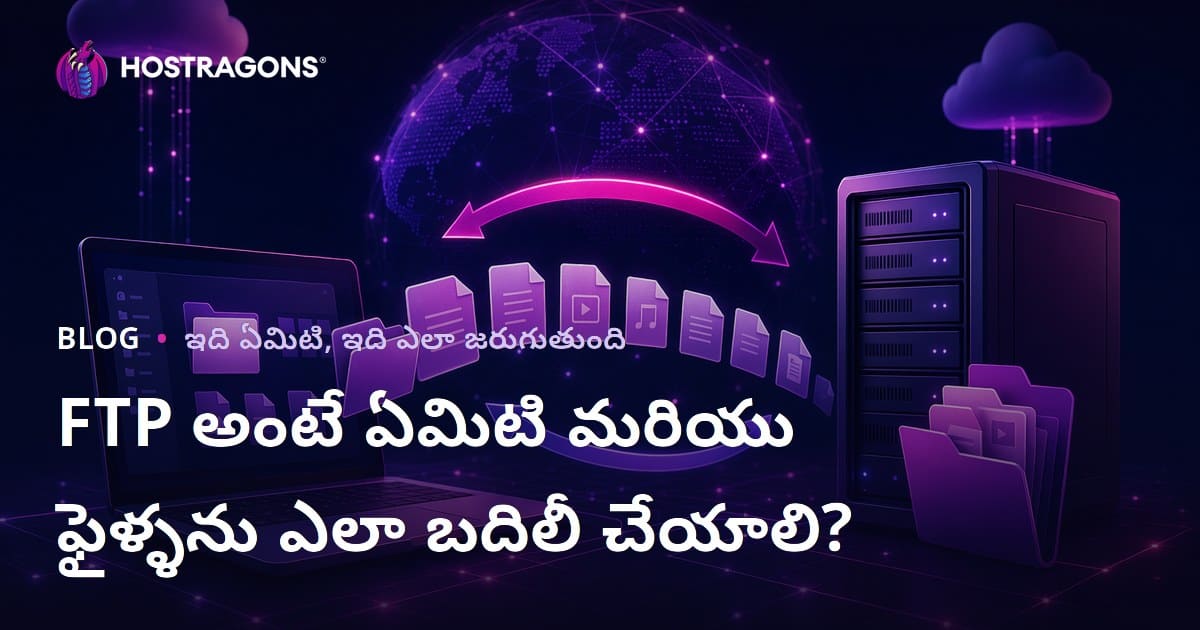
FTP అంటే ఏమిటి? ఈ బ్లాగ్లో మీరు FTP ప్రోటోకాల్కు సంబంధించిన అన్ని ముఖ్యమైన విషయాలను, దాని వినియోగ ప్రాంతాలు, సాంకేతిక మౌలికాలు, ఫైల్ ట్రాన్స్ఫర్ ప్రక్రియలు, గుణాలు-లోపాలను తెలుగులో సులువుగా అర్థం చేసుకుంటారు. అలాగే, FTP ఆధారంగా దోసీలను పంపే / స్వీకరించే స్టెప్పులను వివరించాము, అవసరం అయ్యే సాఫ్ట్వేర్ వివరించాము, FTP ను సురక్షితంగా వాడటానికి మార్గాలను ఇచ్చాము. సాధారణంగా ఎదురయ్యే FTP కనెక్షన్ పొరపాట్ల పరిష్కారాలు, FTP ఉపయోగంలో జాగ్రత్తలు, చివరకు FTPను విజయవంతంగా ఉపయోగించేందుకు చిట్కాలు కూడా ఇవ్వబడ్డాయి.
FTP అంటే ఏమిటి & వినియోగ ప్రాంతాలు
FTP (File Transfer Protocol) అంటే కంప్యూటర్లు మధ్య ఫైళ్లను ట్రాన్స్ఫర్ చేయటానికి వాడే ఒక నెట్వర్క్ ప్రోటోకాల్. ఇంటర్నెట్ ప్రారంభ దశ నుంచే వెబ్ సైట్ల నిర్వహణ, అభివృద్ధిలో FTP కీలక పాత్ర పోషించింది. ఇది client-server architecture మీద ఆధారపడి ఉంటుంది: క్లీయింట్ అంటే ఫైళ్లను పంపించాలనుకునే వాడుకరి; సర్వర్ అంటే వాటిని అందుబాటులో ఉంచే బలమైన కంప్యూటర్.
FTP ముఖ్య ఉద్దేశం, వేర్వేరు Operating Systems & hardware కలిగిన కంప్యూటర్ల మధ్య దోసీలను సులభంగా సంక్రాంతి చేయడం. దీనివల్ల text, images, videos మరియు పెద్ద archive files లాంటి అన్ని రకాల డాటాను పంపించవచ్చు. FTP యొక్క authentication (username & password) వలన కొంత బాధ్యత, కానీ యీది అనుకున్నదంత భద్రత ఇవ్వదు; ఎందుకంటే, ఫైళ్లను encrypt చేయదు. అందుకే,Sensitive data కి SFTP లేదా FTPS వంటి secure మార్గాలు వినియోగించాలి.
FTP వాడే ప్రధాన సందర్భాలు
- వెబ్సైట్ ఫైళ్లను server కు upload చేయడం.
- పెద్ద ఫైళ్లను వేగంగా పంచుకోవడం.
- Software updates పంపడం.
- Backup/restore చర్యలు (డాటా సంరక్షణ).
- కంపెనీ లో అనేక computers మధ్య ఫైల్ షేరింగ్.
FTPను ప్రత్యేకించి web developers, system administrators ఉపయోగిస్తారు. Web developers కు HTML, CSS, JavaScript ఫైళ్లను upload చేయడానికిశాంతి; sysadmins కొత్త updates push చేయడానికి, backup లు చేయడానికి, పెద్ద log filesను పరిశీలించడానికి వాడతారు. దీని simplicity, effectiveness వలన FTP ఇంకా ఉపయోగంలో కొనసాగుతోంది.
| ప్రోటోకాల్ | భద్రత | వాడే సందర్భాలు |
|---|---|---|
| FTP | Encrypt చేయదు; అధిక భద్రతా లోపాలు | General file transfer, website management (జాగ్రత్తలు తప్పనిసరి) |
| SFTP | SSH ఆధారం మీద encrypt చేస్తుంది; భద్రతా ప్రోటోకాల్ | అత్యంత secure transfer, website ఆపరేషన్స్ (confidential files) |
| FTPS | SSL/TLS మీద encrypt చేయబడిన FTP | Sensitive data secure transfer, secure sites |
| HTTP | Encrypt చేయదు లేదా HTTPSగా encrypt చేస్తుంది | Web pages & data transmission |
FTP ఒక traditional file transfer tool అయినప్పటికీ, దాని కమ్యూనికేషన్ పద్ధతిలో భద్రత లోపించిందని గుర్తించాలి. అందుకే మీ data చాలా confidential అయితే మార్గాలను మార్చడం మంచిది. FTP working principles ని అర్థం చేసుకుంటే, website management & system administration లో decisions well informed గా తీసుకోగలుగుతారు.
FTP ప్రోటోకాల్ యొక్క మౌలిక భాగాలు
FTP అంటే ఏమిటి? అని ఆలోచించేటప్పుడు, దాని underlying structure సంగతులు తెలుసుకోవాలి. FTP client-server architecture మీద పనిచేస్తుంది; దాని పని reliable & efficient file exchanging పైన ఆధారంగా ఉంటుంది. విక్ష్య ఫీచర్లు తప్పనిసరిగా web developers, sysadmins కి బహిరంగంగా ఉపయోగకరంగా ఉంటాయి.
FTP architecture లో ప్రధానంగా: FTP client, FTP server, control connection, data connection ఉండాలి. Client computer నుండి serverకి connect చేయడానికి client software అవసరం. Server అంటే డీఫాల్ట్ గా ఫైళ్లను host చేసే, client కు ట్రాన్స్ఫర్ చేసే system. Control connection commands, authorization కొరకు; Data connection actual file transfer కొరకు వస్తుంది. ఈ రెండు connections కలిసి మన్నింపు, reliability, speed భారించడాన్ని FTP కు ఇస్తాయి.
FTP ప్రోటోకాల్ భాగాలు
- FTP Client
- FTP Server
- Control Connection
- Data Connection
- Commands
ఈ component interaction ఎలా జరుగుతుందో, టేబుల్ ద్వారా చూసుకొను:
| భాగం | వివరణ | పని |
|---|---|---|
| FTP Client | Serverకు connect & file actions చేయడానికి software | Connect, send/receive files, manage directories |
| FTP Server | Files ని host చేసి clients కు access ఇస్తుంది | Store files, authorizations, manage transfers |
| Control Connection | Commands/authorizationకి ఉపయోగిస్తారు | Authenticate, send commands, status చెక్ |
| Data Connection | Actual file transmissionకి dedicated connection | Server⇔Client file transfers |
FTP అంటే ఏమిటి అనేది basic structure మాత్రమే కాదు, దాని working process కూడా అనుభవంలోకి తేవాలి. ఉదాహరణకి, Active&Passive modes, data connection కె ఎలా configure చేయాలి, security measures తప్పనిసరి. ఇవన్నీ file transfer reliability, speed, safety పెంచడానికి సహాయపడతాయి.
ఫైల్ ట్రాన్స్ఫర్
FTP file transfer రెండు ప్రధాన steps లో జరుగుతుంది: connection setup & data transmission. Client software (ex: FileZilla) ద్వారా serverతో control connection చేసుకొని, authentication లాగిన్ పూర్తి చేస్తారు. ఆ తర్వాత transfer command (GET/PUT) పంపితే, server data connection తెరిచి file actual transfer శాంతంగా చేస్తుంది. ఉత్తమ reliability కోసం, ఇద్దరు సరైన credentials, settings వాడాలి.
కనెక్షన్ స్టేజీలు
FTP కనెక్షన్లు Active/Pasive modes కలిగిన రెండు వేరే రీతుల్లో వస్తాయి. Active mode లో client serverకి request పంపుతుంది, server client PC వద్ద portలో connect చేయడానికి ప్రయత్నిస్తుంది. Passive mode లో, client server నుండి port number అడుగుతుంది, server ఆ portలో connection అందిస్తుంది. Passive mode firewall వెనుక ఉన్న computers కి ఎక్కువ ఉషశ. ఎందుకంటే firewall limitationsను bypass చేయగలదు.
FTP working very simple, but security కోసం proper configuration తప్పనిసరి.
FTP పనితీరు & యొక్క ప్రక్రియలు
FTP అంటే ఏమిటి? అన్న ప్రశ్నకు సమాధానం, దాని working steps & architecture చెప్పాలి. FTP client (ఉదా: FileZilla, Cyberduck) FTP server కు వెన్ను. Two connections mandatory: command (port 21), data (port 20 లేదా dynamic port). Command connection కమాండ్ & authorization కోసం, data connection actual file transfer కోసం. FTP session రెండోపరిచయాలలో అర్థం చేసుకుంటే మీ transfer reliability పెరుగుతుంది.
| ప్రక్రియ | వివరణ | ప్రాధాన్యత |
|---|---|---|
| Client-Server Architecture | FTP client ↔ server interaction మీద ఆధారపడి ఉంటుంది | Fundamental working principle |
| Command & Data Connections | Separate connections for authorization & data transfer | Reliable, speedy transfers |
| Active & Passive Modes | Client vs server initiation of transfer | Firewall handling & network compatibility |
| Authentication | Username & password required | Data protection, access control |
FTP యొక్క workflow steps
- కనెక్షన్ సెటప్: Client, command port ద్వారా server కు కనెక్ట్ అవుతుంది
- Authentication: Username/password ద్వారా లాగిన్
- Commands: File upload/download, directory list వంటి ట్రాన్స్ఫర్ commands పంపించాలి
- Data transfer: Server 20/dynamic port ఒకటి తెరిచి actual files పంపుతుంది
- Session end: Transfer పూర్తి అవ్వడంతో, connection close
FTP ఉపయోగం సులభంగా అవుతుందని నమ్మినా, పెరిగిన security అవసరాలు సరి చూసుకోవాలి. అందుకే, SFTP (SSH File Transfer Protocol), FTPS లాంటి secure alternatives ఉపయోగం మంచిది. ఇవి data encrypt చేయడం ద్వారా unauthorized accessను నిరోధిస్తాయి. ద్వారా secure FTP usage గురించి మరింత తెలుసుకొనండి.
FTP వాడే ముఖ్యమైన పాజిటివ్స్ & నెగటివ్స్
FTP అంటే ఏమిటి? అనప్పుడు, దాని ప్రయోజనాలూ, లోపాలూ తెలుసుకొని decision తీసుకోవడమే అవసరం. FTP file transferలో వేగం, ఎన్నడూ వాడిన trust వలన decadesగా ఉపయోగ బార్గే ఉంది. కానీ, security & alternative tools బలంగా వచ్చిన తర్వాత, FTP కొన్ని aspects లో outdatedగా మారింది.
FTPని వాడే రాధానం: Windows, macOS, Linux వంటి platforms మధ్య డాటా షేరింగ్, compatibility-problem లేకుండా పెద్ద files పంపించుకోవడం. Web sitesను update చేయడం,media files పంపించడం, backup చేయడం కోసం practical solution.
FTP యొక్క ప్లస్ & మైనస్
- ప్లస్: Super speed with large files
- ప్లస్: OS/platform compatibility
- ప్లస్: Wide global user base
- మైనస్: Security open issues
- మైనస్: No default encryption
- మైనస్: Contemporary options కంటే somewhat complex
వెరే సెక్యూరిటీేవీ FTP కి దొరక్కపోవడం పెద్ద లోపం. Encryption లేకుండా transfer చేస్తే, cyber-attacks కు data openగా పడేలా అవుతుంది. అందుకు, SFTP, FTPS వాడడం recommended. అలాగే, outdated FTP servers/clients ద్వారా vulnerabilities పెరుగుతాయి.
| ఫీచర్ | ప్లస్ | మైనస్ |
|---|---|---|
| Speed | High-speed transfers | Network dependent |
| Compatibility | Cross-platform | Old OS support missing sometimes |
| Security | Can be used with secure protocols (SFTP, FTPS) | No default encryption |
| Ease | Many simple FTP clients | Fresh users may feel difficulty |
FTP వాడేందుకు ఉండే గుణాలతో పాటు, లోపాలను బహిరంగంగా తెలుసుకొని, మీ use-case కు అన్ని ఖుచితంగా assess చేసుకోవాలి. Security ఎక్కువ ప్రాధాన్యం ఉంటే, secure alternatives పైనే focus చేయండి.
FTP ద్వారా ఫైల్ ట్రాన్స్ఫర్ ఎలా చేయాలి?
FTP అంటే ఏమిటి? అన్నది అర్థమైన తర్వాత, actual file transfer process ఎలా జరుగుతుందో చూద్దాం. FTP ఇష్టంగా filesను computer⇔server మధ్య తరలించటానికి industry గా వాడుతున్న protocol. Hosting provider/system administrator కొరకు క్లయింట్ IP, username, password, port number అవసరం ఉంటుంది.
FTP client software (FileZilla, Cyberduck, WinSCP వంటి) మదిలో పెట్టుకొని, అటువంటి tool download చేసి క్రమం పాటించాలి. FTP server login details(hostname, username, password, port) మీన్నా hosting provider నుంచి లేదా system admin నుంచి పుంగాల. వీటన్నీ స్టాండ్ బయ్ అంటే file transfer మొదలు పెట్టండి.
FTP client & credentials సిద్ధంగా ఉండగానే, దోసీ transfer step-by-step:
- FTP Client ఓపెన్ చేయండి. (ఉదా: FileZilla)
- Server Connect అవ్వండి. Quick connect లేదా Site Manager ద్వారా hostname, username, password, port వివరాలన్నీ ఎంటర్ చేయండి.
- Local & remote directories display అవుతుంది. అటు-ఇటు files structure, dual pane లో కనిపిస్తాయి.
- Transfer files: కావలిసిన files/foldersని select చేసి, drag & drop చేయండి లేదా “Upload/Send” అన్న options వినియోగించండి.
- Progress చూడండి. Transfer జరుగుతున్నప్పుడు progress bar లేదా status window లో check చేయండి.
- Session ముగించండి. అవకాశమైతే, security కోసం connection close చేయండి.
ఈ steps ని పక్కాగా పాటిస్తే, files సురక్షితంగా, వేగంగా FTP ద్వారా పంపించవచ్చు. గమనిక: Secure FTP (SFTP) లేదా FTPS వాడడం data కోసం ఎక్కువ భద్రత ఇస్తుంది.
FTP కోసం అవసరమైన సాఫ్ట్వేర్ & టూల్స్

FTP అంటే ఎంత ప్రయోజనమో, పిల్లవాడేక్స్, కీలక టూల్స్ ద్వారా దాన్నిఆ అందుబాటులో పెడుతాయి. సరిగా ఎంచుకున్న software మీ transfer speed, security, interaction ఉపయోగాన్ని పెంపొందిస్తుంది.
| సాఫ్ట్వేర్ పేరు | Platform | ఫీచర్లు | Price |
|---|---|---|---|
| FileZilla | Windows, macOS, Linux | Open-source, friendly UI, multi-language support | Free |
| Cyberduck | Windows, macOS | Cloud storage integration, drag-drop support | Free (donations) |
| Transmit | macOS | Fast transfer, strong sync | Paid |
| WinSCP | విండోస్ | Open-source, SSH, CLI | Free |
FTP clients generally graphical interface తో simple, visual file management సామర్థ్యం కలిగి ఉంటాయి. Advanced FTP clients security protocols(SFTP, FTPS) కల్గినప్పటికీ, ఇలా వాడడం data protection పెరుగుతుంది.
FTP tools recommendation
- FileZilla: Most popular free FTP client
- Cyberduck: Simple interface, cloud integration
- WinSCP: Powerful Windows solution
- Transmit: macOS fast & reliable
- Free FTP: Basic needs, free
Web browsers ద్వారా basic FTP operations చేయవచ్చు కానీ, security మరింత ఎక్కువగా అది clients ద్వారా మాత్రమే. ఫైల్ transfer safety కోసం, పై softwareలలో ఒకటి వినియోగించండి.
Software ఎన్నుకుంటే OS compatibility, security features, ease-of-use, cloud integration జరుగుతుంది. For example, regular cloud backups చేస్తే, cloud supported FTP client ఎంచుకోండి.
FTPను సురక్షితంగా వాడటం కోసం మార్గాలు
FTP అంటే ఏమిటి? అని అడిగేవారికి, పదే పదే “FTP safeనా?” అన్న సందేహం వస్తుంది. Base FTP protocol encrypt చేయని కారణంగా, cyber-attacker కి scope ఉంది. కనుక, sensitive data బాటా secure alternatives(SFTP, FTPS)డివన్ లేదా securing tips పాటించాలి.
FTP భద్రత పెంచడానికి SFTP(SSH File Transfer Protocol) లేదా FTPS(FTP over SSL/TLS) వాడాలి. SFTP మరింత secure; user credentials, file data, commands అన్నింటినీ encrypt చేస్తుంది. FTPS SSL/TLS మీద ఫైల్ transmissionకు encrypt చేయగా, cyber threatsను నిరోధిస్తుంది.
| Protocol | Encryption | Port | Security Level |
|---|---|---|---|
| FTP | None | 21 | Low |
| SFTP | SSH | 22 | High |
| FTPS | SSL/TLS | 21 (default) | High |
| HTTPS | TLS/SSL | 443 | High |
Securely use FTP ఇలా:
- SFTP/FTPS ఉపయోగించండి: Base FTP కంటే secure protocols మాత్రమే వాడండి
- Strong password policy పాటించండి: Guess చేయగలిగే password ఖచ్చితంగా వాడవద్దు
- 2FA enable చేయండి: Two-Factor authentication అంటే security extra protection
- Firewall ప్రయోజనాన్ని మునిగెల్లు: Unauthorized accessను block చేయండి
- FTP software updates ఇతరులు ఎంత ఎన్నడూ కొత్తదిగా వాడండి
- Unused accounts తొలగించండి: Risk minimize అవుతుంది
Securityకి protocols దాటేయడం alone is not enough–regular inspection, logs, antivirus updates, suspicious activity monitor, backup schedule తప్పనిసరి.
FTP కనెక్షన్ పొరపాట్లు & దిగువ పరిష్కారాలు
FTP అంటే ఏమిటి? అన్నది అర్థమైన తర్వాత, actual file transfers తయారయ్యే కనెక్షన్ errors ఎంకొన్ని ఉంటాయి. సర్వర్ misconfiguration, firewall block, improper authentication వంటి issues ఎక్కువగా ఎఆర్ఫ్. Errors ని నీరుకోవడంలో, proper diagnosis, correct credentials, software updates, firewall setup ముఖ్యం.
Common errors: Invalid username/password, wrong hostname, passive mode mismatch. Credentials check చేయడం, configuration settings recheck చేయడం తప్పనిసరి. FTP client ఎప్పుడూ latest version వాడాలి; required permissions active చేయాలి.
ప్రపంచంలో సహజ FTP errors
- 530 User authentication failed (invalid login)
- Connection timeout (slow server, unreachable)
- 550 File not found (missing file)
- 227 Passive mode failed (firewall)
- 425 Data connection could not be established
- 500 Invalid command error
| Error Code | Description | Reason | Solution |
|---|---|---|---|
| 530 | Login Failed | Wrong credentials, account locked | Check username/password; verify account settings |
| 421 | Service not available | Server overload/maintenance | Try later; verify server status |
| 550 | File not found | Incorrect file name/permissions | Check file name; adjust permissions |
| 227 | Passive mode blocked | Firewall blocks passive connection | Enable passive; check firewall settings |
Complex problems వచ్చినప్పుడు, hosting provider/support teamను అనుసరించండి. Backup తొలగిపోతుంటే, secure FTP వాడు, logs/backup లు regular కలిగించండి.
FTP వాడే సమయంలో పాటించాల్సిన సూచనలు
FTP అంటే ఏమిటి? అర్థం చేసుకున్న తర్వాత, మిగిలిన precautions & best practices తప్పనిసరి. Data security (backup, password, encryption, client updates), transfer optimization (timeout, speed), problem avoidance (+logs).
FTP client ఎన్నుకోవదానికి security features, modern protocols (SFTP/FTPS), usability, reliabilityని చూపండి. Secure, recent software విచారించండి.
FTP ప్రయోజనాన్ని పెంచే practices
- Strong password వాడండి
- SFTP/FTPS ఉపయోగించండి
- Firewall configuration చెక్ చేయండి
- FTP client updates భద్రంగా ఉంచండి
- Old/unused files delete చేయండి
- Timeout settings optimize చేయండి
Backup schedules, server logs, 2FA security ఏమొన్న consistent గా చేసుకోగలిగితే, data protection మరింత పెరుగుతుంది.
| Suggestion | Description | Benefit |
|---|---|---|
| SFTP/FTPS use | Encrypted file transfers only | Protects data; prevents snooping |
| Strong password | Unique, complex passwords | Stops unauthorized access |
| Regular backup | Periodic downloads of files | Prevents accidental data loss |
| Software updates | Up-to-date FTP client/server | Closes vulnerabilities; faster |
చివరకు & FTP విజయవంతం ఉపయోగానికి చిట్కాలు
FTP అంటే ఏమిటి? విధానం, వాడకాన్ని, precautions వివరంగా చూశాం. ఉత్తమ వాడకం కోసం, secure software, error diagnosis, security tips obstinately పాటించాలి. వ్యక్తిగత/బిజినెస్ ఫైల్ ట్రాన్స్ఫర్ కు ఈ చిట్కాలు గుర్తుపెట్టుకోండి:
| Tip | Description | Importance |
|---|---|---|
| Secure connection | SFTP/FTPS only | Protects data |
| Software updates | Latest client/server | Bugs fixed, performance boosted |
| Strong passwords | Complex, unique | Access protection |
| ఫైర్వాల్ | Security config | Blocks threats |
FTP practical hints: transfer speed monitor, concurrent connections optimize, queue management, large files compress transfer, logs రోజులూ చెక్ చేయడం.
Instant win FTP tips
- FileZilla, Cyberduck, WinSCP వాడండి
- SFTP లేదా FTPS తప్పనిసరిగా ఉపయోగించండి
- Strong password policy
- Firewall setup
- Compress large files
- FTP client concurrency optimize
- Logs monitor
Gist: FTP అంటే ఏమిటి? అనేది, నమెను file transfer protocol మాత్రమే కాదు, right way ఉపయోగిస్తే productivity, efficiency అధికంగా పెరిగే powerful tool. Article insights వివిధ practical problemsను సమర్థ వాడకం ద్వారా overcome చేయవచ్చు.
Continuous learning FTP realm లో తప్పనిసరి. Technology updatedగా ఉంటే, new security measures, software version changes, best practices అధికారంగా నేర్చుకోండి. All the best!
అడికే ప్రశ్నలు
FTP అంటే ఏమిటి, ఎందుకు వాడాలి?
FTP అనగా File Transfer Protocol. జల్లుగా computer⇔computer మధ్య network ద్వారా ఫైళ్లు పంపుకోవడానికి industry-wide standard. website files upload/downloading, server⇔local backup వేగంగా చేయటానికి వాడుతారు.
FTP వాడాలంటే నాకు ఏ సమాచారం అవసరం?
FTP server address(hostname), username, password & port(usually 21) ని hosting provider/system admin నుంచి తీసుకోవాలి.
FTP file transferలో ఏ జాగ్రత్తలు తీసుకోవాలి?
Secure connection (SFTP/FTPS), transfer completion check, correct destination, large files transfer సమయంలో interruptions లు monitor చెయ్యాలి.
FTP connection తరచుగా disconnect అవుతుంది–ఎంటి?
Internet speed, firewall, server status, passive mode misconfiguration కారణాలు. Internet connection, firewall rules, server activity, passive mode config తెలుసుకోవాలి.
SFTP/FTPS మధ్య difference ఏమిటి, ఎందుకు ఒకదానిని వాడతారు?
SFTP SSH protocolపై; FTPS SSL/TLS ఆధారంగా. SFTP single connectionలో data, commands secure అనగా బహుశా more reliable security; confidential transfers కు SFTP recommended.
ఏ FTP clients recommend చేస్తారు?
FileZilla(free, open-source), Cyberduck(free), WinSCP (Windows) & Transmit(Mac, paid) అన్ని trustworthy. OS & కస్టమరైజేషన్ needs కి తగినదాన్ని ఎంచుకోండి.
FTP secure గా వాడాలంటే precautions?
Strong password, SFTP/FTPS only, firewall setup, client/server updates. Software updates security loopholesను లేకుండా చేస్తాయి.
FTP backup procedures అంటే ఏమిటి?
FTP client ద్వారా server connect అవ్వండి→website files local PC కి download చేయండి→regular backup schedules fix చేయండి→FTP clientsలో scheduled backup options వాడండి.