 Afrikaans
 Azərbaycan
 Bosanski
 Čeština
 Dansk
Dansk Deutsch
 English
 Español
 Filipino
 Français
 Hrvatski
 Indonesia
 Italiano
 Magyar
 Melayu
 Nederlands
 Norsk
Norsk Oʻzbek
 Polski
 Português
 Română
 Slovenčina
 Slovenščina
 Suomi
Suomi Svenska
 Tiếng Việt
 Türkçe
 Ελληνικά
 Беларуская
 Български
 Русский
 Српски
 Українська
 עברית
עברית اردو
اردو العربية
 پښتو
پښتو فارسی
فارسی አማርኛ
አማርኛ मराठी
मराठी বাংলা
বাংলা தமிழ்
தமிழ் ไทย
ไทย မြန်မာ
 한국어
한국어 中文
中文 日本語
日本語


WordPress ਦੀਆਂ ਵੈੱਬਸਾਈਟਾਂ 'ਤੇ ਆਉਣ ਵਾਲੀਆਂ ਆਮ ਸਮੱਸਿਆਵਾਂ ਨੂੰ ਹਲ ਕਰਨ ਲਈ WordPress Debug ਮੋਡ ਇੱਕ ਖ਼ਾਸ ਟੂਲ ਹੈ। ਇਸ ਬਲੌਗ ਵਿਚ, WordPress Debug ਮੋਡ ਦਾ ਕੀ ਮਤਲਬ ਹੈ, ਇਹ ਕਿਉਂ ਔਹਦੇ ਹਨ ਅਤੇ ਇਸਨੂੰ ਕਿਵੇਂ ਚਲਾਇਆ ਜਾਂਦਾ ਹੈ–ਸਭ ਪੱਖਾਂ ਨੂੰ ਵੱਖ-ਵੱਖ ਚੈਨਲਾਂ ਰਾਹੀਂ ਵੇਖਿਆ ਗਿਆ ਹੈ। ਿਲ੍ਹੀਆਂ ਗਲਤੀਆਂ, SQL ਦੇ ਅਣ ਪੂਰੇ ਵਾਧੇ, ਕੰਮਊਕਦੀ ਸਮੱਸਿਆਵਾਂ, plugins ਦੀਆਂ clash, theme ਦੀਆਂ ਗੜਬੜੀਆਂ–ਹਰੇਕ ਦੀ ਪਛਾਣ ਅਤੇ ਹੱਲ ਜਪਾਣੀ ਹਲਾਤਾਂ ਨਾਲ ਦਿੱਤੀ ਗਿਆ ਹੈ। Debug ਮੋਡ ਚਲਾਉਂਦੇ ਹੋਏ ਕਿੰਨਾ ਸਾਵਧਾਨ ਰਹਿਆ ਜਾਵੇ–ਇਹ ਵੀ detail ਵਿੱਚ ਰੱਖਿਆ ਗਿਆ ਹੈ।
WordPress Debug ਮੋਡ: ਕੀ ਹੈ ਤੇ ਕਿਉਂ ਜ਼ਰੂਰੀ
WordPress debug ਮੋਡ, ਤੁਹਾਡੀ ਵੈੱਬਸਾਈਟ ਤੇ ਆਉਣ ਵਾਲੀਆਂ error ਅਤੇ warnings ਨੂੰ ਖੁਲ੍ਹਾ ਰੱਖਦਾ ਹੈ। ਇਹ ਮੋਡ ਚ ਲੋਕ ਸਾਈਟ ਵਿਚਲੀਆਂ ਗੜਬੜੀਆਂ ਦੀ ਜੜਾਂ ਪਛਾਣ ਕਰ ਸਕਦੇ ਹਨ ਤੇ ਹਲ ਰਾਹ ਛੂਟਾ ਪੂਰਾ ਪਾਉਂਦੇ ਹਨ–ਵਿਸ਼ੇਸ਼ ਤੌਰ ਤੇ development ਤੇ testing stage 'ਚ ਇਹ ਜ਼ਰੂਰੀ ਹੁੰਦਾ। Debug mode, PHP ਦੀਆਂ error, warnings ਅਤੇ notices live ਦਿਖਾਉਂਦਾ ਹੈ, ਇਸ ਕਰਕੇ code ਵਿਚਲੀ ਸਮੱਸਿਆ ਦੱਸਣ ਵਿਚ ਵਕਤ ਨਹੀਂ ਲੱਗਦਾ। ਕਦੇ ਕਦੇ, user ਆਪਣੀ site ਉੱਤੇ error ਤੋਂ ਪਹਿਲਾਂ ਸਮੱਸਿਆ ਦਾ ਹਲ ਕੱਢ ਸਕਦੇ ਹਨ।
WordPress debug ਮੋਡ ਤਾਂ error messages ਲਈ ਹੀ ਨਹੀਂ, WordPress core, themes ਤੇ plugins ਨਾਲ ਬਣੀਆਂ warnings ਵੀ show ਕਰੇ, ਜੋ future ਵਿੱਚ vaddi ਸਮੱਸਿਆ ਬਣ ਸਕਦੀਆਂ ਹਨ। Debug ਮੋਡ enable ਕਰਦੇ ਹੋਏ, ਤੁਸੀ ਇਹ warnings ਨੂੰ exploit ਕਰਕੇ optimization ਕਰ ਸਕਦੇ ਹੋ ਤੇ ਸਾਈਟ ਦੀਆਂ ਸੁਲੱਭਤਾ ਵਧਾ ਸਕਦੇ ਹੋ। ਇਸ ਲਈ, WordPress debug ਮੋਡ ਵੈੱਬਸਾਈਟ ਦੀ ਲੰਬੀ ਮਿਆਦ ਵਾਲੀ ਕੰਮਯਾਬੀ ਲਈ ਖ਼ਾਸ ਹੈ।
- WordPress Debug ਮੋਡ ਦੇ ਫਾਇਦੇ
- Error ਅਤੇ warning ਨੂੰ turant ਪਛਾਣੋ
- Site ਨੂੰ slow ਕਰਨ ਵਾਲੇ ਕਰਣ ਪਹਚਾਣੋ
- Plugins & themes clash ਵੇਖੋ
- PHP error ਤੇ warning live ਭੀਖੋ
- Development process fast ਕਰੋ
- ਵਰਤੋਂਕਾਰ ਅਨੁਭਵ smooth ਬਣਾਓ
Debug ਮੋਡ detail ਜਾਣਕਾਰੀ ਦਿੰਦਾ ਹੈ, ਜਿਵੇਂ error message 'ਚ file name, line number, error type ਆ ਜਾਂਦੇ ਹਨ। ਇਹ info ਗਲਤੀਆਂ ਦੀ ਜੜ ਛੇਤੀ ਪਛਾਣਣ ਵਿੱਚ, plugins/themes WordPress standards ਦਾ ਪੂਰਾ ਭਰੋਸਾ ਦੇਣ ਵਿੱਚ helpfull ਹੁੰਦੀ ਹੈ। Standarde ਤੋਂ cut ਕੇ code, site ਦੀ security ਤੇ speed ਪਹਿਲਵਾਨ ਹੋ ਸਕਦੇ ਹਨ।
WordPress debug ਮੋਡ site ਦੀ ਹਾਲਾਤ ਤੇ safely develop ਕਰਨ ਲਈ ਜ਼ਰੂਰੀ ਹੈ। ਪਰ live site 'ਤੇ debug ਆਖ਼ੀਰ ਚਲੌਂ, ਤਾਂ ਖਤਰਿਆਂ ਵਾਲਾ ਰਾਹ ਹੈ–visitors ਨਿੰਦਿਆ ਕਰ ਸਕਦੇ ਹਨ, ਜਾਣਕਾਰੀ leak ਹੋ ਸਕਦੀ ਹੈ। ਇਸ ਲਈ, debug mode ਸਿਰਫ਼ development/testing environments 'ਤੇ ਵਰਤੋ; galatੀਆਂ ਫੜਕੇ ਬੰਦ ਕਰ ਦਿਆ ਕਰੋ।
| ਫੀਚਰ | Explain | Importance |
|---|---|---|
| Error ਪਛਾਣ | PHP error/warning/notices ਦਿਖਾਵੇ | Site stability |
| Warning | WordPress/themes/plugins ਤੋ ਬਣੀ warnings show | Performance issue ਪਛਾਣ |
| Detail info | Error message–file name, line number ਨਾਲ | Fast solution possible |
| Security | Live site 'ਤੇ enable ਨਾ ਕਰੋ | Security flaws prevent |
WordPress Debug ਮੋਡ: ਕਿਵੇਂ ਚਲਾਇਆ ਜਾਵੇ
WordPress debug ਮੋਡ enable ਕਰਨਾ ਸਾਈਟ ਤੇ ਆਉਣ ਵਾਲੀਆਂ error/faults ਪਛਾਣਣ ਵਿੱਚ ਮੱਦਦ ਕਰਦਾ ਹੈ। ਇਹਮੋਡ ਕਈ ਰਸਤੇ ਆ enable ਹੋ ਸਕਦੇ ਹਨ, technical knowledge ਤੇ personal preference ਦੇ ਅਨੁਸਾਰ, ਤਰੀਕਾ ਚੁਣੋ।
Common ਤਰੀਕਾ: wp-config.php file edit ਕਰੋ। WordPress installation ਦਾ key configuration file–ਇਹੋ file ਵਿੱਚ debug mode constants define ਕਰਕੇ enable ਹੋ ਜਾਂਦਾ ਹੈ। ਬਿਉਂਡ ਵੇਖ ਨਿਆ ਕਰਕੇ, edit ਕਰਦੇ ਹੋਏ backup ਚੱਕ ਲਓ।
| Constant | Value | Explain |
|---|---|---|
WP_DEBUG |
true / false |
Debug mode enable/disable |
WP_DEBUG_LOG |
true / false |
Error messages log ਫਾਇਲ ਵਿਚ save |
WP_DEBUG_DISPLAY |
true / false |
Error messages screen 'ਤੇ show/hide |
SCRIPT_DEBUG |
true / false |
Development version of WordPress/plugins use |
Plugins ਰਾਹੀਂ enable ਕਰਨ ਦਾ ਤਰੀਕਾ beginners ਲਈ easiest ਹੋ ਸਕਦਾ ਹੈ। Plugin UI ਆਸਾਨ ਹੋਣ, debug ON/OFF toggle ਕਤੇ, ਪਰ plugin update/authenticity ਚੈੱਕ ਕਰਨਾ ਜ਼ਰੂਰੀ।
Enable Steps
- FTP client/file manager ਨਾਲ site files access ਕਰੋ
- Main folder 'ਚ
wp-config.phpfile ਲੱਭੋ - File download & text editor ਨਾਲ open ਕਰੋ
- Code ਜੁੜੋ:
define( 'WP_DEBUG', true ); - Log file enable:
define( 'WP_DEBUG_LOG', true ); - Screen 'ਤੇ error show:
define( 'WP_DEBUG_DISPLAY', true ); - File save ਕਰਕੇ server 'ਤੇ ਵਾਪਸ upload ਕਰੋ
Debug enable ਕਰਦੇ ਹੋਏ, ਵਿਸ਼ੇਸ਼ ਹਸਾਸ info leak ਹੋ ਸਕਦੀ ਹੈ–ਹਮੇਸ਼ਾ error ਠੀਕ ਹੋਣ ਤੋਂ ਬਾਅਦ debug mode OFF ਕਰ ਦਿਆ ਕਰੋ। Testing/development zone 'ਚ ਹੀ enable ਰੱਖੋ; live sites 'ਤੇ OFF ਰੱਖੋ।
Debug ਜਾਣਕਾਰੀ: ਆਮ ਗਲਤੀਆਂ
WordPress debug ਮੋਡ, code/test stage ਵਿਚ error ਪਛਾਣ ਕਰਨ ਤੇ ਹੱਲ ਲੱਭਣ ਲਈ ਉਪੋਗੀ ਹੈ। Par debugging ਦੌਰਾਨ ਹਰ ਕੋਈ common faults ਆਉਂਦੇ, ਹਮੇਸ਼ਾ aware ਰਹੋ–solution ready ਹੋਵੇ ਤਾਂ process smooth।
| Problem | Explain | Possible Solution |
|---|---|---|
| White Screen of Death | Pure white screen, site crash | Plugins disable, theme switch, increase memory limit |
| PHP Errors | Code faults, warning/messages | Check message, code fix, plugin/theme files check |
| Database connection issues | Unable to connect WP to Database | Check wp-config.php db details, server status |
| Plugin clash | More than one plugin incompatible | Disable plugins step by step, find root cause |
Debug process patience, systematic steps, step-by-step checking–solution often near. Error messages read attentively, solution within reach.
- Common Problems & Solutions
- White Screen: All plugins disable, switch theme to default
- PHP Error: Message read, code line fix
- DB Connection: Check wp-config.php database info
- Plugin Clash: Stepwise disable, pinpoint faulty plugin
- Theme Issues: Switch to default theme, check if issue solved
Log files in debug mode: Always check regularly; they give error clues. Debugging increases WordPress know-how, real life problem solving becomes easy.
Error Message
Error messages, problem source understand ਕਰਨ ਲਈ fundamental ਹਨ। File, line number, type info developer ਨੂੰ immediate solution ਵਿੱਚ benefit ਮਿਲਦੀ ਹੈ।
Performance ਸਮੱਸਿਆਵਾਂ
Debug mode ON ਰੱਖਣ ਨਾਲ, site performance slow ਹੋ ਜਾਂਦੀ। Finished debugging ਤੋ ਬਾਅਦ debug mode OFF ਕਰੋ। Overused plugins, heavy images, unoptimized code–ਇਹਨਾਂ ਕਰਕੇ ਵੀ ਸਾਈਟ ਤੇ slowdowns ਆਉਂਦੇ।
“Debug ਕਰਨਾ–ਕੇਵਲ error ਲੱਭਣਾ ਨਹੀਂ; code quality ਵਧਾਉਣ ਤੇ solid foundation ਬਣਾਉਣ ਦਾ chance ਹੈ।”
Advanced Debug ਤਰੀਕੇ
WordPress debug process ਵਿਚ advanced techniques–not only current issues, future problems prevent ਹੋ ਜਾਂਦੇ ਹਨ। Code standards, security scans regular, version control (Git)–all are key to stable site. Security scan, regular updates, version control: this triad ensures top-notch quality/safer site.
- Techniques Recommend
- Follow code standards, regular audits
- Version control (Git) apply
- Automated tests for new code–existing functions break ਨਾ ਹੋਣ
- Security scans/amendments
- Performance monitoring tool–slowdowns spot
- Database optimization–slow queries fix
Advanced tools summary:
| Tool/Technique | Explain | Benefit |
|---|---|---|
| PHP_CodeSniffer | Code standards check | Code style, readability up |
| WP-CLI | Command line WordPress manage/debug | Faster job, automation |
| Xdebug | Advanced PHP debugging | Stepwise check code, inspect variables |
| New Relic | Performance analyse monitor | Bottlenecks spot, fix fast |
Automated tests (unit/integration/functionality): code update ਹੋਣ ਨਾਲ existing functions break ਨਾ ਹੋਣ–debugging streamline ਹੁੰਦੀ ਹੈ। Continuous integration possible, best code stable–time save, quality up.
SQL ਗਲਤੀਆਂ: ਹੱਲ ਰਾਹ
WordPress Debug only PHP fault–SQL queries faulty ਵੀ catch ਕਰ ਸਕਦਾ। SQL glitches–wrong syntax, missing tables/columns, data type issues; database stability/optimal site performance ਲਈ fix ਕਰਨਾ must. Methods/Tools summary below:
| Error Type | Reason | Solution Suggestion |
|---|---|---|
| Syntax Error | Wrong SQL command/comma missing | Query careful check, SQL syntax guide |
| Missing Table/Field | Table/field miswritten/missing | Check DB schema, name typo fix |
| Data Type Mismatch | Wrong type write | Type check, use CAST function |
| Unique Constraint Error | Duplicate value insert | Unique fields inspect |
- SQL Error Steps
- Read message slow, understand
- Locate related SQL query
- Test query in sections
- Check DB schema
- Ensure correct values/variables
- Rewrite/optimize query when needed
Debug tool with WordPress–find out which plugin/theme causes faulty queries. Next, special SQL debugging methods:
Database Checkup
Database tables/fields/relations structure correct ਹੋਣੀ ਚਾਹੀਦੀ ਹੈ। Missing/wrong define, query fail. Data types & expected values always check.
Query Analysis
Query analysis ਨਾਲ syntax/mistake/performance issue fix ਹੋ ਜਾਂਦੇ ਹਨ। Optimize query: remove unnecessary JOIN, use correct indices, speed up site.
Performance Optimization ਯੋਜਨਾਵਾਂ
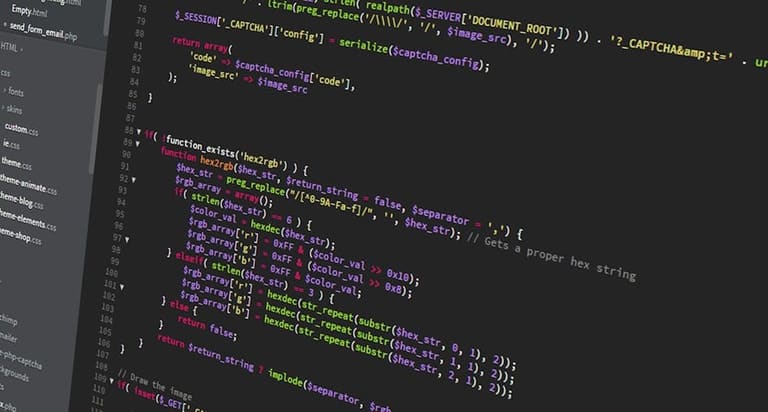
WordPress Debug mode only error detection; performance issues–slow loading, high resource use, poor user experience–also fixable. Detect root cause first. Debug error reports and warnings help identify plugin/theme/custom code causing performance drop.
- Disable/remove unnecessary plugins
- Use lightweight, optimized theme
- Optimize/compress all images
- Use caching plugin
- Clean/optimize database regularly
- Use CDN
Debug mode info–focus on problematic areas, apply suggestions above for better performance. For example, heavy plugin–replace or optimize code. SQL query errors–time to clean & optimize DB. Results: faster site, happier users.
| Issue | Causes | Solution Path |
|---|---|---|
| Slow Load | Heavy images, code not optimized, poor caching | Compress images, code optimize, use caching plugin |
| High Server Load | Too many plugins, heavy traffic, bad theme | Remove extra plugins, beef up server, theme optimize |
| Database Issue | Unused data, unoptimized table, faulty query | Clean DB, optimize tables, fix queries |
| Plugin Clash | Plugin incompatibility/duplicate function | Disable/plugins one-by-one, swap bad plugin |
Performance optimize always test every change. Debug mode shows path; solution requires patience and trial/error. Regular performance tests + Debug mode = top speed, top reliability.
Plugins Clash: ਪਛਾਣ ਤੇ ਹੱਲ
WordPress sites 'ਤੇ plugins clash ਇੱਕ ਆਮ ਪਰ ਵੱਡੀ problem ਹੈ। ਜਦੋ plugins WordPress core ਜਾਂ ਹੋਰ plugins ਨਾਲ ਅਣ-ਅਨੁਕੂਲ ਹੋ ਜਾਂਦੇ ਹਨ–site slow/halt/crash ਹੋ ਜਾਂਦੇ। Identify clash systematic: plan ਮਿਲਾ ਕੇ, stepwise test, solution jaldi milਦਾ।
- Plugins Clash Check
- Backup: Change ਤੋਂ ਪਹਿਲਾਂ site backup ਲਓ
- Disable All Plugins: Problem solve ਹੋਇਆ ਜਾਂ ਨਹੀਂ check ਕਰੋ
- Enable One-by-One: Each plugin enable ਜਾਂ error check ਹੋਏ
- Faulty Plugin Note: Clash/plugin record ਰੱਖੋ
- Plugin Update Check: Update/test
- Alternative Plugin Search: Try similar plugins
Debug mode clash cause pinpoint ਕਰਦਾ ਹੈ। Plugin developer support forum/documentation, patience ਤੇ systematic approach–solution sure shot ਮਿਲਦਾ।
| Scenario | Possible Cause | Solution Path |
|---|---|---|
| White Screen | Plugin PHP error/memory limit | Debug mode ON, stepwise disable plugins |
| Slow Page Load | Multiple plugin same time, bad code | Disable plugins, performance test, caching plugin |
| Settings Conflict | Duplicate function/plugin, DB clash | Settings check, plugin swap |
| Update Issues | Old version not compatible, server errors | Manual update, check server log |
After clash pinpoint–update first. If update fail, contact plugin developer/support. Otherwise, find better alternative plugin. Always backup site/test offline first.
Themes ਤੇ ਗੜਬੜ: ਹੱਲ ਵੇਖੋ
Themes site look/function direct effect ਕਰਦੇ ਹਨ। Theme fault: light visual problem to site crash. Debug mode/tools always diagnose/fix quick. Correct theme working = happy users = secure site.
| Issue Type | Possible Cause | Solution Path |
|---|---|---|
| Visual Fault | CSS clash, missing image, corrupted theme file | Check CSS, reload image, fix/replace theme file |
| Functionality Issue | JavaScript error, plugin clash, theme code faulty | Disable JS/plugins, fix theme code |
| Performance Issue | Heavy files, unoptimized images, DB query | Theme optimize, compress image, optimize DB |
| Compatibility Issue | Old theme, plugin not compatible, WordPress version clash | Theme update, compatible plugin, WordPress update |
- Issue Solving Steps
- Enable debug mode, check error logs
- Browser developer tools (Chrome DevTools, etc.) inspect CSS/JS faults
- Disable plugins one-by-one, check clash
- Switch to default theme (e.g. Twenty Twenty-One), check source
- Check theme files (functions.php, style.css), fix code
- Latest theme update always use
- Consider help from expert developer if stuck
Backup before theme change/repair. Change only code you understand–wrong edit = site down!
Theme Testing
Theme test: create staging site first, experiment new themes/settings; never break live site. If all OK, migrate to real site. Debug mode/browser tools help all along.
Debug: ਸਾਵਧਾਨੀ ਹੋਣੀ ਚਾਹੀਦੀ
WordPress debug careful process: careless debugging brings more problems. Live site 'ਤੇ direct edit/testing–avoid; staging site/test site always preferred. Always backup before edit/test–unexpected hit, restore is possible.
| Care Point | Explain | Importance |
|---|---|---|
| Live Site Avoid | Test only staging | Protect visitor/user experience |
| Backup Essential | Backup every change | Prevent data loss |
| Debug Info Hide | Debug mode only for development | Reduce security risk |
| Stay Updated | Update WordPress/themes/plugins | Block vulnerabilities/incompatibility |
- Key Points
- Live site 'ਤੇ never debug direct
- Backup always before any change
- Debug mode–development/testing only
- Error message fully read/analyze
- If confused–seek expert/forum help
- Always latest theme/plugin use
Debug mode development/testing ਵਿੱਚ ON, live site 'ਤੇ OFF. Debug ON during live = risk/security/performance down. Debugging done–mode OFF. Regular WordPress/theme/plugin updates: prevent future faults.
WordPress Debug ਮੋਡ: ਨਤੀਜਾ ਤੇ ਸਿੱਖ
WordPress Debug ON ਕਰਕੇ error/warning/notice/messages check–root cause trace, solution path build. Message technical, sometimes developer needed, but mostly message tells exact file/plugin/theme–solution within reach.
| Error Type | Explain | Advice |
|---|---|---|
| Warning | No threat now, but future problem | Check code, update/look for fix |
| Error | Site crash, must fix | Analyze message, disable theme/plugin |
| Notice | Minor code fault info | Review code, fix as per standards |
| SQL Error | DB query fault | Check query, confirm DB connect |
- Action Steps
- Note all error messages
- Check affected file/plugin/theme
- Disable suspicious plugin/theme, check effect
- Update/test theme
- Stay on latest WordPress version
- Seek expert/forum help if stuck
Debug mode only diagnostic tool; art is to translate info into effective fix. Never rush. Stepwise–solution always found. Debug done–mode OFF. Security/performance depend on this.
ਸਵਾਲ-ਜਵਾਬ
WordPress Debug ਮੋਡ ਕੀ ਹੈ ਤੇ ਕਿੱਦੇ ਲੋੜੀਦਾ?
WordPress Debug ਮੋਡ site 'ਤੇ ਆਉਣ ਵਾਲੀਆਂ errors/warnings/notices live show ਕਰਦਾ ਹੈ। Development/testing ਵਿਚ fault/fix/compatibility/plugin/theme clash/performance–ਸਭ problem ਦੀ ਜੜ show ਕਰਕੇ solution easy ਕਰ ਦਿੰਦਾ।
WordPress Debug enable ਕਰਨਾ easiest ਤਰੀਕਾ ਕਿੱਦਾ?
wp-config.php open, define('WP_DEBUG', false); to define('WP_DEBUG', true); ਅਦਲਾ-ਬਦਲੀ–log enable define('WP_DEBUG_LOG', true);, screen ਨੂੰ OFF define('WP_DEBUG_DISPLAY', false);–error wp-content/debug.log save ਹੋਵੇ।
Deprecated warnings ਆ ਜਾਂਦੇ–ਇਹ ਕੀ ਹੈ?
Deprecated warnings ਬਹੁਤ ਵਰਤੇ function/system–future WordPress ਨਾਲ support ਨਾ ਰਹੇ; mostly plugins/themes ਤੋਂ ਆਉਂਦੇ–first update, still unresolved–developer/contact/forum/help/alternative plugin/theme try ਕਰੋ।
Site slow–Debug ਮੋਡ ਨਾਲ ਕਿੱਦਾ ਠੀਕ ਕਰੀਏ?
Debug ON, errors/warnings check–SQL/query/plugin reporting–slow plugin/db/problem fix, optimize plugin/theme/db, better hosting try.
Plugins clash–ਕਿਵੇਂ ਪਛਾਣੀਏ? Debug ਮੋਡ ਕਿਵੇਂ help ਕਰੇ?
Plugins clash–unexpected function/error/halt/site break. Debug ON–faulty error message/plugin clearly traceable; disable all, one-by-one enable, problem plugin catch, fix or replace. Always after each enable, check site.
Themes ਤੇ error ਖਾਸ ਹਨ–Debug ਮੋਡ themes ਦੀ problem fix ਕਰਨ 'ਚ ਕਿਵੇਂ ਮੱਦਦ ਕਰੇ?
Debug mode–theme file errors/missing template/CSS clash–all identifiable, error message says which file.fix code/test alternative theme (Twenty Twenty-Three), compare, confirm/fix.
SQL fault ਦੇ solution ਲਈ Debug ਮੋਡ/ਕਿਵੇਂ info catch ਕਰੀਏ?
Debug/SQL errors direct log/screen show–table/column/query syntax info–focus. Log file WP_DEBUG_LOG use, error check in detail.
Debug ਹੁਣ use after–ਕੀ ਕਰੀਏ? ਕਿਸੇ ਵਕਤ OFF ਕਰੀਏ?
Debug use after all errors fix; security/performance ਲਈ, debug mode always OFF (live site). wp-config.php define('WP_DEBUG', false); ਕਰਕੇ OFF ਕਰ ਦਿਆ ਜਾਂਦਾ।