 Afrikaans
 Azərbaycan
 Bosanski
 Čeština
 Dansk
Dansk Deutsch
 English
 Español
 Filipino
 Français
 Hrvatski
 Indonesia
 Italiano
 Magyar
 Melayu
 Nederlands
 Norsk
Norsk Oʻzbek
 Polski
 Português
 Română
 Slovenčina
 Slovenščina
 Suomi
Suomi Svenska
 Tiếng Việt
 Türkçe
 Ελληνικά
 Беларуская
 Български
 Русский
 Српски
 Українська
 עברית
עברית اردو
اردو العربية
 پښتو
پښتو فارسی
فارسی አማርኛ
አማርኛ मराठी
मराठी বাংলা
বাংলা தமிழ்
தமிழ் ไทย
ไทย မြန်မာ
 한국어
한국어 中文
中文 日本語
日本語

WordPress debug mode ဟာ ဝက်ဘ်ဆိုဒ်တွင် တွေ့ကြုံရတဲ့ error တွေဆီအောင် ချက်ချင်း ဖြေရှင်းဖို့ အရေးပါတဲ့ နည်းလမ်းတစ်ခုပဲ ဖြစ်ပါတယ်။ ဒီ blog ဆောင်းပါးမှာ WordPress Debug mode ဆိုတာ ဘာလဲ၊ ဘာကြောင့် တန်ဖိုးရှိသလဲ၊ ဘယ်လို အသုံးပြုနိုင်သလဲ ဆိုတာပြောပြထားပါတယ်။ တန်းတူ error ayiklama နည်းလမ်းများစဥ်ကိုမူလကနေ တိုးတက်လာတဲ့ စနစ်များအထိ, SQL error, performance problem, plugin conflict, theme problem တွေကို ဖြေရှင်းဖို့ strategy တွေအကြောင်းလည်း ရှင်းလင်းထားပါတယ်။ Debug mode အသုံးပြုပုံအရင်းအမြစ်တွေကို ဖော်ပြလိုက်တဲ့အခါမှာ ထိပ်တန်းနည်းလမ်းတွေ ဖြင့် WordPress Debug mode မှာ အကောင်းဆုံးရလဒ်ရရှိအောင် ဘယ်လိုလုပ်နိုင်မလဲ သိရှိနိုင်ပါတယ်။
WordPress Debug Mode ၏ အကြောင်းအရာနှင့် အရေးပါချက်
WordPress debug mode ဟာ web site မှာ error ပါလာတဲ့ အချိန်အခါအစား သိရှိတယ်၊ ဖြေရှင်းတယ်။ Developer၊ tester အဖွဲ့တွေအတွက် ဘယ်လိုယူနောက်မှာမလဲဆိုတဲ့ foundation ဖြစ်ပါတယ်။ Debug mode မှာ PHP error, warning နဲ့ notice ကို ပြသပေးတာကြောင့်, code ထဲမှာ potential problem တွေကို စလုံးစလိုပဲ သိရှိနိုင်ပါတယ်။ User တွေကို live site မှာ face ဖြစ်နိုင်တဲ့ issue တွေကို နောက်နေတုန်းမှာပဲ ပြင်ဆင့ ်နိုင်ပါတယ်။
WordPress debug mode ကို သုံးသပ်ခြင်းက error သာမက၊ WordPress core, theme, plugin အစိပါရင် warning တွေ ကိုလည်း ပြသတယ်။ ဒီ warning တွေက future performance problem, security risk တွေ ဖြစ်လာနိုင်တဲ့ အခြေအနေတွေကို ဦးယူသတိထားဖို့ လုပ်ခိုင်းတဲ့ signal ပါတယ်။ Debug mode ကို ON နဲ့ warning တွေ ကို စစ်ပြီး site ကို optimize ပြင်လို့ ရပါတယ်။ WordPress debug mode ဟာ အမြင့်ဆုံး website stability, long-term success အတွက် အရေးကြီးသော tool တစ်ခုလည်း ဖြစ်ပါတယ်။
- WordPress Debug Mode အသုံးပြုခြင်း၏ အကျိုးကျေးဇူး
- Error, warning ကို မျက်နှာချင်းဆိုင် သိစေရန်
- Performance ဖြစ်စေတဲ့ ပြဿနာကို သိနိုင်ပါလာမယ်
- Plugin, theme conflict ကို လွယ်ကူတောင်းနိုင်ပါလာမယ်
- PHP error, warning တွေကို live မျက်နှာပြင်မှာ display လုပ်နိုင်
- Development speed ကို မြန်ဆန်စေတယ်
- User experience ကို ပိုမိုကောင်းသွားစေတယ်
Debug mode က error ကြုံတဲ့ file, line, error type ကို ရှင်းပြပါတယ်။ Error ကို locate လုပ်ပြီး လျှောက်သွားတဲ့ နောက်တော်ကို လုပ်နိုင်ဖို့ short-cut ဖြစ်ပါတယ်။ Plugins, themes ကို WordPress standard ကိုလိုက်နာသလား စစ်နိုင်ပါတယ်။ အကောင်းဆုံး standard ကိုမလိုက်နာရင် site security နဲ့ performance အတွက် အကျိုးမရှိဘူး။
WordPress debug mode ကို သုံးစွဲစဉ်, error message ကို သိမြင်ရတဲ့အခါ, အဖြေတော်တွေ မွန်မြန်ချိန်စွယ်နိုင်ဖို့ သတိထားတာ အရေးကြီးပါတယ်။ Live site ပေါ်မှာ debug mode ကို ON ချင်လိမ့်မ, security risk ဖြစ်လာနိုင်ပါတယ်။ Site ကို test / staging environment မှာ အသုံးပြုပြီး error များကို ဖြေရှင်းပြီး debug ကို ချင်းလိမ့်သည့်အခါ ခွင့်ပြုပါတယ်။
| Feature | Description | Importance |
|---|---|---|
| Error Detection | PHP error, warning, notice တွေကို ပြသပေးတယ် | Site stability အတွက် တွေ့ရှိရန် |
| Warnings Display | WordPress core, theme, plugin generated warning တွေကို ပြပေးတယ် | Performance အားနည်းမှု သတိပေးပါတယ် |
| Detailed Info | Error message နှင့် source file, row number ပါသည်။ | Fast solution ရှာဖွေရန် |
| Security | Live site မှာ debug mode ON ထားတာ မလုပ်သင့် | Security vulnerability မဖြစ်အောင် |
WordPress Debug Mode ကိုဖွင့်လှစ်ဖို့ နည်းလမ်းများ
WordPress debug mode ကို ဖွင့်လှစ်တာကြောင့် error ဖြစ်ပေါ်တဲ့လုပ်ရပ်တွေ နောက်ဆုံးလမ်းကို တစ်ခုစီဖြစ်ပါတယ်။ Debug mode ကို active လုပ်ဖို့ နည်းလမ်းနဲ့ skill level ကိုသိရမယ်။
WordPress debug mode ကို activate ချင်လိမ့်မဆုံး, wp-config.php file ကို edit လုပ်သင့်ပါတယ်။ ဒီ file ဟာ WordPress site configuration setting မှနေရတယ်၊ debug mode မှာ require တာတွေ ပြင်နိုင်တယ်။ File ကို edit လုပ်မယ်ဆိုရင် backup ယူတာမမေ့ပြီး သတိထာပေးပါတယ်။
| Constant Name | Value | Description |
|---|---|---|
WP_DEBUG |
true / false |
WordPress debug mode ON/ OFF |
WP_DEBUG_LOG |
true / false |
Error message log file ပြုလုပ် |
WP_DEBUG_DISPLAY |
true / false |
Error message ကို မျက်နှာပြင်ပေါ်မှာ ပြ/မပြ |
SCRIPT_DEBUG |
true / false |
WordPress နှင့် plugin development version ကို သုံးနိုင် |
Eklentiler (plugin) မှတစ်ဆင့် debug mode ကို activate လုပ်နိုင်ပါတယ်။ Coding သုံးဖို့ ကြိးစားတဲ့သူတွေထားလို့ အလွယ်တဲ့ option များတစ်ခုဖြစ်ပါတယ်၊ user-friendly UI နဲ့ မျက်နှာဖက်အတွက်ဖြစ်ပါတယ်။ Plugin ကို အသုံးပြုမိုးမ, trustworthiness နဲ့ update လုပ်ထားရန်မမေ့ပါနှင့်။
Activate ချင်လိမ့်မ Steps
- FTP client, file manager တစ်ခုသုံးလိုက်ပါ။
- Site main directory မှ
wp-config.phpကို အသားပလော့ပါ။ - File ကို download ပြီး text editor ဖွင့်ပါ။
- “define( 'WP_DEBUG', true );” code ကို ထည့်ပါ။
- Log file မှေးချင်လိမ့်မ “define( 'WP_DEBUG_LOG', true );” ထည့်ပါ။
- Error display ဖို့ “define( 'WP_DEBUG_DISPLAY', true );” ထည့်ပါ။
- Save လုပ်ပြီး server တင်ပါ။
Debug mode ON ဖြစ်လိမ့်မ, error info တွေ ပေါ်လာမယ်။ Sensitive info ပါလာနိုင်တဲ့တော့ security leak မဖြစ်အောင် လုပ်ပြီးရင် OFF လုပ်ပါ။ Development/ testing environment မှာသာ အသုံးပြုပါ။ Live site မှာ avoid လုပ်ပါ။
Error ဖြေရှင်းခြင်း — ကြုံတွေ့လေ့ရှိသောပြဿနာများ
WordPress debug mode မှာ error ဖြစ်တာ detect & fix လုပ်တာ ထွက်ပါတယ်။ အောင်မြင်တဲ့ debug process တစ်ခုလုပ်ဖို့ common problem တွေကို သိရှိပြီး ဘယ်လို strategy နဲ့ ဖြေရှင်းစေတယ်ဆိုတာ ကြည့်ပါ။
| Problem Type | Description | Possible Solution |
|---|---|---|
| White Screen of Death | Site လုံးဝဖြစ်ပြီး blank ဖြစ်နေတဲ့ မျက်နှာပြင်။ | Plugin disable လုပ်ပါ၊ theme change လုပ်ပါ၊ memory limit တိုးချင်လိမ့်မ။ |
| PHP Error | PHP code problem ကြောင့် warning & error ဖြစ်လာသည်။ | Error message ကို ခုခံပြီး, relevant code fix ထာ်ဖို့ သေချာလုပ်ပါ။ |
| Database Connection Problem | WordPress ဘက် database ကို ချိတ်ဆက်မလို့ မဖြစ်သည့။ | wp-config.php database info ကို တစ်ခါချင်းကြည့်ပါ၊ database server အား online ဖြစ်စေဖို့ ကြည့်ပါ။ |
| Plugin Conflict | Plugin နှစ်ခု/အများစုတစ်ခုနှင့် ယှဉ်လျှောက်မှုမတည့်။ | Plugin ကို တစ်ပဲတစ်စဥ် disable လုပ်ပြီး conflict ဖြစ်တဲ့ plugin ကို detect လုပ်ပါ။ |
Debug process မှာ patience နဲ့ systematic approach ကို ဘယ်သူမဆို သွားဖို့တော့၊ step-by-step သေချာစီတာပြီး error message ကို meaningfully interpret လုပ်ဖို့လုပ်ပါ။
- Common Issues & Solution
- White Screen: All plugins ကို disable လုပ်ပြီး theme ကို default theme ပြောင်းပါ။
- PHP Errors: Error line ကို locate လုပ်ပြီး fix လုပ်ပါ။
- Database Connection: wp-config.php db info ကို သေချာကြည့်ပါ။
- Plugin Conflict: Plugins ကို တစ်ပဲတစ်စဥ် disable လုပ်ပြီး culprit ကို သိရှိပါ။
- Theme Problem: Default theme လုပ်ပြီး theme problem ကို confirm လုပ်ပါ။
Debug mode ဖြင့် log file, error လေ့လာနေမည်လဲ အမြဲသတိထားပါ။ Error အမျိုးအစားတစ်ခုချင်းစီအတွက် handling နည်းလမ်းများကို တိုက်စားလေ့လာပြဿနာ ဖြေရှင်း skill တိုးတက်စေသည်။
Error Message အမျိုးအစား
Error message တွေဟာ တန်ဖိုးအရ တစ်ထောင်တန်ပဲ။ ထဲမှာ file name, row, problem type ကို ပြပေးတယ်။ Developer များအတွက် solution shortcut တစ်ခုပါ။
Performance အားနည်းမှုများ
Debug mode ON ဖြစ်ပေါ်တဲ့အခါ site speed မှာဟန္ထိရောက်နိုင်တယ်။ Debug operation လုပ်ပြီးတာ debug OFF လုပ်ပါ။ Performance ပျော့နေစေနိုင်တဲ့ factor တွေမှာ inefficient code, oversized image, plugin overload အစရှိပါတယ်။
“Debug ဆိုတာ မသွားလို့မတတ်တဲ့ error ကို ဖြေရှင်းနိုင် တွေ့နိုင်ခြင်းသာမက code quality ကောင်းတိုးခြင်းအတွက် best opportunity ပါ”
ထူးခြားသော Error Prevention ပုံစံများ
WordPress debug process မှာ advanced technique နဲ့ error prevention လုပ်ရင် site stability တိုးတက်စေတယ်။ Coding standard ကိုလိုက်နာပြီး security scanning regular လုပ်သို့, WordPress ကို malware တွေရဲ့ vulnerability မဖြစ်စေပါ။ Git နဲ့ version control tool ကို သုံးနေရင်, code bug တွေကို fast detect & fix ဖြစ်ပါတယ်။
- Recommended Techniques
- Code standard လုပ်ဖို့၊ audit regular လုပ်ဖို့
- Git version control နဲ့ code change management
- Automated testing နဲ့ function စစ်ထာ်ဖို့
- Security scan, patch regularly
- Performance monitoring tool တွေ သုံးပြီး bottleneck သိလုပ်
- Database optimize လုပ်ဖို့
WordPress development process မှာ အောက်ပါ advanced error prevention tools တစ်ခုပေးပါတယ်။
| Tool/Technique | Description | Benefit |
|---|---|---|
| PHP_CodeSniffer | Automatic coding standard check | Consistent coding style, readable code |
| WP-CLI | Command line အနေနဲ့ WordPress management & debug | Automation & quick action |
| Xdebug | PHP advanced debugger | Step debugging, variable watch |
| New Relic | Performance monitoring & analytics | Bottleneck detect, performance fix |
Automated test (unit/integration/function test) တွေကို fallback & safety net တစ်ခုအနေနဲ့ စာလုံးမသာထားနိုင်ပါတယ်။ Continous integration, early bug detection ကို support ပေးဖို့ automated test ကို project process တွင် ပါဝင်စေပါ။ Reliability, efficiency တစ်ခုအနေနဲ့ uptime boost ဖြင့်၊ site solution ထုတ်ပါတယ်။
Advanced error prevention technique တွေကို implement လုပ်တဲ့အခါ, WordPress site long-term security, performance, user-friendly တိုးတက်စေပါတယ်။
SQL Error Debug နည်းလမ်းများ
WordPress debug mode မှာ PHP error သာမက database (SQL) problem ကိုလည်း detect လုပ်ပေးပါတယ်။ SQL error source တွေမှာ wrong query, missing table, data type mismatch စသည်ဖြစ်ပါတယ်။ Debug လုပ်ဖို့ strategy, tool ကိုသုံးပါ။
| Error Type | Possible Cause | Solution Suggestion |
|---|---|---|
| Syntax Error | Wrong SQL command, missing comma | Query careful check, syntax guide use |
| Table/Column Missing | Misspelled table or column name | Check database schema, correct name |
| Data Type Mismatch | Wrong value insert in field | Check data type, use CAST function |
| Unique Constraint Error | Duplicated value insert | Check unique field |
SQL error ကို debug လုပ်တဲ့အချိန်, error message ကို careful read လုပ်ပြီး, query ကို step by step check လုပ်ပါ။
- SQL Error Debug Steps
- Error message ကို review လုပ်ပါ။
- Problematic SQL query ကို identify လုပ်ပါ။
- Query ကို small section သီးသန့် တာ်တား test လုပ်ပါ။
- Database schema ကို check လုပ်ပါ။
- Parameter variable value ကို correct လုပ်ပါ။
- Optimize or rewrite ဖို့ လုပ်ပါ။
WordPress debug mode မှာ culprit plugin, theme ကို root cause detect လုပ်နိုင်တယ်။
Database Control
Database control ဟာ SQL error debug process အတွက် key ပါ။ Table, column, relation, data type ကို လုံခြုံအပ်စေပါ။
Query Analysis
Query analysis မှာ syntax, logic, performance factor ကို ရှင်းရှင်းလင်းလင်း check လုပ်ပါတယ်။ Optimization မှာ unnecessary JOIN, index usage ဆိုင်ရာ တွေ optimize လုပ်နိုင်ပါတယ်။
Performance Optimize နည်းလမ်းများ
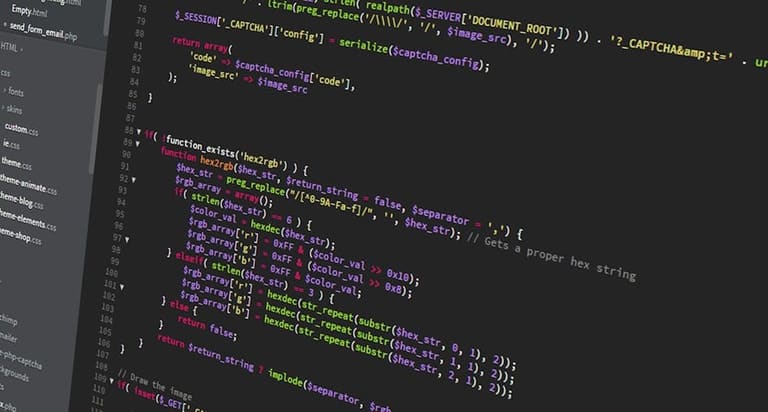
WordPress debug mode မှာ performance issue (slow loading, server overload, bad UX) တွေကို troubleshoot လုပ်ဖို့ critical tool တစ်ခုပဲ။ Problem source ကို debug mode မှာ detect လုပ်ပါ။ ဝင်စဉ်, eklenti ရဲ့ SQL query problem, code fragment တွေကို detect လုပ်နိုင်ပါတယ်။
Performance Improvement Solutions
- Unnecessary plugins ကို disable or remove
- Lightweight/optimized theme ကို select
- Image compression, optimization
- Caching plugin usage
- Database cleanup & optimization
- CDN usage
Debug mode detect လုပ်တဲ့ culprit area များကို data driven optimize လုပ်ပါ။ Example: heavy plugin ကို lightweight upgrade/optimize, problematic SQL queries ကို database optimize လုပ်ပါ။
| Problem Type | Possible Cause | Solution |
|---|---|---|
| Slow Load | Large image, inefficient code, weak cache | Image optimization, code improvement, use cache plugin |
| Server overload | Too many plugins, heavy traffic, bad theme code | Remove plugins, upgrade server, optimize theme |
| Database Problem | Useless data, unoptimized table, error query | Database cleanup, table optimize, query fix |
| Plugin Conflict | Incompatible plugins, duplicate function | Test plugin one-by-one, remove or change plugin |
Performance optimize process မှာ patience, trial & test pattern လုပ်ပါ။ Debug mode မှာ valuable info တွေ detect/resolve လုပ်နိုင်ပါတယ်။ Regular performance test နဲ့ debug mode ကို ON/ OFF ဖြစ်အောင် site uptime, speed time ကို boost လုပ်နိုင်ပါတယ်။
Plugin Conflict ကို သိရှိနိုင်မှု
WordPress site မှာ error အများစုဟာ plugin conflict/ incompatibility ပါ။ Plugin conflict မှာ site crash, speed down, unexpected error ဖြစ်စေနိုင်တယ်။ Debug mode နဲ့ systematic eklenti testing လုပ်ပါ။
- Plugin Controlled Test Steps
- Backup site — change လုပ်မချိန် backup မကျန်
- All plugin disable — problem exists or not test
- Plugin one-by-one enable — check site after each enable
- Culprit plugin note down
- Plugin update test
- Try alternate plugin same functionality
Plugin conflict detection လုပ်ဖို့ WordPress debug mode & support forum တွေကို reference လုပ်ပါ။ Patience မှ့လုပ်တိုင်း success အချက်များသို့ ရောက်နိုင်ပါတယ်။
| Scenario | Possible Reason | Solution |
|---|---|---|
| White Screen | Plugin PHP error, memory limit exceed | Debug mode ON, one-by-one plugin test |
| Slow Load | Parallel plugin, inefficient code | Plugin test, cache plugin add |
| Plugin Setting Incompatible | Duplicate functionality, db conflict | Setting check, plugin swap |
| Update Problem | Old version, server error | Manual update, check server log |
Conflict plugin ကို update/test ပြီး error persist လိမ့်မ developer contact လုပ်ပါ။ Alternative plugin, backup restore, test environment ယူပါ။
Theme Error ဖြေရှင်းနည်း
WordPress themes ဟာ site look & functionality ကို direction ပေးပါတယ်။ Theme based error တွေဟာ CSS သို့ JavaScript bug, blank screen, crash ဖြစ်စေနိုင်တယ်။ Debug mode, browser developer tool ကို use လုပ်ပါ။
| Type | Possible Cause | Solution |
|---|---|---|
| Visual Error | CSS conflict, missing images, corrupt theme file | Check CSS, re-upload images, repair theme files |
| Function Error | JavaScript bug, plugin conflict, theme code bug | Disable JS, disable plugin, fix theme code |
| Performance | Heavy file, unoptimized images, SQL queries | Optimize theme, compress image, optimize database |
| Compatibility | Old theme, plugin incompatibility, WordPress version mismatch | Theme update, compatible plugin, WP update |
Theme error symptom တွေမှာ broken layout, function not working, slow load တို့ဖြစ်တယ်။ Debug mode ကို ON ဖြင့် error log ကို မြင်နိုင်ပါတယ်။ Chrome DevTools, Firefox Developer Tools နဲ့ CSS / JS error ကို inspect လုပ်ပါ။
- Theme Error Solution Steps
- WordPress debug mode ON လုပ်ပြီး error message check လုပ်ပါ
- CSS/JS developer tools သုံးပြီး error detect
- Plugins disable one-by-one conflict test
- Default theme switch လုပ်ပြီး core theme compare
- Theme file (functions.php, style.css) check & fix
- Theme update
- Expert developer call
Theme edit, backup keep, coding careful. Wrong edit site crash ဖြစ်နိုင်တယ်။
Theme Try/Test ပုံစံများ
Theme try/test ကို staging/test environment မှာ အသုံးပြုပေါင်။ Live site ကို direct edit မလုပ်ပါ။ Test site မှာ new theme install, customize, plugin compatibility test လုပ်ပါ။ Everything OK ဖြစ်ရင် live site ဘက် apply လုပ်ပါ။
Debug mode & browser tool တို့ theme error diagnose & fix မှာ support ပေးပါတယ်။
Debug လုပ်ချိန် သတိထားလုပ်ရမယ့် အချက်များ
WordPress debug process မှာ careful approach သေချာထားမယ်။ Live site မှာ direct debug မလုပ်ပါ။ Staging/test environment မှာ debug/job လုပ်ပါ။ မလုပ်ခင် backup တစ်ခါယူပါ။
| Caution | Description | Why Important |
|---|---|---|
| Avoid Live Site | Use staging/test site | Protect UX |
| Backup Before Change | Take backup before edit | Keep data safe |
| Hide Debug Info | Use debug mode only dev/test | Reduce security risk |
| Stay Updated | Keep WP, theme, plugin up-to-date | Prevent vulnerability, incompatibility |
- Key Points
- Live site direct debug အွန်တယ် avoid
- Backup always
- Debug mode only on dev/test
- Carefully error message read/interpret
- Expert/forum လို့ help
- Theme/plugin always update
WordPress debug mode Dev/test တစ်ခါပြုလုပ်လိုက်တာ live site မှာ security/problem ဖြစ်နိုင်တယ်။ Error fix ဖြစ်ရင် debug OFF လုပ်ပါ။ Regular update site ကို bug free, stable, secure ဖြစ်စေတယ်။
WordPress Debug Mode နောက်ဆုံး ယူနိုင်သော လုပ်ရမည့် အချက်များ
WordPress debug mode ON ဖြစ်ပြီး error/warning/notice ကို careful reviewပါ။ Message တွေကို technical ကျွမ်းကျင်သော knowledgeနဲ့ interpret လုပ်ပါ။ Error message မှာ culprit file/plugin/theme ကို indicate လုပ်ပါတယ်။
| Error Type | Description | Solution |
|---|---|---|
| Warning | Minor, future problem warning | Check code, update |
| Error | Critical, site stop problem | Analyze error, disable plugin/theme |
| Notice | Minor coding issue info | Check/fix code, standard enforce |
| SQL Error | Database query problem | Check query & db connection |
- Debug Resolution Steps
- Error message careful read/note
- Locate affected file/plugin/theme
- Suspect plugin temporary disable/test
- Theme update/default test
- WordPress update check
- Forum/expert help
Debug mode မင်္ဂလာတယ်, error detect မင်္ဂလာတယ်။ Analysis, fix အားဖြင့် site uptime/down-timeကို schedule တစ်ခုနှုန်း optimize လုပ်နိုင်ပါတယ်။ Debug mode fix finished, error clear ဖြစ်ရင် debug ကို OFFတော့ဖြစ်ပါတယ်။ Security, performance စီမံအလေးထားပါ။
မေးခွန်းများ (FAQ)
WordPress Debug Mode ဆိုတာ ဘာလဲ၊ ဘာကြောင့် အရေးကြီးသလဲ?
WordPress Debug Mode ကို အသုံးပြုခြင်းဟာ site error, warning, notice detect & fix ကို support ပေးပါတယ်။ Development/test နဲ့ compatibility/ performance fix ရေးမှာ critical tool ပါ။
Debug mode ON/activate လုပ်နည်းအလယ်ဆုံးနည်းပေါင်းဘာလဲ၊ ဘယ် file ကို edit လုပ်မလဲ?
wp-config.php file ကို open/ editလုပ်ပါ။ define('WP_DEBUG', false); ကို define('WP_DEBUG', true); ပြန်သွား။ error log ဖို့ define('WP_DEBUG_LOG', true);, error hide display ပါလို့ define('WP_DEBUG_DISPLAY', false); စသည်ဖြစ်။ Log file ဟာ wp-content/debug.log မှာ store ဖြစ်ပါတယ်။
'Deprecated' warning message ကို မကြာခဏတွေ့နေရပါတယ်။ ဘာကြောင့်ဖြစ်ပြီး, fix နည်းနည်းလေး?
'Deprecated' ဆိုတာ future version မှာ remove/ not support function, feature ပါ။ Mostly plugin/themeရေပ၌။ Plugin/theme update လုပ်ပြီး, fix မဖြစ်ရင် developer contact or alternative use လုပ်နိုင်ပါတယ်။
Site speed ပျော့နေတာ၊ Debug mode ဖြင့် diagnose လုပ်ဆိုရမည်?
Debug mode ONက error/warning detect. SQL query/problematic plugin ကို fix/update လုပ်ပါ। Database clean, plugin optimize, hosting upgrade နည်းလမ်းလေး ကိုသုံးပါ။
Plugin conflict သွားမယ်ဆိုရင်, debug mode မှာ ဘယ်လို detect/ handle လုပ်မလဲ?
Debug mode ONရသော error, warning မှ culprit plugin ကို detect. Plugin disable/enable one-by-one, site check. Forum/support တွေသုံးပါ။
Theme-based error တွေကို debug mode မှာ fix လုပ်နည်း?
Debug mode ON error, warning message ဖြင့် functions.php, style.css, template error detect. Chrome DevTools debug ဖြင့် CSS/JS problem fix. Default theme switch ဖြင့် culprit theme confirm. Update or fix.
SQL error တွေရဲ့ debug mode usage & focus point
Debug mode logfile or screen မှ SQL error detect. Table/ column name, syntax, query, connection ဖြစ်နေတယ်။ WP_DEBUG_LOG usage ဖြင့် SQL error monitor & fix.
Debug mode usage နောက်မှာ, ဘာတွေသတိထားရမလဲ၊ ဘယ်တော့ OFF လုပ်သင့်သလဲ?
Debug mode ON ပြီး error clear မခဲ့ရင် OFF မလုပ်ပါ။ Error fix finished, security/ performance optimize မှ debug OFF မှာ။ wp-config.php define('WP_DEBUG', true); ကို 'false' ပြောင်းပါ။